Upscale
Upscale an image to 4K or 8K for print, posters, wall art and t-shirts. Increase resolution and sharpness with the Upscale app, on a Studio layer, or as you download.
Upscaling makes an image larger and adds detail so it stays sharp. Use it to get a high-resolution file for printing posters, wall art, t-shirts and other print-on-demand products, or to enlarge a small or blurry photo. You can do it in three places:
2x, 4x or 8x, or 1K/2K/4K with Gemini 3 Pro
You want to choose the upscaler and its settings
The Upscale app needs a paid plan or bought credits. The other two need a paid plan. Without a plan, buy credits and use the Upscale app.
The app's Scale multiplies each side: a 1,024-pixel-wide image at 4x comes out 4,096 pixels wide, about 4K. The download menu names sizes by result (4K) instead. In the app and in Studio, no result can pass 8192×8192 pixels, so large images may not offer every size.
The Upscale app
Open it
On an image page, click Upscale. The app opens with the image loaded.
Open an image's … menu (in Assets, or an app's My assets tab) and choose Upscale under Use.
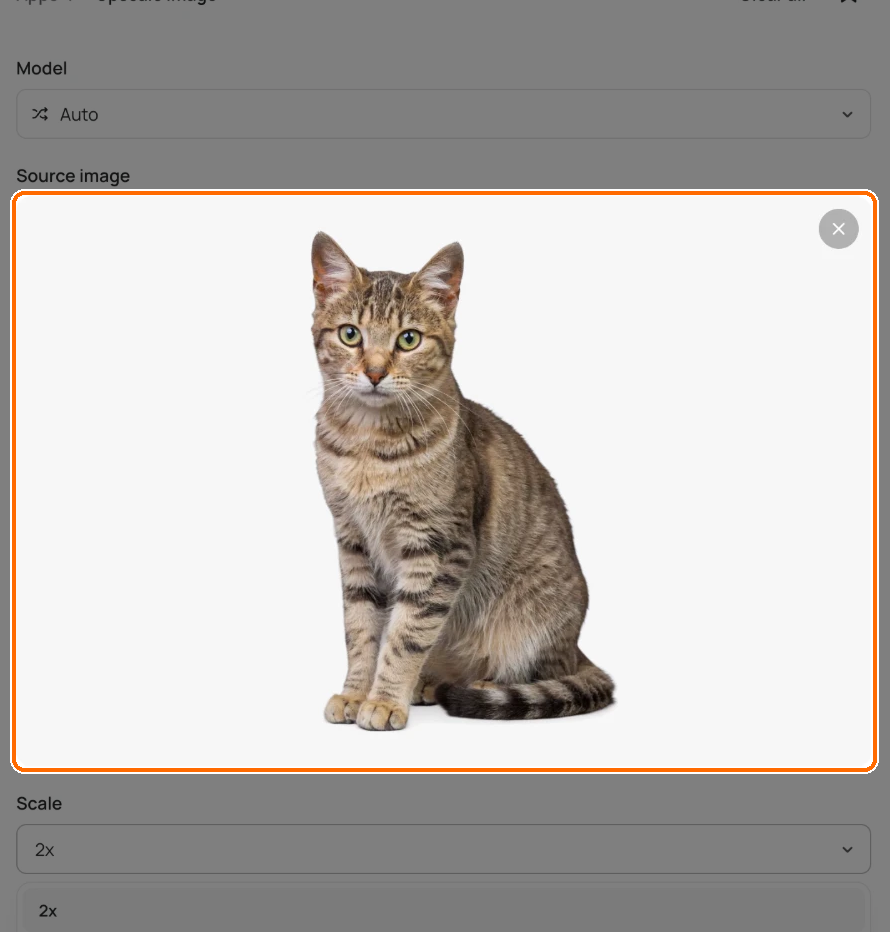
Open Apps and search for Upscale. Under Source image, click + Add to upload an image or choose one you already have.
Steps
Check the Source image. If the box is empty, click + Add.

Make sure this is the image you want bigger. Pick an upscaler in the model picker, or leave it on Auto.
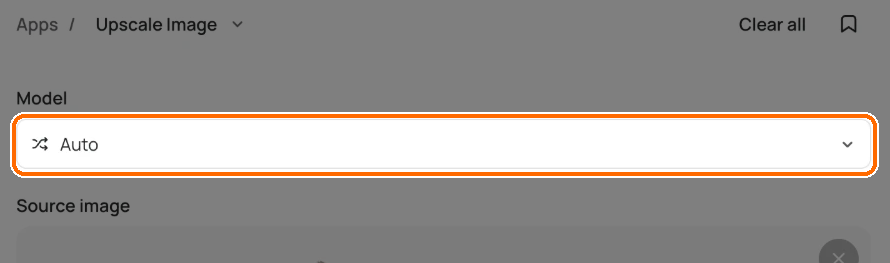
Leave Model on Auto, or pick an upscaler. Set Scale to 2x, 4x or 8x (default 2x).
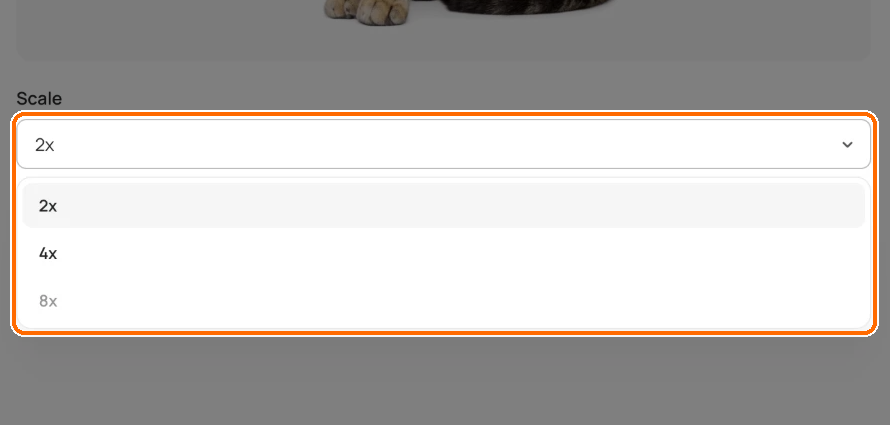
Pick a size. Sizes too big for this image are greyed out. Click Upscale. The button shows the cost first. See how credits work.

The button shows the cost before you click.
Sizes past 8192×8192 are greyed out in Scale. Under the menu you'll see "Up to Nx for this image." If even 2x is too big, the app tells you the image can't be upscaled.
Upscalers
With Auto, Ideogram picks the upscaler and you only see Source image and Scale. Pick a named upscaler when you want more control. The list today:
Topaz Bloom 2
Topaz Standard 2
Topaz Redefine
Topaz Text Refine
Topaz Wonder 3.5
Gemini 3 Pro
Each adds its own settings:
Topaz Bloom 2
Creativity ("Low stays faithful; high invents detail."), Prompt, Keep colors
Topaz Redefine
Creativity (1 to 9), Prompt, Auto prompt, Texture (1 to 5), Detail pass with Detail strength, plus face, sharpen and denoise controls
Topaz Standard 2 and Topaz Text Refine
Strength (Auto lets Topaz judge each image), face enhancement, Sharpen, Denoise, Fix compression ("Removes JPEG blockiness and banding."), subject detection
Topaz Wonder 3.5
Enhancement strength: Low, Medium or High
Gemini 3 Pro
Resolution 1K, 2K or 4K in place of Scale, and a Prompt. Only sizes larger than your image can be picked.
To keep text in an image crisp, try Topaz Text Refine. To have the upscaler invent fine detail, raise Creativity on Topaz Bloom 2 or Topaz Redefine.
Upscale a layer in Studio
In Studio, select an image layer.
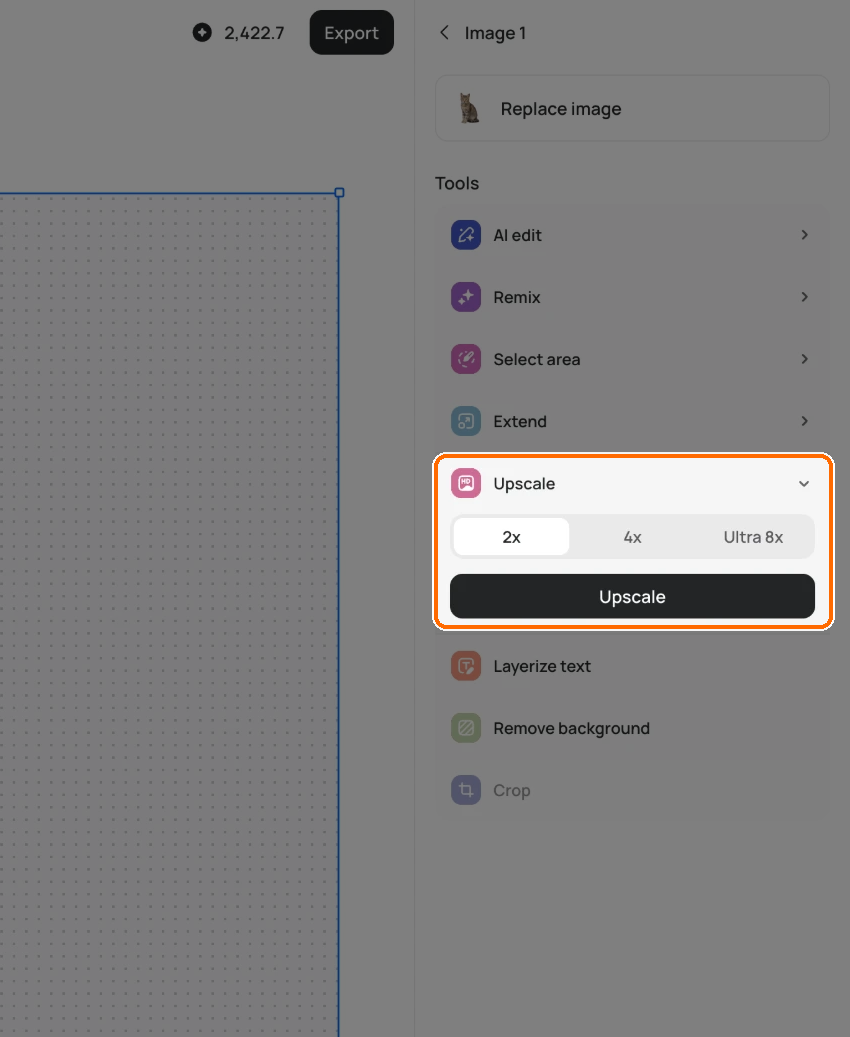
Under Tools in the right sidebar, choose Upscale.
Pick 2x, 4x or Ultra 8x (default 2x). Sizes that would pass 8192×8192 are greyed out.
Click Upscale.

Select a layer, open Upscale, pick a size and click Upscale.
The layer changes in place, so you can keep editing at the larger size. This needs a paid plan.
Upscale as you download
On an image page, click Download.
Under Size, pick a size tagged "(Upscale)". Sizes tagged "(Original size)" need no upscale.
The button changes to Upscale & download and shows the cost. Click it.
In Studio, click Export instead of Download.
If the button says Subscribe to download, that size needs a paid plan. For file types and the rest of the menu, see Downloading images.
Last updated