> For the complete documentation index, see [llms.txt](https://docs.ideogram.ai/llms.txt). Markdown versions of documentation pages are available by appending `.md` to page URLs; this page is available as [Markdown](https://docs.ideogram.ai/get-started/account-settings.md).
# Account Settings
Update your Ideogram display name, manage muted creators, choose a theme, or delete your account. Find the correct settings page and fix a display-name save that fails.
Use the **Account** page in Settings to change your display name, manage muted creators or delete your account. Your display name is separate from your fixed **Username** (@handle). Billing, team membership and developer access have their own pages, with availability based on your workspace and role.
## Open Settings
1. Click your avatar at the bottom left of the sidebar to open the user menu.
2. Click **Settings**.
The **Account** tab opens first. Other pages depend on your workspace and role:
* **Wallet & Billing** manages personal or organization funding. In an Enterprise agreement, this page is called **Billing**. See [Billing & Subscriptions](/plans-and-billing/billing-and-subscriptions.md).
* **Plans** shows subscriptions and credit options where available.
* **Team** shows the member roster. Everyone on a Team plan can view it; Enterprise and prepaid API workspaces limit it to owners and admins.
* **Groups** lets Enterprise owners and admins manage groups for collection sharing. See [Enterprise Groups](/plans-and-billing/groups.md).
* **API Overview** and **API Keys** manage developer access. **Usage** appears for eligible organization managers, and **Usage costs** lists operation prices. See [Ideogram API](/plans-and-billing/ideogram-api.md).
If your API pages open in a separate developer platform, use its navigation and workspace switcher. The [Tour of the App](/get-started/tour.md) explains the app layouts.
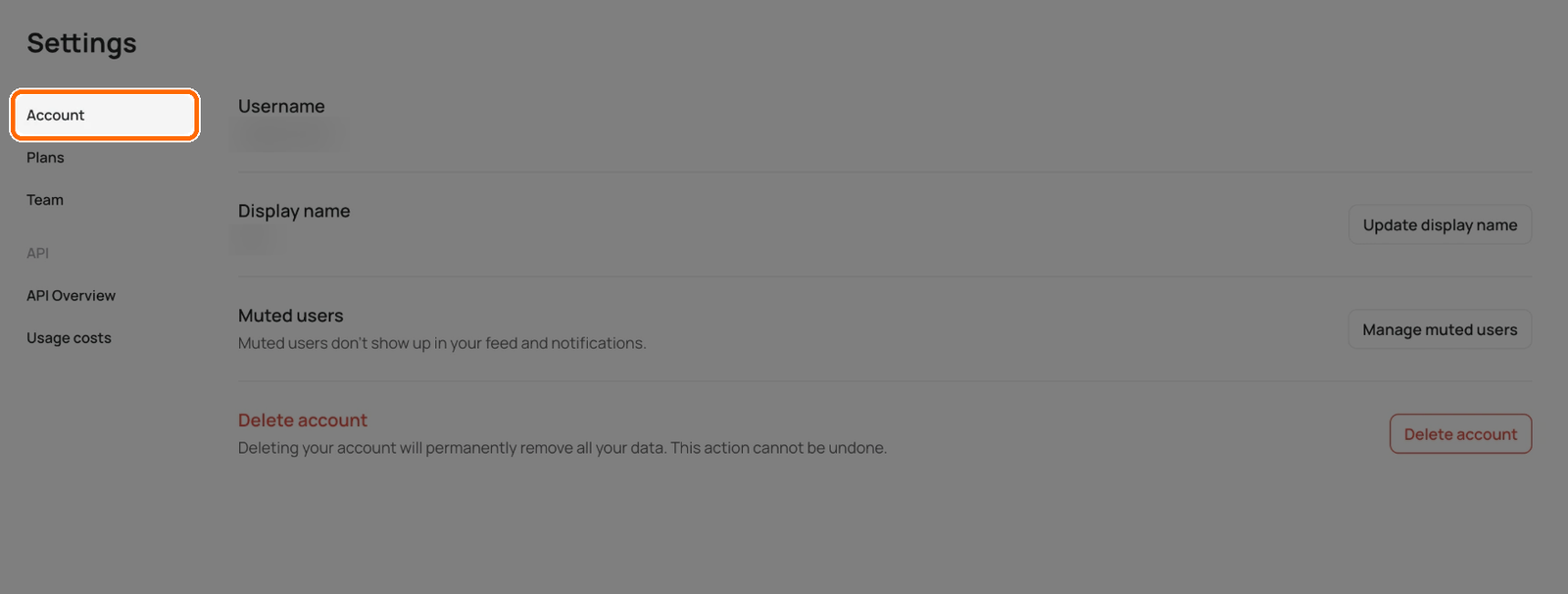
The Account tab opens first.
## The Account tab
| Row | What you can do |
| ------------------ | ------------------------------------------------------------------------------------------------------------------------------- |
| **Username** | See your @handle. You can't change it here. |
| **Display name** | Click **Update display name** and enter a new name of up to 50 characters. |
| **Muted users** | Click **Manage muted users** to see who you muted and **Unmute** them. Muted users don't show up in your feed or notifications. |
| **Delete account** | Remove your account and all its data. See below. |
### Change your display name
1. Open **Settings** on the **Account** tab.
2. Next to **Display name**, click **Update display name**.
3. Enter a new name of up to 50 characters.
4. Select **Update**, or press **Enter**, to save. **Cancel** closes the form without saving your draft.
The character counter shows the limit. **Update** stays disabled until the saved name has loaded, you have changed it, and the new value is within the limit. After saving, you'll see **Your display name has been updated.**
If **Couldn’t save your display name. Please try again.** appears, the change has not been confirmed. Keep the form open, check the name and retry. Changing this field does not change the username shown above it.
### Mute someone
1. Go to the person's profile or one of their images.
2. Click **Mute creator**.
They won't know you muted them. Muted users don't show up in your feed or notifications.
### Unmute someone
1. Open **Settings** on the **Account** tab.
2. Next to **Muted users**, click **Manage muted users**.
3. Find the person and click **Unmute**.
## What isn't in Settings
Settings has no fields for your email, password, profile picture or notification preferences. You can't change your profile picture at the moment. You sign in with the method you chose at sign-up, so there is no password to change for Google, Apple, Microsoft or SSO accounts. If you use email and forget your password, click **Forgot password?** on the sign-in screen.
You can't change the email on your account, and support can't change it for you.
## Delete your account
Deleting your account permanently removes all your generations and data. You can't undo it. This action applies to the signed-in account; it is not a way to remove only one image, collection or team membership. Use [Library](/organize-and-share/assets.md), [Collections](/organize-and-share/collections.md) or [Team](/plans-and-billing/team-plan.md) for those narrower changes.
{% hint style="warning" %}
If you have a subscription, [cancel it first](/plans-and-billing/billing-and-subscriptions/cancelling-your-subscription.md). Deleting the account cancels it only at the end of your current subscription period.
{% endhint %}
{% stepper %}
{% step %}
### Open the Account tab
Open **Settings** and stay on the **Account** tab.
{% endstep %}
{% step %}
### Start the deletion
Under **Delete account**, click **Delete account**.
Click Delete account.
{% endstep %}
{% step %}
### Confirm
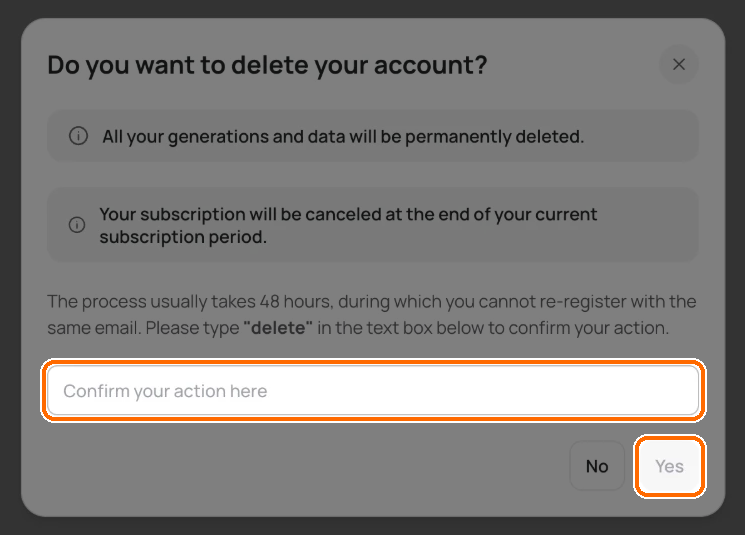
1. Read the warning.
2. Type **delete** in the text box.
3. Click **Yes**.
Type delete, then click Yes.
{% endstep %}
{% endstepper %}
Ideogram signs you out a few seconds later. Deletion usually takes about 48 hours. In that time you can't sign up again with the same email. If the app instead shows **Failed to delete account, please try again later**, the deletion request did not complete successfully; retry later or [contact support](/help/support.md).
## Theme
Pick light or dark mode from the user menu, not Settings:
1. Click your avatar to open the user menu.
2. Under **Theme**, choose **System**, **Light** or **Dark**.
**System** follows your device's setting.