> For the complete documentation index, see [llms.txt](https://docs.ideogram.ai/llms.txt). Markdown versions of documentation pages are available by appending `.md` to page URLs; this page is available as [Markdown](https://docs.ideogram.ai/create/apps/ad-resizer.md).

# Ad Resizer

Resize one ad to Instagram, Stories, TikTok, YouTube, display banner and print sizes with Ad Resizer, keeping text readable and inside each platform's safe zone.

Ad Resizer turns one finished ad into the exact sizes each placement needs: square and Story posts, display banners, connected TV and print. Instead of cropping, it rearranges the text, product and other key parts so they still fit and stay readable at each size. It can also keep everything inside a platform's safe zone, so buttons and captions don't hide your message.

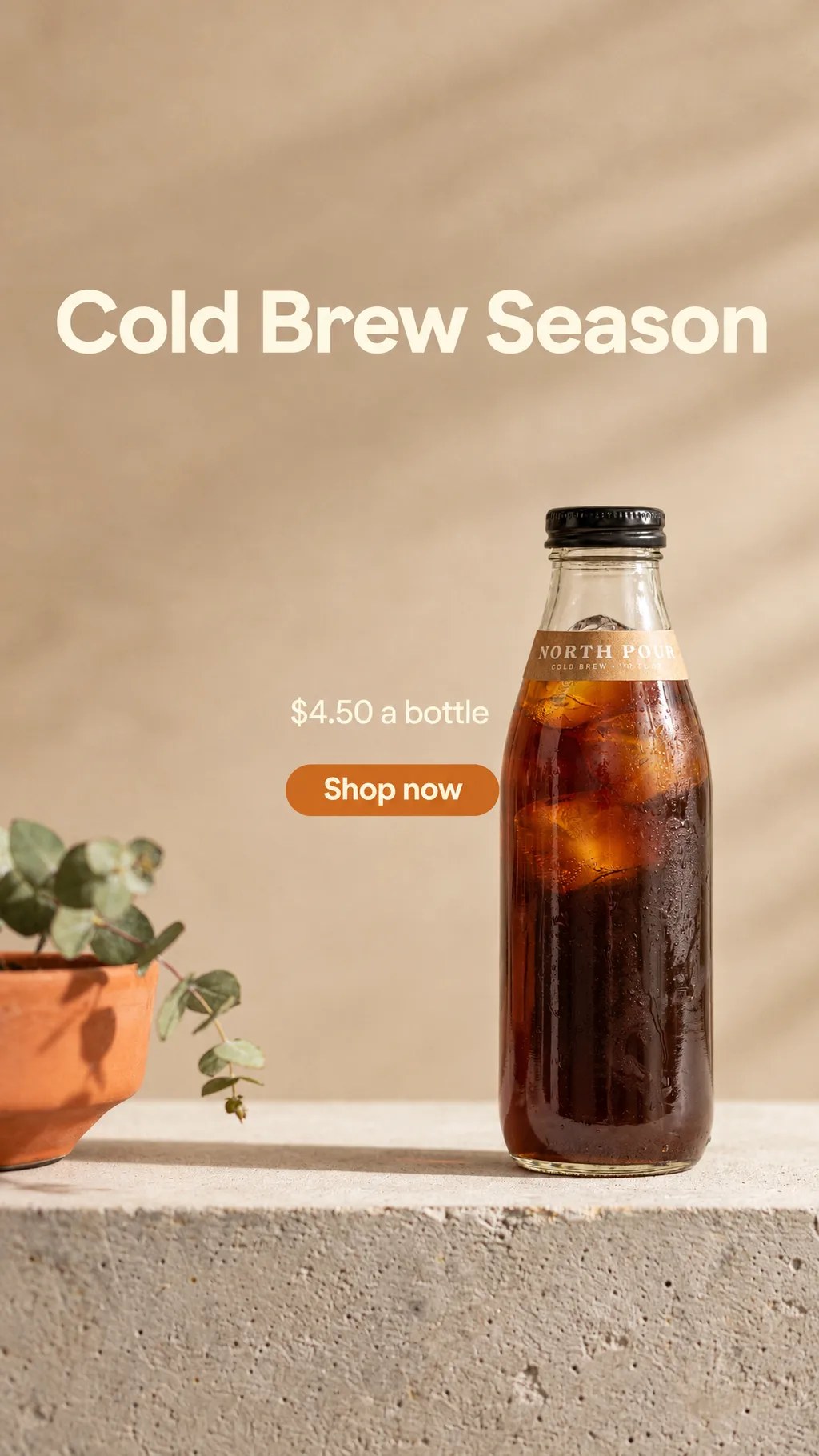
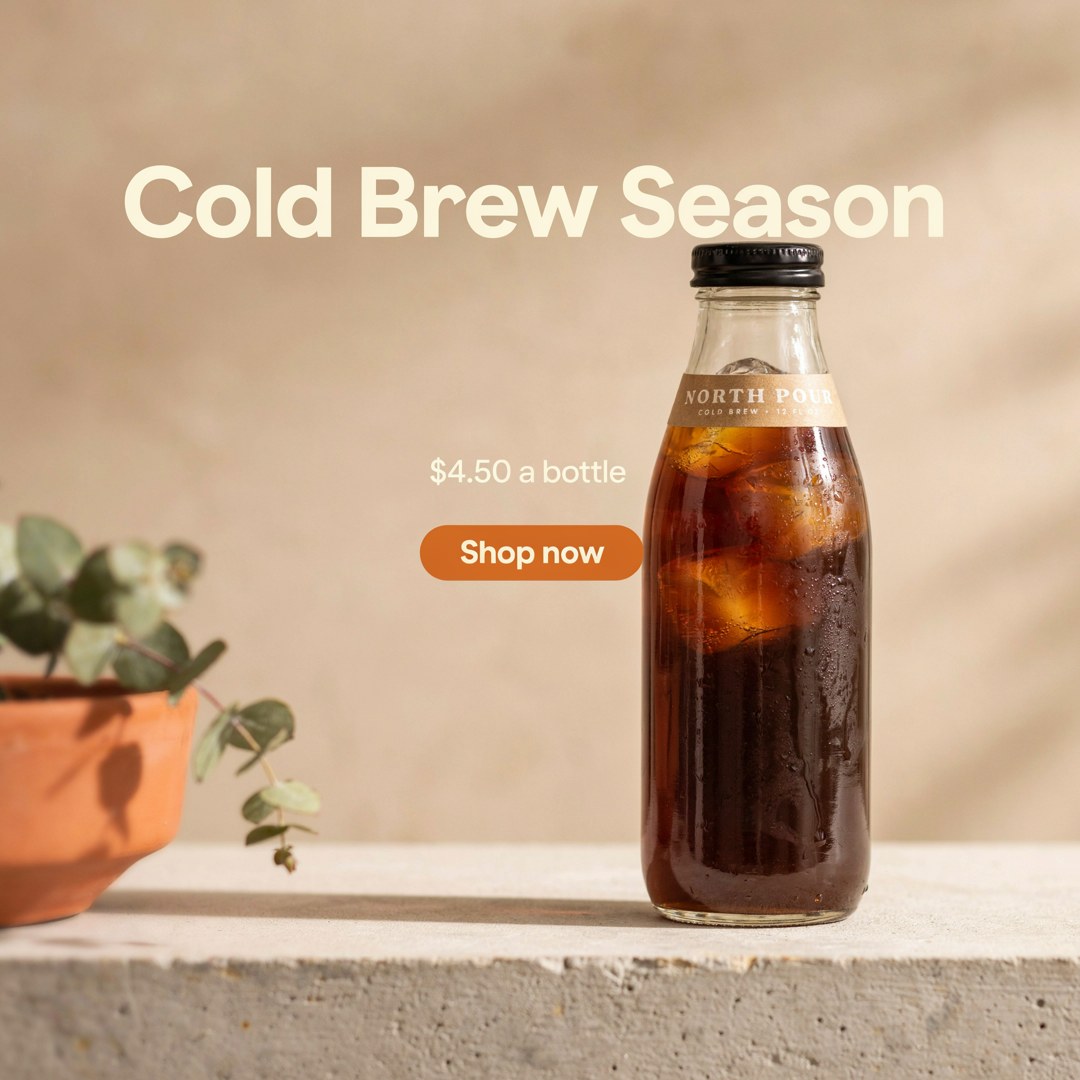
<div><figure><img src="https://1799634369-files.gitbook.io/~/files/v0/b/gitbook-x-prod.appspot.com/o/spaces%2FzjhNby3LLsIikYuvxAJP%2Fuploads%2Fgit-blob-7e201cadec38a8dd8c3394ea2cb0854924f73dc1%2Fad-resizer-original.jpg?alt=media" alt="A square cold brew coffee ad with the headline Cold Brew Season, a bottle on a concrete ledge, the price $4.50 a bottle and a Shop now button"><figcaption><p>The original square ad, 1080×1080.</p></figcaption></figure> <figure><img src="https://1799634369-files.gitbook.io/~/files/v0/b/gitbook-x-prod.appspot.com/o/spaces%2FzjhNby3LLsIikYuvxAJP%2Fuploads%2Fgit-blob-e32d563c406c359404a969b6813e93c9ce867c7c%2Fad-resizer-story.jpg?alt=media" alt="The same ad resized to a tall Story, with the headline at the top and the price, button and bottle rearranged below" width="197"><figcaption><p>Resized to Story / Reel, 1080×1920. The headline moves up and the bottle shrinks to fit the tall frame.</p></figcaption></figure></div>

<figure><img src="https://1799634369-files.gitbook.io/~/files/v0/b/gitbook-x-prod.appspot.com/o/spaces%2FzjhNby3LLsIikYuvxAJP%2Fuploads%2Fgit-blob-754d33df02908637b0600345dddd0373e488222f%2Fad-resizer-connected-tv.jpg?alt=media" alt="The same ad resized to a wide 16:9 frame, with the headline across the top and the bottle and button centered" width="520"><figcaption><p>Connected TV, 1920×1080. The scene widens and the text stays readable.</p></figcaption></figure>

<figure><img src="https://1799634369-files.gitbook.io/~/files/v0/b/gitbook-x-prod.appspot.com/o/spaces%2FzjhNby3LLsIikYuvxAJP%2Fuploads%2Fgit-blob-aebbbabfebaa13596d943c3f0dd6f9b47ccfc98e%2Fresizer-wide-banner.jpg?alt=media" alt="The same ad as a thin, wide web banner, with the headline, price, button and bottle in one row"><figcaption><p>Leaderboard, 728×90. Everything moves into a single row instead of being cropped.</p></figcaption></figure>

Ad Resizer is a premium app. It needs a paid plan or bought credits. See [Plans and Credits](/plans-and-billing/available-plans.md).

## Resize an ad

1. Open the app: in the sidebar, select **More** → **All apps** and choose **Ad Resizer**. From an image page, you can also use **Open in app** and pick Ad Resizer.
2. Under **Source image**, add your ad. Use the final version, with all its text.
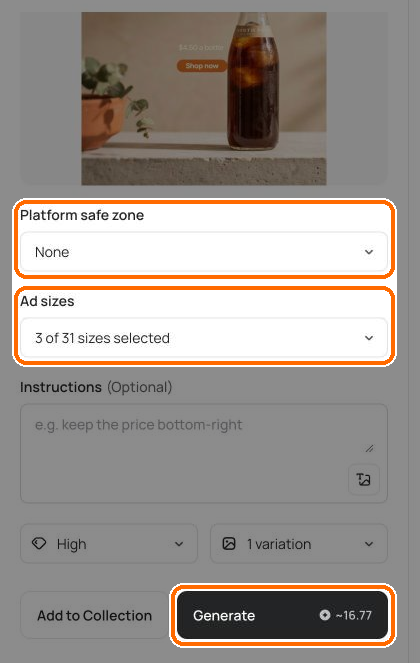
3. Optional: under **Platform safe zone**, pick where the ad will run. See [Platform safe zones](#platform-safe-zones).

   <figure><img src="https://1799634369-files.gitbook.io/~/files/v0/b/gitbook-x-prod.appspot.com/o/spaces%2FzjhNby3LLsIikYuvxAJP%2Fuploads%2Fgit-blob-b6dcbb512335255746900996d4418e86abdedc6c%2Fad-resizer-panel.png?alt=media" alt="Ad Resizer panel with a cold brew ad as the source image, and the Platform safe zone and Ad sizes fields and the Generate button with its cost highlighted"><figcaption><p>Pick a safe zone and your sizes, then click <strong>Generate</strong>.</p></figcaption></figure>
4. Under **Ad sizes**, select every size you need. **Square** (1080×1080) is selected to start.

   <figure><img src="https://1799634369-files.gitbook.io/~/files/v0/b/gitbook-x-prod.appspot.com/o/spaces%2FzjhNby3LLsIikYuvxAJP%2Fuploads%2Fgit-blob-c72ca2111c06c5c5c8fec0cba57e6b143676e075%2Fad-resizer-sizes.png?alt=media" alt="Ad sizes menu open, listing Social media sizes such as Square 1080 by 1080, Portrait feed 1080 by 1350 and Story / Reel 1080 by 1920 with checkboxes"><figcaption><p>Tick every size you need. Each size shows its pixel dimensions.</p></figcaption></figure>
5. Optional: under **Instructions**, say what to keep or change, such as "keep the price bottom-right".
6. Optional: set **Quality** and **Variations per size**. See [Settings](#settings).
7. Click **Generate**. The button shows the cost for everything you selected.

Each size comes back as its own image, at exactly the pixel dimensions you picked. Results appear in **Assets**.

## Platform safe zones

Platforms cover parts of the screen with buttons, captions and profile details. A safe zone is the area that stays clear. When you pick a platform, Ad Resizer keeps your ad inside that platform's published safe zone and fills the space around it, so the image is still the full size you chose.

| Platform safe zone                  | Shapes it works with                      |
| ----------------------------------- | ----------------------------------------- |
| **None** (default)                  | Every size. The ad fills the whole frame. |
| **Google** (YouTube and Google Ads) | Square, 16:9 and 9:16                     |
| **TikTok**                          | Square, 16:9 and 9:16                     |
| **Meta Stories**                    | 9:16                                      |
| **Meta Reels**                      | 9:16                                      |
| **Snapchat**                        | 9:16                                      |

When you pick a platform, sizes it doesn't publish a safe zone for are greyed out, and any you had selected are cleared.

## Ad sizes

Select as many as you need. Each one is a separate result.

| Group                   | Sizes                                                                                                                                                                                                                                                        |
| ----------------------- | ------------------------------------------------------------------------------------------------------------------------------------------------------------------------------------------------------------------------------------------------------------ |
| **Social media**        | Square 1080×1080, Portrait feed 1080×1350, Story / Reel 1080×1920, High-resolution square 2880×2880, High-resolution portrait 2560×3200 and 2448×3264, Vertical display 2240×3584, Full-screen vertical 2160×3840                                            |
| **Video & streaming**   | Connected TV 1920×1080, Presentation / display 3584×2240, Widescreen video 3840×2160                                                                                                                                                                         |
| **Website & display**   | Medium rectangle 300×250, Large rectangle 336×280, Half page 300×600                                                                                                                                                                                         |
| **Website banners**     | Leaderboard 728×90, Wide skyscraper 160×600, Billboard 970×250, Mobile banner 320×50, Mobile banner (alt) 300×50, Large mobile banner 320×100, Vertical banner 1920×3840, Wide banner 3840×1920, Tall vertical banner 1280×3840, Ultra-wide banner 3840×1280 |
| **Print & out-of-home** | Poster 36×18" (1800×900), Square 48×48" (2400×2400), Banner 24×70" (1200×3500), High-resolution landscape 3200×2560 and 3264×2448, Portrait print 2336×3504, Landscape print 3504×2336                                                                       |

## Settings

| Setting                     | Options                                                                                            | Default |
| --------------------------- | -------------------------------------------------------------------------------------------------- | ------- |
| **Instructions** (optional) | A short note on what to keep or change, such as "keep the price bottom-right" or "remove the logo" | Empty   |
| **Quality**                 | Low, Medium, High                                                                                  | High    |
| **Variations per size**     | 1 to 4                                                                                             | 1       |
| **Add to Collection**       | Save every result into a collection                                                                | None    |

More variations give you more layouts to choose from, and each one costs credits.

## Tips for better results

* **Start from a finished ad.** Ad Resizer works from what's in the image, so add the final headline, price and button first.
* **Leave some space around the text** in the source. Busy edges give the app less room to rearrange.
* **Use Instructions for must-haves**, such as where the logo or price must sit.
* **Check every size before you publish.** Small banners like 320×50 have room for only a few words, so read the text on each one.
* **Pick the platform when you know where the ad runs.** Safe zones matter most for Stories, Reels and TikTok, where buttons cover the edges.

## In this topic: product images

1. [Apps and Workflows](/create/apps.md): choose the right app
2. [Remove Backgrounds and Objects](/edit/remove-backgrounds-and-objects.md): cut out the product or clean up the photo
3. [Colorways](/create/apps/colorways.md): show the product in new colors
4. [Material Swap](/create/apps/material-swap.md): show it in new fabrics and finishes
5. [Upscale](/edit/upscale.md): enlarge it for print and store listings
6. **Ad Resizer** (this page): resize the finished ad for each placement
7. [Troubleshooting](/help/troubleshooting.md): fix common problems

## Related

* [Text in Images](/prompting/text-in-images.md)
* [Image Settings](/create/image-settings.md#aspect-ratio-and-size)