> For the complete documentation index, see [llms.txt](https://docs.ideogram.ai/llms.txt). Markdown versions of documentation pages are available by appending `.md` to page URLs; this page is available as [Markdown](https://docs.ideogram.ai/organize-and-share/assets.md).
# Library and Favorites
Find generated images, videos, uploads and likes in Ideogram Library. Understand prompt-search limits, recover missing results, and manage selections without deleting the wrong asset.
Click **Library** in the left sidebar to find your work. On desktop, it opens **Generations** and has tabs for **Generations**, **Uploads**, **Characters** and **Favorites**. On a phone, **Library** opens a list of these sections, plus **Collections**, above your recent generations.
* **Generations:** images and videos you make in Ideogram.
* **Uploads:** images and videos you upload.
* **Characters:** saved character references and the images made with them. See [Saved Characters](/organize-and-share/characters.md).
* **Favorites:** images you've liked, yours and other people's.
[Collections](/organize-and-share/collections.md) has its own sidebar item for organizing your work into folders.
## Find images
Open **Library** → **Generations** to browse your generations. Select **Filters**, then choose a **Visibility** option:
| Filter | Shows |
| --------------- | ----------------------------------------- |
| **Published** | Generations you shared with the community |
| **Unpublished** | Private generations |
With neither option selected, both published and unpublished generations appear. Select the active option again, or remove its chip above the results, to clear it. On a phone, **Filters** appears as an icon.
To find an uploaded file, open **Uploads** instead.
### Search your images
1. In **Generations**, select the search icon above the grid. On a phone, use the search field at the top.
2. Type words from the generation prompt. On desktop, the expanded field is labeled **Search**; on a phone, it reads **Search your images**.
### Change the view or date range
1. Select **Layout** above the results. On a phone, use the layout icon.
2. Pick **List**, **Grid** or **Mosaic**, then use **Size** to change the tile size. List groups related outputs and shows available generation details; Grid and Mosaic show the tiles together.
3. To narrow the dates, open **Filters** and use **Date range**. Remove the date chip above the results to clear it.
Search matches image-generation prompts, rather than every item in Library. Edits, uploaded files and other app outputs are not included in that prompt search. While you search, the date range is set aside. Clear the search to browse those results and use the date range again.
**Uploads** and **Favorites** also have **Layout** controls. **Uploads** has a date-range filter; **Favorites** has an owner filter, described below. To switch between generated and uploaded files, use the Library tabs. Collection pages have their own filters; see [Collections](/organize-and-share/collections.md#filter-a-collection).
### If you cannot find a result
1. Clear the search. A background removal, edit or other app output may be in Library without being searchable by prompt.
2. Remove any **Published**, **Unpublished** or date-range chips above the results.
3. For a file you added yourself, switch to **Uploads**. For an image you only liked, use **Favorites**.
4. If the generation is still running, leave search mode to see the in-progress items. Finished work can also be opened from the app's **Assets** tab.
Clearing a filter changes the view; it does not remove images.
If the feed says **Couldn't load your generations** or **Couldn't load more generations**, check your connection and select **Retry**. These messages indicate a loading failure rather than an empty Library.
## Select several items
1. Hover over a tile and tick its checkbox. On a touch screen, press and hold the tile for half a second.
2. Click more tiles to add them. You can select up to 250 at once; the bar shows "(max reached)" when you hit the limit.
3. In the bar at the bottom of the screen, click **Download** or open the **…** menu and pick another action. The bar also shows how many items you've selected.
| Action | What it does |
| --------------------- | --------------------------------------------------------------------------------------------------------- |
| **Download** | Downloads the items as a ZIP file. See [Download](/organize-and-share/download.md#download-many-at-once). |
| **Add to collection** | Opens the collection picker. |
| **Publish** | Shares the items with the community. |
| **Unpublish** | Makes the items private again. |
| **Delete** | Removes the items for good. You confirm first: "This action cannot be undone." |
**Publish** and **Unpublish** need a plan that includes private generation. **Publish** is off in workspaces where publishing is turned off. See [Share and Publish](/organize-and-share/share-and-publish.md).
Press Esc to leave select mode.
## The asset page
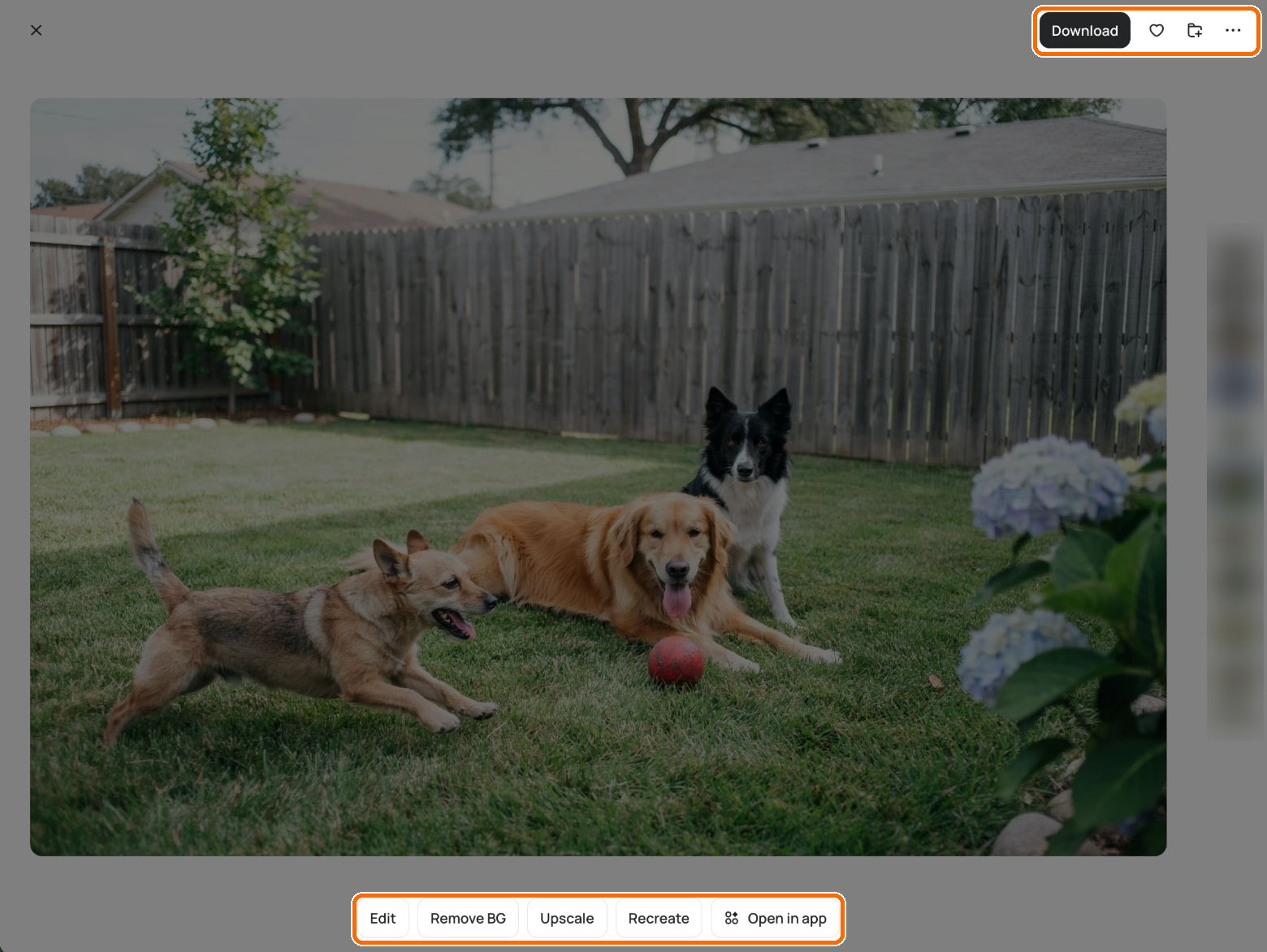
Click any tile to open its asset page.
The action bar sits at the top right; quick action buttons sit under the image.
### Quick action buttons
Under the image you'll find actions such as **Edit**, **Remove BG**, **Upscale**, **Recreate** and **Open in app**. Available buttons depend on the asset and the apps you can access. **Recreate** restores inputs when that generation supports it; uploads do not have generation settings to restore. Videos show **Edit**, **Recreate** and **Open in app**. See [Edit Images](/edit/edit.md) for what each edit button does.
### Action bar
| Button | What it does |
| ------------------------ | ------------------------------------------------------------------------- |
| **Download** | Opens the download menu. See [Download](/organize-and-share/download.md). |
| **Like** | Adds the image to Favorites. |
| **Add to collection** | Saves the image to one or more collections. |
| **Info** (ⓘ) | Opens the details panel. |
| **More options** (**…**) | Opens the full menu, below. |
### More options menu
* **Copy image**, **Copy prompt** (when there is one), **Share** and **Rate**. See [Share and Publish](/organize-and-share/share-and-publish.md#share-a-link).
* **Use**: **Remix**, **Background Remover**, **Upscale**, **Describe**, **New generation**, and **More** for other apps
* **Manage**: **Publish to community** or **Unpublish from community** (your own images), **Add to collection**, **Remove from this collection** (inside a collection), **Report**, **Mute creator** (other people's images), **Delete**
Inside a collection, **Delete** reads **Delete from library**. It deletes the image itself. To take it out of this collection only, use **Remove from this collection**.
### Details
The details panel on the right (or **Info**) lists what made the image: type, model, app, and style code where there is one.
#### Reuse a model or style code
1. Open the details panel, or click **Info**.
2. Click **Use model** or **Use style code** to start a new image with the same choice.
#### Rate an image
1. Open the details panel, or click **Info**.
2. Click a thumb: **Good generation** or **Bad generation**.
## Favorites
1. Click **Library** in the sidebar or bottom bar.
2. Open **Favorites**.
You'll see images you've liked, yours and other people's. Open **Filters** → **Owner** and select **My images** or **Not my images**. With neither selected, both appear. Select the active option again, or remove its chip above the results, to return to all favorites.
## In this topic: organize and share
1. **Library and Favorites** (this page): find everything you made
2. [Collections](/organize-and-share/collections.md): sort images into folders and share them with a team
3. [Download](/organize-and-share/download.md): save files in the format and size you need
4. [Share and Publish](/organize-and-share/share-and-publish.md): share a link or publish to the community
5. [Troubleshooting](/help/troubleshooting.md): fix common problems