> For the complete documentation index, see [llms.txt](https://docs.ideogram.ai/llms.txt). Markdown versions of documentation pages are available by appending `.md` to page URLs; this page is available as [Markdown](https://docs.ideogram.ai/edit/masks-and-inpainting.md).

# Masks and Inpainting

Use image masks and inpainting in Precise Edit or GPT Image 2.5. Learn mask versus edit window, reference limits, multi-turn editing and how to fix a blocked edit.

A mask marks the part of an image you want to change. Editing a marked area is often called inpainting. Use it to:

* change or remove one object, such as a cup on a table or a sign on a wall
* change a face, an outfit or the colors of one item
* replace the background behind a person or product
* retouch or restore one part of an old or damaged photo

Ideogram 4.5 and GPT Image 2.5 both take masks.

## Mask with Ideogram 4.5

Ideogram 4.5 masks work in the **Precise Edit** app. The result keeps your image's exact size.

1. Open the image and select **Edit**. Precise Edit opens with your image loaded.
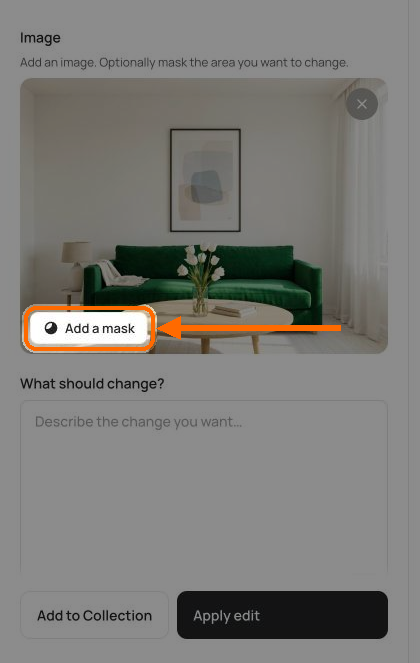
2. On the image, select **Add a mask**.

   <figure><img src="https://1799634369-files.gitbook.io/~/files/v0/b/gitbook-x-prod.appspot.com/o/spaces%2FzjhNby3LLsIikYuvxAJP%2Fuploads%2Fgit-blob-eb2021c2b97e782596d16d6b5274aefb4f3104df%2Fmasks-add-a-mask.png?alt=media" alt="Precise Edit with a living room photo loaded and the Add a mask button highlighted on the image"><figcaption><p>Select <strong>Add a mask</strong> on your image.</p></figcaption></figure>
3. Mark the part you want to change with a tool:

   * **Magic wand**: click an object to select it. Click more parts to add them.
   * **Brush**: paint over the area.
   * **Lasso**: draw around the area.
   * **Rectangle**: drag a box.

   Switch to **Erase** to remove part of the mask, or use **Clear mask** to start again.

   <figure><img src="https://1799634369-files.gitbook.io/~/files/v0/b/gitbook-x-prod.appspot.com/o/spaces%2FzjhNby3LLsIikYuvxAJP%2Fuploads%2Fgit-blob-b4c3ee55e0d8acece4d16d1f70b0374e7bdfc3e0%2Fmasks-mask-editor.png?alt=media" alt="Mask editor with the sofa selected in blue, the Add, Erase, Magic wand, Brush, Lasso and Rectangle tools highlighted, and the Done button highlighted"><figcaption><p>The sofa is masked with <strong>Magic wand</strong>. Click <strong>Done</strong> when the mask covers the area.</p></figcaption></figure>
4. Click **Done**.
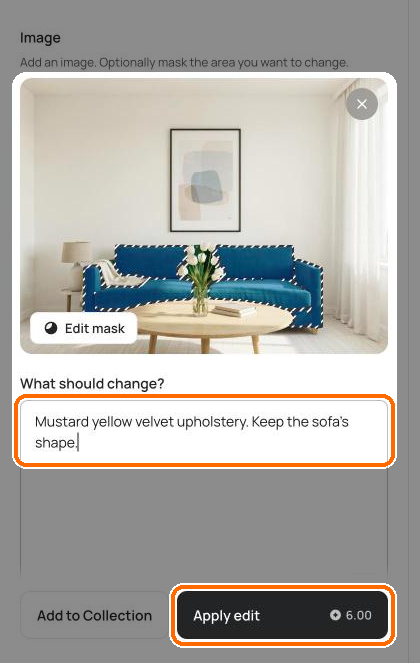
5. Under **What should change?**, describe the change for that area, such as "mustard yellow velvet upholstery".
6. Optional: choose **Quality** and **Number of images**. See [Precise Edit settings](#precise-edit-settings).
7. Click **Apply edit**. The button shows the cost.

   <figure><img src="https://1799634369-files.gitbook.io/~/files/v0/b/gitbook-x-prod.appspot.com/o/spaces%2FzjhNby3LLsIikYuvxAJP%2Fuploads%2Fgit-blob-ac8edf2d02b613fa20248ffabac2e5541ddeac88%2Fmasks-describe-change.png?alt=media" alt="Precise Edit with the sofa masked, the prompt Mustard yellow velvet upholstery entered under What should change, and the Apply edit button highlighted with its cost"><figcaption><p>Describe the change, then click <strong>Apply edit</strong>.</p></figcaption></figure>

You can also add reference images that show the result you want: up to 3 with a mask, or 4 without one. Adding a mask uses one reference slot, so remove an extra reference if you're already at the limit. Free accounts can make a limited number of Precise Edit edits. After that, Precise Edit needs a paid plan or bought credits.

### Precise Edit settings

* **Quality**: Very low, Low, Medium or High. The default is Medium.
* **Number of images**: 1 to 8 results per run. The default is 1.

Changing either setting changes the cost shown on **Apply edit**. You can also leave the image unmasked when you want an edit across the whole image.

### Limit the edit with an edit window

If **Use Edit Window** is available on your account, it keeps the edit inside one part of the image. This option appears under **Advanced settings** once you've added a source image.

1. Open **Advanced settings**.
2. Turn on **Use Edit Window**.
3. Choose **Specific area** to pick the area yourself, or **Auto (requires mask)** to base it on your mask.

   <figure><img src="https://1799634369-files.gitbook.io/~/files/v0/b/gitbook-x-prod.appspot.com/o/spaces%2FzjhNby3LLsIikYuvxAJP%2Fuploads%2Fgit-blob-75c478792c99ad55f07cd43c689826e827d1c776%2Fmasks-edit-window.png?alt=media" alt="Advanced settings open in Precise Edit with Use Edit Window turned on and the Specific area and Auto (requires mask) options highlighted"><figcaption><p><strong>Use Edit Window</strong> sits under <strong>Advanced settings</strong>.</p></figcaption></figure>

The rest of the image stays unchanged. A **mask** marks what you want to change; an **edit window** limits the region that the edit can use. You can use a specific window without a mask, while **Auto (requires mask)** is unavailable until you add one.

When using both, put the mask inside the window. Painted areas outside it are left out of the edit. If you see **Paint inside the edit window, or move the window over what you painted**, move the window over the selection or repaint inside it before trying again.

If the window switch is unavailable, check its explanation. A very small image cannot use an edit window. An image that is too wide or tall to edit as a whole always uses one, so you cannot turn it off.

## Edit again and again (multi-turn editing)

Multi-turn editing means using one edit's result as the source for the next. Change one thing per turn, say what should stay the same, and inspect each result before continuing. If a step moves away from what you want, start the next edit from an earlier saved result instead.

1. Make your first edit in **Precise Edit** and wait for the result.
2. Open the result and select **Edit**. Precise Edit opens again with that result loaded.
3. Mask the next area if you want, describe the next change, and click **Apply edit**.
4. Repeat for each change.

Each result saves to **Assets** and **Library** → **Generations**, so you can open an earlier step and branch from it. Selecting **Edit** loads that result; it does not automatically run the next change.

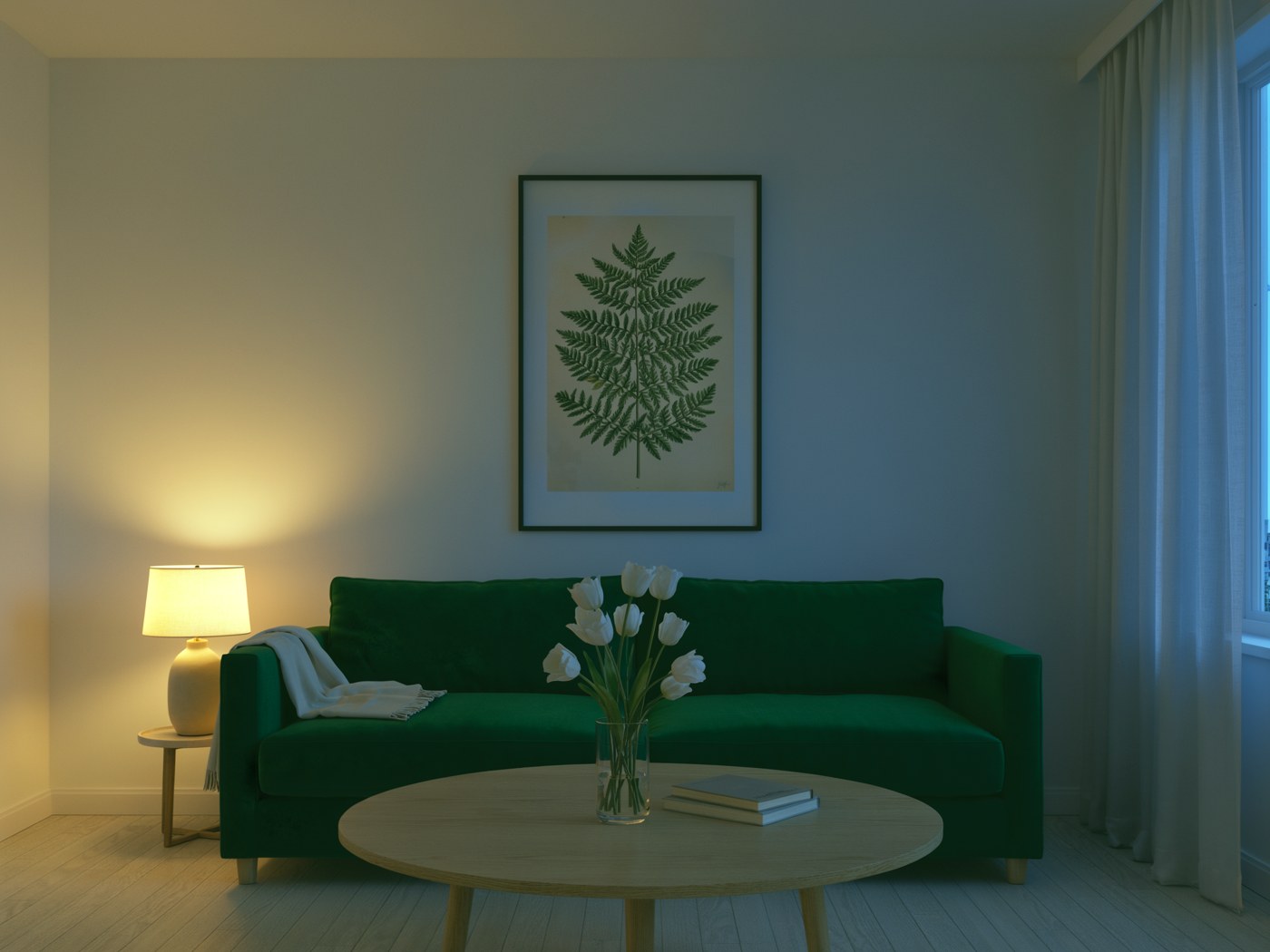
Three edits in a row with Ideogram 4.5. Each prompt changed one thing and kept the rest:

<div><figure><img src="https://1799634369-files.gitbook.io/~/files/v0/b/gitbook-x-prod.appspot.com/o/spaces%2FzjhNby3LLsIikYuvxAJP%2Fuploads%2Fgit-blob-53e032dcab6d60582aa1d40397a7d7fd5093b6db%2Fmasks-living-room-original.jpg?alt=media" alt="A bright living room with a light gray sofa, an abstract print in a black frame, a round wooden table with tulips and a sheer-curtained window"><figcaption><p>Original.</p></figcaption></figure> <figure><img src="https://1799634369-files.gitbook.io/~/files/v0/b/gitbook-x-prod.appspot.com/o/spaces%2FzjhNby3LLsIikYuvxAJP%2Fuploads%2Fgit-blob-0d1de2f2c601df2da0f7a5b620212174c105e0ea%2Fmasks-living-room-edit-1.jpg?alt=media" alt="The same living room with the sofa changed to deep green velvet and nothing else changed"><figcaption><p>Edit 1: the sofa is now green velvet.</p></figcaption></figure></div>

<div><figure><img src="https://1799634369-files.gitbook.io/~/files/v0/b/gitbook-x-prod.appspot.com/o/spaces%2FzjhNby3LLsIikYuvxAJP%2Fuploads%2Fgit-blob-4bb8600836ee1f34420d56a28858de04a7819d25%2Fmasks-living-room-edit-2.jpg?alt=media" alt="The same room with the abstract print replaced by a framed fern illustration"><figcaption><p>Edit 2: the print is now a fern illustration.</p></figcaption></figure> <figure><img src="https://1799634369-files.gitbook.io/~/files/v0/b/gitbook-x-prod.appspot.com/o/spaces%2FzjhNby3LLsIikYuvxAJP%2Fuploads%2Fgit-blob-3b8eabc4e8dd8faf71cb54cc23d66906d922bfd1%2Fmasks-living-room-edit-3.jpg?alt=media" alt="The same room in the evening, with dusky blue light at the window and the table lamp on"><figcaption><p>Edit 3: evening light, with the lamp switched on. Every object stays in place.</p></figcaption></figure></div>

The prompts for that example:

1. "Change the sofa upholstery to deep forest green velvet. Keep the sofa's shape and the rest of the room exactly the same."
2. "Replace the abstract print inside the black frame with a vintage botanical illustration of a large fern. Keep the frame and everything else exactly the same."
3. "Make it evening: dusky blue light through the window, and the table lamp switched on. Keep every object exactly where it is."

### More examples

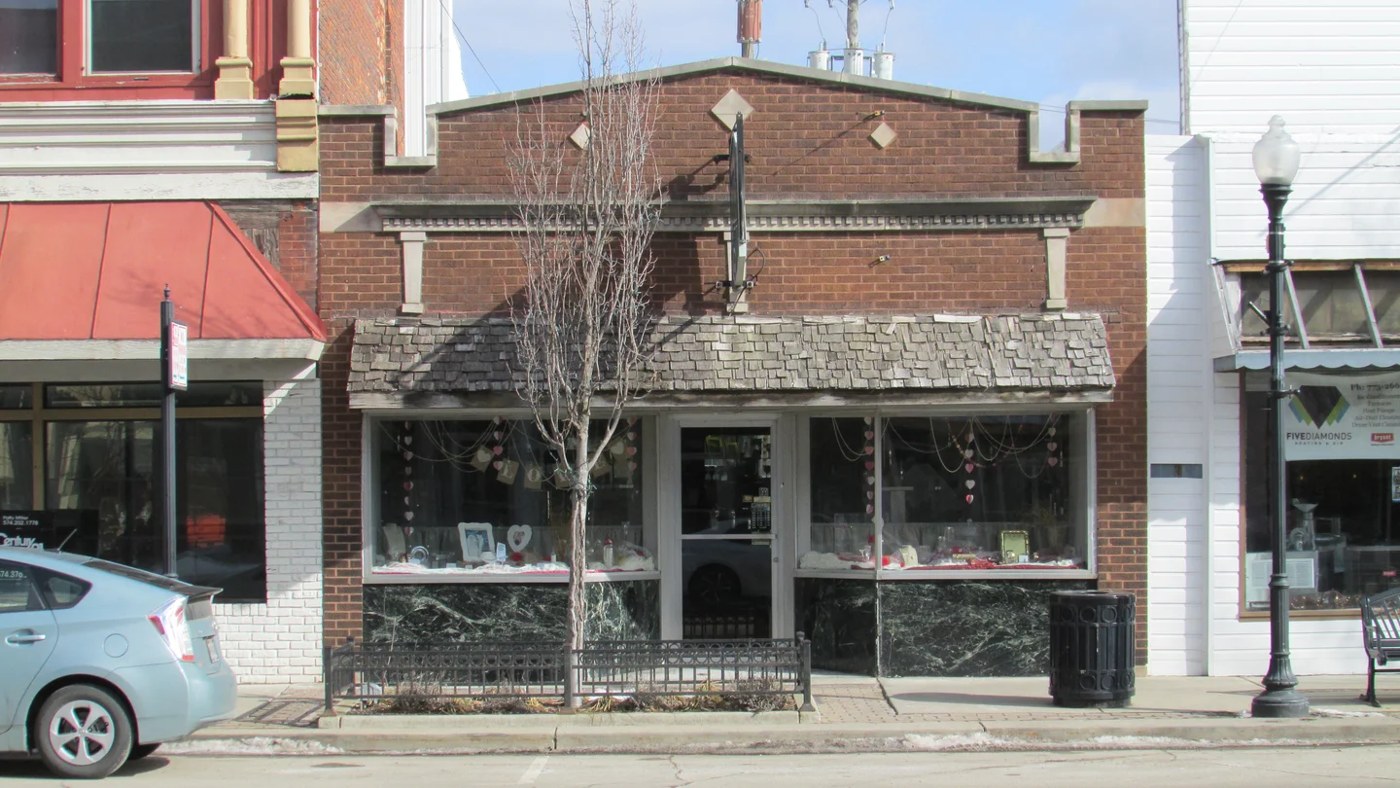
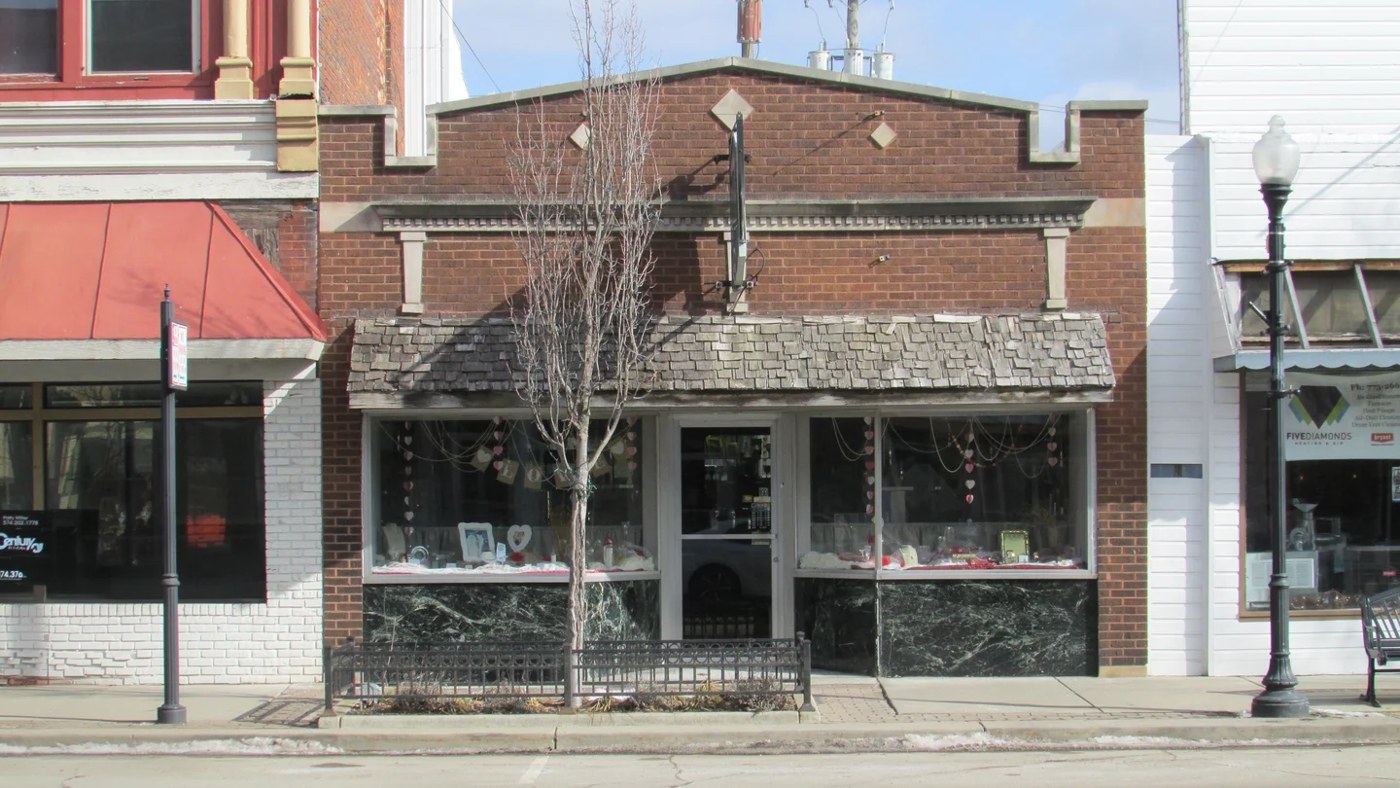
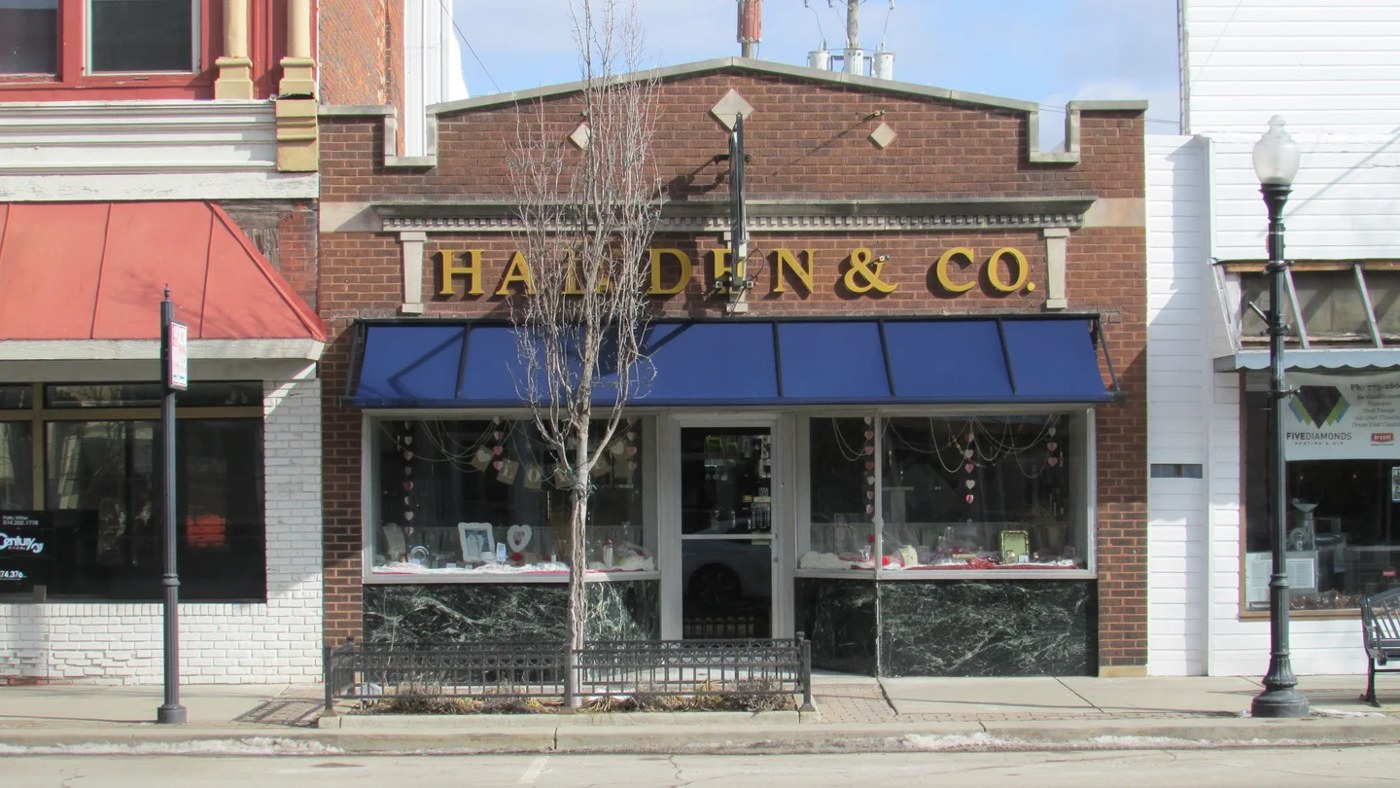
A storefront rebrand over nine edits. Four of them are shown here:

<div><figure><img src="https://1799634369-files.gitbook.io/~/files/v0/b/gitbook-x-prod.appspot.com/o/spaces%2FzjhNby3LLsIikYuvxAJP%2Fuploads%2Fgit-blob-6386293c36d20d32289dcb7b7b5544d1ad7b978c%2Fmasks-storefront-original.jpg?alt=media" alt="A brick storefront with a gray shingle awning, a parked blue car on the left and a trash can by the door"><figcaption><p>Original.</p></figcaption></figure> <figure><img src="https://1799634369-files.gitbook.io/~/files/v0/b/gitbook-x-prod.appspot.com/o/spaces%2FzjhNby3LLsIikYuvxAJP%2Fuploads%2Fgit-blob-89d47d5ee873111fe77fe388e01adfab893dd091%2Fmasks-storefront-edit-1.jpg?alt=media" alt="The same storefront with the car and trash can removed and the street filled in"><figcaption><p>Edit 1: the car and trash can removed.</p></figcaption></figure></div>

<div><figure><img src="https://1799634369-files.gitbook.io/~/files/v0/b/gitbook-x-prod.appspot.com/o/spaces%2FzjhNby3LLsIikYuvxAJP%2Fuploads%2Fgit-blob-e53a3d46fd7ad3179e541a70e11d8ded4e65a193%2Fmasks-storefront-edit-3.jpg?alt=media" alt="The storefront with a navy awning and the sign HALDEN &#x26; CO. in gold letters above it"><figcaption><p>Edit 3: a navy awning and a gold sign.</p></figcaption></figure> <figure><img src="https://1799634369-files.gitbook.io/~/files/v0/b/gitbook-x-prod.appspot.com/o/spaces%2FzjhNby3LLsIikYuvxAJP%2Fuploads%2Fgit-blob-5392b6a7358b579d348a2353b233a3507c16a976%2Fmasks-storefront-edit-9.jpg?alt=media" alt="The finished storefront at dusk with lit windows full of books, planters by the door and a chalkboard sign"><figcaption><p>Edit 9: the finished shop at dusk.</p></figcaption></figure></div>

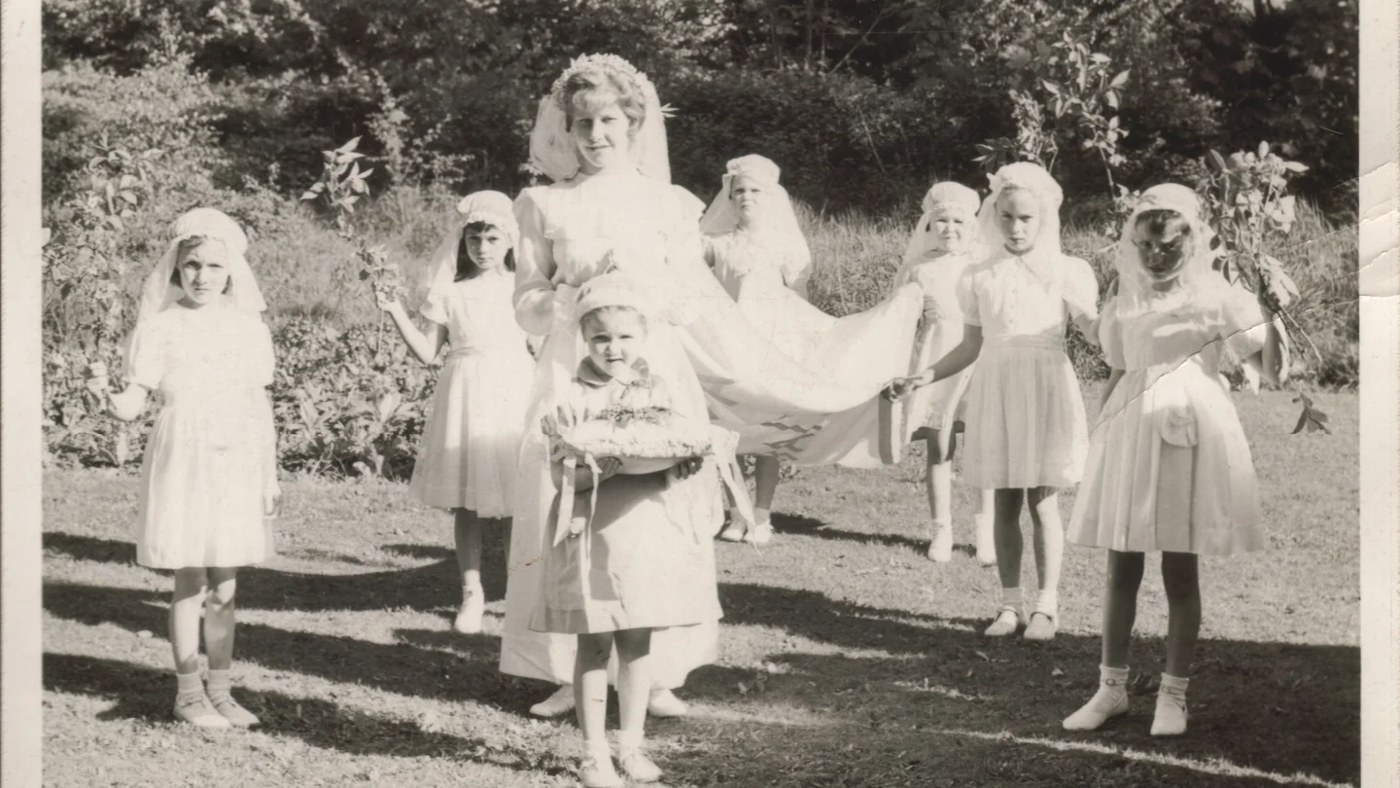
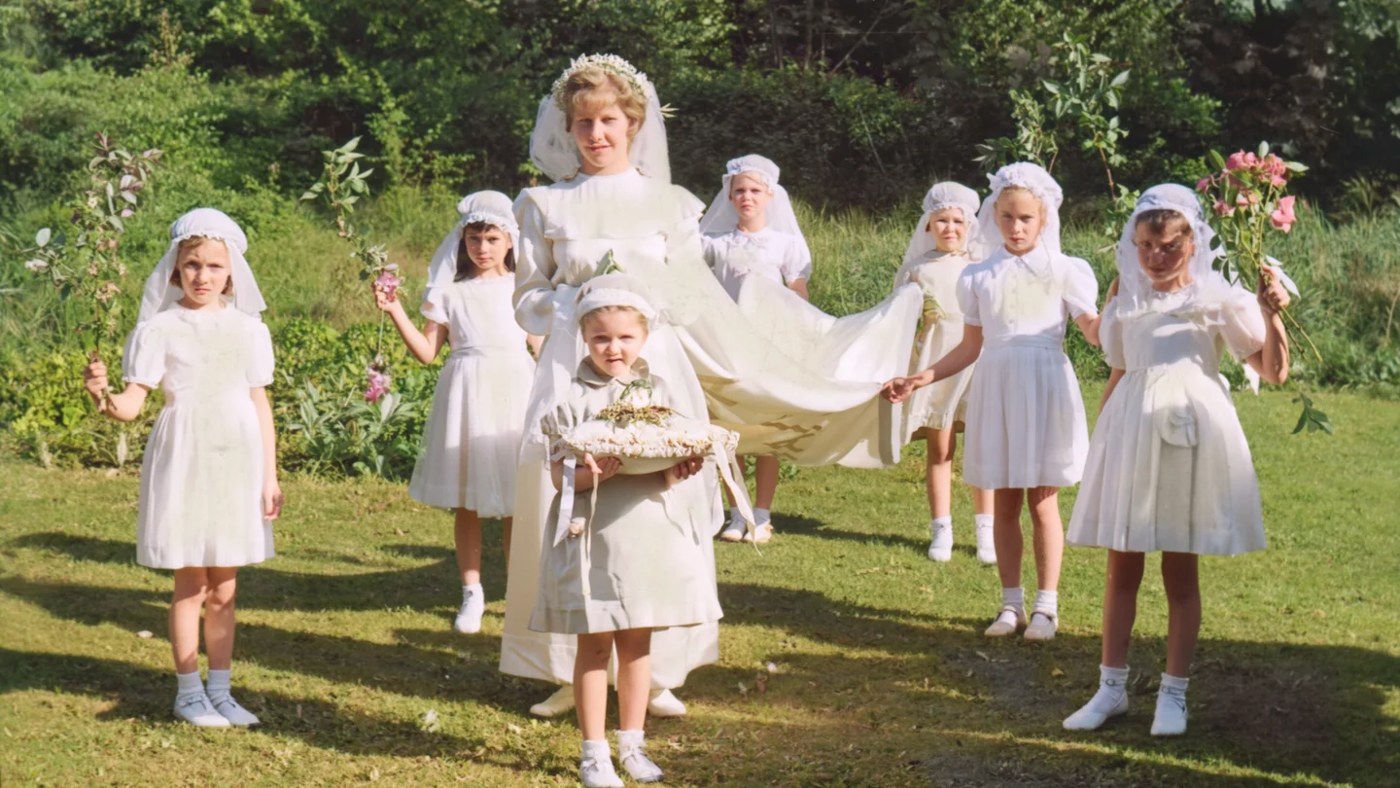
Photo restoration in three edits:

<div><figure><img src="https://1799634369-files.gitbook.io/~/files/v0/b/gitbook-x-prod.appspot.com/o/spaces%2FzjhNby3LLsIikYuvxAJP%2Fuploads%2Fgit-blob-59c70159bf56f221bfcac150ec85ccee7bc925b3%2Fmasks-restoration-original.jpg?alt=media" alt="A damaged black-and-white photo of a 1920s wedding party with scratches, stains and faded tones"><figcaption><p>Original: a damaged 1920s wedding photo.</p></figcaption></figure> <figure><img src="https://1799634369-files.gitbook.io/~/files/v0/b/gitbook-x-prod.appspot.com/o/spaces%2FzjhNby3LLsIikYuvxAJP%2Fuploads%2Fgit-blob-8d89985330bc9e2e48a87ab10efb79bae8be8fd6%2Fmasks-restoration-edit-1.jpg?alt=media" alt="The same photo restored in black and white, with scratches and stains removed"><figcaption><p>Edit 1: scratches, stains and fading repaired.</p></figcaption></figure></div>

<div><figure><img src="https://1799634369-files.gitbook.io/~/files/v0/b/gitbook-x-prod.appspot.com/o/spaces%2FzjhNby3LLsIikYuvxAJP%2Fuploads%2Fgit-blob-422a9b1cb241e7429af0a2ee88447b0b31b0e6d9%2Fmasks-restoration-edit-2.jpg?alt=media" alt="The restored photo colorized with ivory dresses, pink and white flowers and green foliage"><figcaption><p>Edit 2: colorized.</p></figcaption></figure> <figure><img src="https://1799634369-files.gitbook.io/~/files/v0/b/gitbook-x-prod.appspot.com/o/spaces%2FzjhNby3LLsIikYuvxAJP%2Fuploads%2Fgit-blob-f65a13f1c6c1945c8050b2343e964c1f65e30942%2Fmasks-restoration-edit-3.jpg?alt=media" alt="The colorized photo turned into a crisp modern-looking photograph of the same moment"><figcaption><p>Edit 3: sharpened into a modern-looking photo.</p></figcaption></figure></div>

For restoration, the first prompt was: "Restore this old photograph: remove every scratch, dust speck, stain, crease, tear and film blemish, even out the faded tones and recover the detail. Keep it black and white and keep every person and letter exactly as it is."

## Mask with GPT Image 2.5

1. Click **Image** in the sidebar.
2. In the **Model** picker, choose GPT Image 2.5 Flare or GPT Image 2.5 Sunburst.
3. Add a reference image.
4. On the first image, select **Add a mask**.
5. Mark the part you want to change with **Magic wand**, **Brush**, **Lasso** or **Rectangle**. Use **Clear mask** to start again.
6. Click **Done**.
7. Describe the change and click **Generate**.

"A masked run keeps the shape of the image you painted on," so **Aspect ratio** is locked while a mask is on.

## If Precise Edit will not start

* Attach a **Source image** and enter an instruction under **What should change?** A mask alone does not describe the replacement you want.
* If you see **Wait for the mask to finish processing**, wait for that step before applying the edit.
* If adding a mask takes you over the reference limit, remove an extra reference. The app allows three reference images with a mask or four without one.
* If an edit window and a mask do not overlap, move the window or repaint the mask as described above.

## Change a mask

On either model, select **Edit mask** on the image to change the mask, then click **Done**.

## Other ways to change one area

* **Select area** in [Studio](/edit/studio.md#change-part-of-a-layer-with-select-area) works the same way on one layer of a Studio canvas. It needs a paid plan.
* The **Object Remover** app takes an object out and fills the gap, with no prompt. See [Remove Backgrounds and Objects](/edit/remove-backgrounds-and-objects.md#remove-an-object).
* **Remove BG** cuts out the subject instead of changing the background. See [Remove Backgrounds and Objects](/edit/remove-backgrounds-and-objects.md).

## In this topic: editing

1. [Edit Images](/edit/edit.md): choose the right way to edit
2. **Masks and Inpainting** (this page): change only one area
3. [Studio](/edit/studio.md): combine images, layers and text
4. [Text and Layers](/edit/text-and-layers.md): fix or add lettering
5. [Remix](/edit/remix.md): make new versions of an image
6. [Troubleshooting](/help/troubleshooting.md): fix common problems

## Related

* [Reference Images](/create/reference-images.md)