> For the complete documentation index, see [llms.txt](https://docs.ideogram.ai/llms.txt). Markdown versions of documentation pages are available by appending `.md` to page URLs; this page is available as [Markdown](https://docs.ideogram.ai/prompting/json-prompting.md).
# JSON Prompting
Use a structured JSON prompt with Ideogram 4.5 and 4.0 to control exact text placement, layout and colors.
Ideogram 4.5 and 4.0 accept a plain-language prompt or a structured JSON prompt. Both models use the same JSON format. Ideogram 4.0 was trained on captions in this format, so a JSON prompt speaks to the model in its own terms.
Plain language works well for most images. JSON adds control that plain language can't give you:
* **Color control.** Up to 16 hex colors for the whole image and up to 5 for each element. They steer the colors strongly but don't lock every pixel.
* **Layout.** Place any element in the frame with a bounding box.
* **Text placement.** Each piece of text is its own element with its own position and style.
* **Repeatable results.** Runs from the same JSON prompt keep close to the same layout.
## When to use JSON
| Use case | Approach |
| ------------------------------------------- | -------------------------------- |
| Quick ideas, exploring | Plain language |
| Expanding a short idea | Plain language with Magic Prompt |
| Posters, branded graphics, labels, signage | JSON |
| A set color palette | JSON |
| The same layout across many images | JSON |
| Photos where exact placement doesn't matter | Plain language |
## How Magic Prompt and JSON work together
You don't have to write JSON by hand. On Ideogram 4.5 and 4.0, [Magic Prompt](/create/image-settings.md#magic-prompt) turns a plain-text prompt into a structured JSON prompt before generating:
* **Magic Prompt on:** it rewrites and expands your idea, adding detail, style and layout, then builds the JSON.
* **Magic Prompt off:** it keeps your wording and only converts it into the structured format.
* **You paste valid JSON:** Ideogram uses your JSON as written and skips Magic Prompt, unless Magic Prompt is On. Then it rewrites your JSON too.
So when you've written JSON by hand and want it used exactly, turn Magic Prompt off.
If your JSON doesn't match the format below (for example, `high_level_description` is missing), Ideogram reads it as plain text. On Ideogram 4.5 the prompt box takes up to 10,000 characters, and very long JSON prompts can lose their last elements, so list the most important elements first.
## The schema
A JSON prompt has three top-level fields:
| Field | Required | What it holds |
| ------------------------------ | ------------ | ------------------------------------------------ |
| `high_level_description` | **Required** | One or two sentences that sum up the whole image |
| `style_description` | Optional | Style, lighting, medium and color palette |
| `compositional_deconstruction` | **Required** | The background and every element in the image |
### `high_level_description`
If you could say only one thing about the image, say it here.
```json
{"high_level_description": "A medium-shot photograph of a barista pouring latte art in a cozy cafe."}
```
### `style_description`
Every field is optional. Use `photo` for photographs, or `art_style` for illustration, painting, 3D, graphic design and the like. The model learned from captions that used one or the other, so pick one.
| Field | Type | What it holds |
| --------------- | --------------- | ----------------------------------------------------------------------------------------------------------- |
| `aesthetics` | string | Mood and look, for example `"moody, cinematic, desaturated"` |
| `lighting` | string | For example `"golden hour, rim light, dramatic shadows"` |
| `photo` | string | Camera and lens, for example `"35mm, f/1.4, bokeh"`. Use this or `art_style`, not both. |
| `medium` | string | Free text, for example `"photograph"`, `"illustration"`, `"3D render"`, `"painting"`, `"graphic design"` |
| `art_style` | string | For non-photo work, for example `"flat vector illustration, bold outlines"`. Use this or `photo`, not both. |
| `color_palette` | list of strings | Up to 16 hex colors that steer the main colors. Uppercase `#RRGGBB` only. |
### `compositional_deconstruction`
Holds `background` (a string describing the setting) and `elements` (a list). Both are required.
Each element is an object (`"obj"`) or text (`"text"`):
| Type | Key order |
| -------- | ------------------------------------------------------------------------- |
| `"obj"` | `type`, `bbox` *(optional)*, `desc`, `color_palette` *(optional)* |
| `"text"` | `type`, `bbox` *(optional)*, `text`, `desc`, `color_palette` *(optional)* |
| Field | Type | What it holds |
| --------------- | ------------------ | ---------------------------------------------------------------- |
| `type` | string | `"obj"` for objects and subjects, `"text"` for text in the image |
| `bbox` | list of 4 integers | Position as `[y_min, x_min, y_max, x_max]`. Optional. |
| `desc` | string | A detailed description of the element |
| `text` | string | Text elements only: the exact words to render |
| `color_palette` | list of strings | Up to 5 uppercase `#RRGGBB` colors for this element. Optional. |
{% hint style="info" %}
Ideogram puts the keys inside each block in the order the model expects, so you don't need to. Keep the three top-level fields in the order shown in the schema table.
{% endhint %}
### Bounding boxes
Coordinates run from 0 to 1000 on each axis, with `[0, 0]` at the top-left corner, written as `[y_min, x_min, y_max, x_max]`. So `[0, 0, 500, 1000]` fills the top half of the image and `[250, 250, 750, 750]` sits in the center. Leave `bbox` out and the model places the element itself.
### Color tips
* Add the background colors to the palette if you want to set the overall tone.
* Add both highlight and shadow colors for more control over lighting.
* Write hex codes in uppercase `#RRGGBB`, never `#rgb` or lowercase.
## Example: no bounding boxes
A good first JSON prompt:
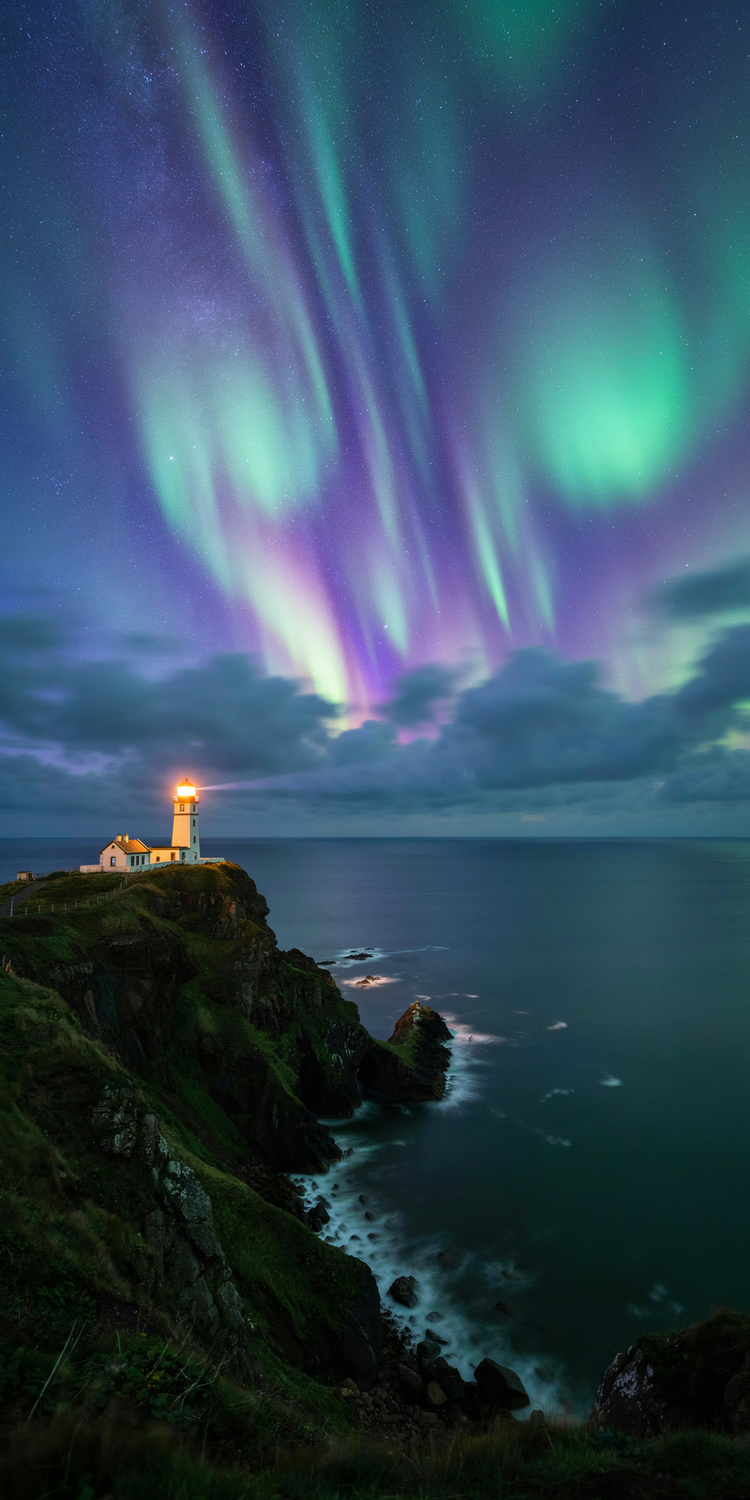
```json
{
"high_level_description": "A lone lighthouse on a sea cliff under a glowing violet aurora at night.",
"style_description": {
"aesthetics": "dreamlike, majestic, quiet",
"lighting": "aurora glow from above, warm beam from the lighthouse, deep blue shadows",
"photo": "wide-angle, long exposure, crisp stars",
"medium": "photograph",
"color_palette": ["#2A1B5C", "#7B4FD6", "#3FD9B0", "#F5C46B", "#0B1026"]
},
"compositional_deconstruction": {
"background": "A night sky filled with swirling violet and teal aurora ribbons and scattered stars above a dark, calm sea.",
"elements": [
{
"type": "obj",
"desc": "A white lighthouse with a red top standing on the edge of a rugged grassy cliff, its warm beam cutting across the sky."
},
{
"type": "obj",
"desc": "Gentle waves breaking white against the rocks at the base of the cliff."
}
]
}
}
```
Settings: Ideogram 4.0, Magic Prompt off, aspect ratio 1:2.
## Example: text with bounding boxes
When every line of text needs its own place:
```json
{
"high_level_description": "A bold event poster for a jazz night called 'Blue Note Sessions' at The Velvet Room, Saturday August 9th.",
"style_description": {
"aesthetics": "moody, retro, sophisticated, 1960s jazz club aesthetic",
"lighting": "dramatic, deep shadows, warm spotlight glow",
"medium": "graphic_design",
"art_style": "vintage poster design, textured paper, bold typography, muted color palette with warm accents",
"color_palette": ["#1A1A2E", "#16213E", "#E8C97A", "#D4A843", "#F5F0E8", "#8B4513"]
},
"compositional_deconstruction": {
"background": "Deep navy and near-black background with subtle aged paper texture and faint horizontal grain lines.",
"elements": [
{
"type": "obj",
"bbox": [150, 200, 650, 800],
"desc": "A silhouetted jazz trumpeter in side profile, mid-performance, instrument raised. Warm golden spotlight illuminates from above, casting dramatic shadows. Stylized, slightly abstract illustration style."
},
{
"type": "text",
"bbox": [30, 50, 140, 950],
"text": "BLUE NOTE SESSIONS",
"desc": "Large bold all-caps serif headline in warm golden-yellow, spanning the full width near the top of the poster."
},
{
"type": "text",
"bbox": [660, 100, 760, 900],
"text": "Live jazz every Saturday night",
"desc": "Medium-weight italic serif subheading in off-white, centered beneath the main title."
},
{
"type": "text",
"bbox": [820, 200, 900, 800],
"text": "THE VELVET ROOM",
"desc": "Smaller all-caps sans-serif venue name in warm gold, centered near the bottom."
},
{
"type": "text",
"bbox": [900, 300, 970, 700],
"text": "SAT · AUGUST 9",
"desc": "Small light-weight serif date text in off-white, near the bottom of the poster."
}
]
}
}
```
Settings: Ideogram 4.0, Magic Prompt off, aspect ratio 1:2.
For tips on wording the text itself, see [Text in Images](/prompting/text-in-images.md).