> For the complete documentation index, see [llms.txt](https://docs.ideogram.ai/llms.txt). Markdown versions of documentation pages are available by appending `.md` to page URLs; this page is available as [Markdown](https://docs.ideogram.ai/create/image-settings.md).

# Image Settings

What each setting in the Image app does and which models have it.

Each model in the Image app shows only the settings it supports. The defaults work well, so change them only when you need to. Settings marked as being under **Advanced settings** sit in a collapsed row near the bottom of the panel; select it to open.

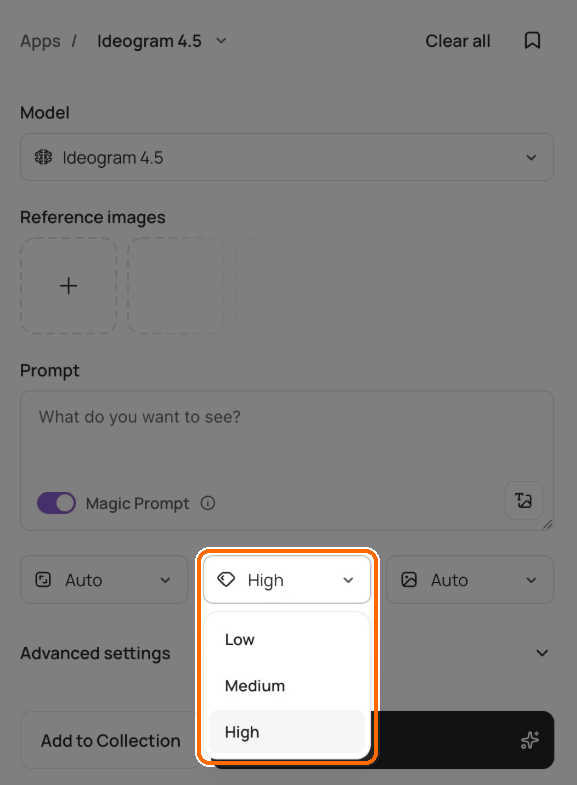
<figure><img src="https://1799634369-files.gitbook.io/~/files/v0/b/gitbook-x-prod.appspot.com/o/spaces%2FzjhNby3LLsIikYuvxAJP%2Fuploads%2Fgit-blob-d593d48e00af5a4873e20e1dbe3b0abae8ae32ab%2Fimage-settings-1.png?alt=media" alt="Image app on Ideogram 4.5 with the Magic Prompt toggle on and the Quality menu open, showing Low, Medium and High, highlighted"><figcaption><p>Each model shows only its own settings. Here, Ideogram 4.5 offers Low, Medium and High quality.</p></figcaption></figure>

## Aspect ratio and size

**Aspect ratio** sets the shape of the image. On some models a **Resolution** menu appears after you pick a ratio, with labels such as "1K (1024 × 1024)" or "2K (2048 × 2048)".

| Model        | Aspect ratios                                                                                                                | Default |
| ------------ | ---------------------------------------------------------------------------------------------------------------------------- | ------- |
| Auto         | Auto, 1:1, 4:3, 3:4, 3:2, 2:3, 16:9, 9:16                                                                                    | Auto    |
| Ideogram 4.5 | Auto, or a ratio from the Square, Landscape and Portrait groups, then Resolution 1K or 2K                                    | Auto    |
| Ideogram 4.0 | Auto, or 1:1, 5:4, 4:3, 3:2, 8:5, 16:9, 2:1, 12:5, 22:9, 23:9, 8:3, 3:1 and their portrait mirrors, then Resolution 1K or 2K | Auto    |
| Ideogram 3.0 | 1:1, 4:5, 5:4, 3:4, 4:3, 2:3, 3:2, 10:16, 16:10, 9:16, 16:9, 1:2, 2:1, 1:3, 3:1. No Auto and no Resolution menu              | 1:1     |

On Ideogram 4.0, the widest ratios (12:5, 22:9, 23:9, 8:3 and their mirrors) come in 2K only. Ideogram 4.5 offers the same ratios, but 3:1 and 1:3 also come in 2K only.

The Transparent and partner models have their own lists; see [Models](/create/models.md).

### Size on Ideogram 4.5 with reference images

When you attach reference images to Ideogram 4.5, a **Size** menu replaces Aspect ratio and Resolution:

* **Auto**: "Picks a size from your images and prompt."
* **Source image size**: "Keeps the first image's own width and height."
* **Custom**: enter **Width** and **Height**. Each side must be a multiple of 32 and at least 256 px. The image can't be more than 2048 × 2048 pixels in total or wider than 6:1.

## Number of images

Choose **Auto** or 1 to 8 images per run. More images cost more credits, and the **Generate** button shows the total. Every image model has this setting, and Auto is the default. On the Auto model, your last choice is kept for next time.

What Auto gives you depends on the model:

* Auto model: 4 images, or 2 when you attach references
* Ideogram models and P-Image-Ideogram: 4
* GPT Image, Nano Banana and Z-Image: 1

## Quality

**Quality** trades speed and cost against detail. The cost on the **Generate** button changes with your choice.

| Model                                         | Options                                                                             | Default on paid plans |
| --------------------------------------------- | ----------------------------------------------------------------------------------- | --------------------- |
| Ideogram 4.5                                  | Very low, Low, Medium, High. Very low appears only when you attach reference images | High                  |
| Ideogram 4.0, 3.0 and both Transparent models | Turbo, Default, Quality                                                             | Default               |
| GPT Image 2.5                                 | Auto, Low, Medium, High                                                             | Auto                  |
| P-Image-Ideogram                              | Very Low, Low, Medium, High                                                         | Medium                |

On a free plan, Ideogram models start at the cheapest option: Turbo, or Low on Ideogram 4.5. Auto and the other partner models have no Quality setting.

## Magic Prompt

**Magic Prompt** "Enhances your prompt to improve image variety and richness. It can also translate your prompt into English." It's an on/off toggle, and it starts on. Turn it off when you want the model to follow your exact words.

Magic Prompt appears on Ideogram 4.5, 4.0, 3.0 and 3.0 Transparent. On Ideogram 4.5 it hides when you attach reference images, because the prompt then works as an edit instruction. Ideogram 4.0 Transparent has **Prompt upsampling** (Auto, On or Off) under **Advanced settings** instead. Auto and the partner models have no Magic Prompt; P-Image-Ideogram has its own **Prompt upsampling** switch under **Advanced settings**.

Ideogram 4.5 and 4.0 also accept JSON prompts. See [JSON Prompting](/prompting/json-prompting.md).

Take the prompt *Photo of cupcake and strawberries.* Magic Prompt expanded it into a longer prompt that added frosting, sprinkles and a rustic, sunlit background:

<div><figure><img src="https://1799634369-files.gitbook.io/~/files/v0/b/gitbook-x-prod.appspot.com/o/spaces%2FzjhNby3LLsIikYuvxAJP%2Fuploads%2FxArbjXW2Puk0yppN8aI3%2FCupcake%20OFF.png?alt=media&amp;token=6a65b17c-2e30-4a4a-bd83-06c7c501aeb6" alt="Plain photo of a cupcake and strawberries" width="375"><figcaption><p>Magic Prompt off.</p></figcaption></figure> <figure><img src="https://1799634369-files.gitbook.io/~/files/v0/b/gitbook-x-prod.appspot.com/o/spaces%2FzjhNby3LLsIikYuvxAJP%2Fuploads%2FzcUHxECHYSf8DbP1PcSF%2FCupcake%20ON.png?alt=media&amp;token=ae061257-04f8-4bed-a09e-0022cecf872b" alt="Cupcake with frosting and sprinkles beside fresh strawberries in warm, rustic light" width="375"><figcaption><p>Magic Prompt on.</p></figcaption></figure></div>

## Seed

The seed is the number a run starts from. Use the same prompt, model, settings and seed to get the same or a very close result. Change one word and keep the seed to try a small change while keeping most of the layout.

Find **Seed** under **Advanced settings** on every image model. The field shows "Random" when empty, which means each run gets a new seed. Enter digits only, up to 2147483647, or select the dice button (**New random seed**) to fill in a random one.

{% hint style="warning" %}
Switching models, or changing a key idea in the prompt (say, "photo" to "painting"), gives a different image even with the same seed.
{% endhint %}

## Collection

Select **Add to Collection** to save every image from your next runs into a collection. The button then shows the collection's name; select the **x** to clear it. Every image model has this setting, and no collection is picked by default.

{% hint style="info" %}
There's no public/private setting in the Image app. On paid plans, new images stay private until you publish one. On the free plan, everything you generate is public. To publish an image, open it and choose **More options** > **Manage** > **Publish to community**.
{% endhint %}

## Ideogram 3.0 settings

These settings appear only on Ideogram 3.0, under **Advanced settings**. Custom models built on Ideogram 3.0 have them too, except the **Style** menu.

### Negative prompt

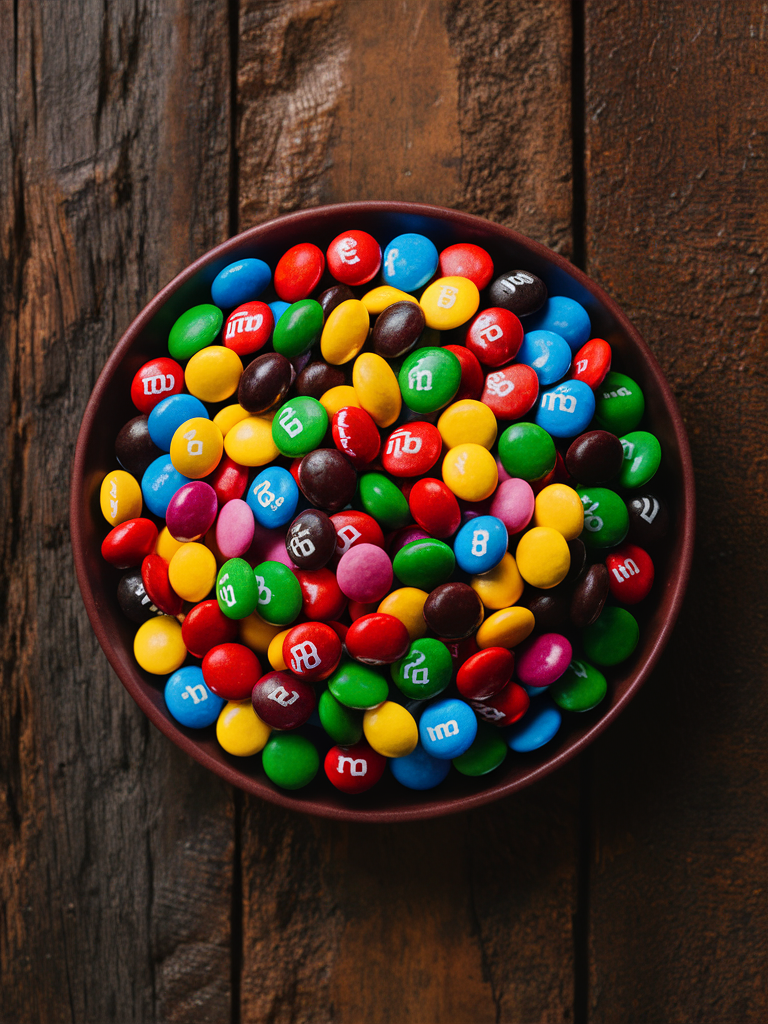
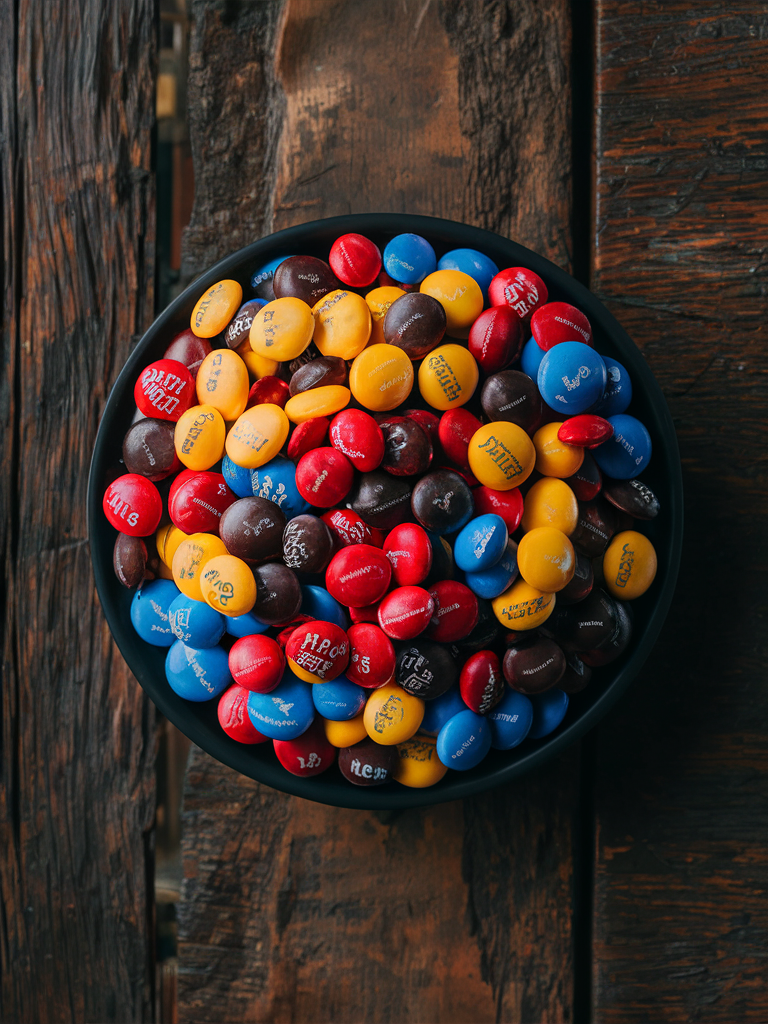
**Negative prompt** ("Things to avoid") lists what you don't want in the image. Separate items with commas, for example `green, green candies`. The field has its own **Describe** button.

<div><figure><img src="https://1799634369-files.gitbook.io/~/files/v0/b/gitbook-x-prod.appspot.com/o/spaces%2FzjhNby3LLsIikYuvxAJP%2Fuploads%2F1JbUNnLkmvBsMCDrzDIA%2Fimage.png?alt=media&amp;token=4a3d8c99-d5c4-464e-935e-c6165f289643" alt="Colorful candies in every color on a wooden table"><figcaption><p>No negative prompt.</p></figcaption></figure> <figure><img src="https://1799634369-files.gitbook.io/~/files/v0/b/gitbook-x-prod.appspot.com/o/spaces%2FzjhNby3LLsIikYuvxAJP%2Fuploads%2FWXmqqXYiFB49UZLekUkB%2Fimage.png?alt=media&amp;token=8efb2b98-5163-499f-a1dc-bef7aa636728" alt="The same candies with no green ones"><figcaption><p>Negative prompt: green, green color, green candies.</p></figcaption></figure></div>

Your main prompt always wins. If you ask for a classical guitar, the model will draw strings, whatever the negative prompt says. It often works better to write a prompt that leaves the thing out. See [Fix Common Problems](/prompting/fix-common-problems.md).

### Style

Three controls shape the look of an Ideogram 3.0 image.

**Style** sets the overall type:

* **Auto** (default): picks a style from your prompt
* **General**: fits most uses, including art and abstract work
* **Realistic**: lifelike photos with true colors, textures and light
* **Design**: clean, vector-like images such as logos and posters

**Style preset** opens **Style presets**: "Distinct, prescriptive aesthetics that define the image's look even with short prompts." Choose **None** or one of 62 presets.

**Style reference images** take up to 10 of your own images (JPEG, PNG or WebP, up to 25 MB each) and copy their look. Pick images that share a look and mood for a steady style, or mix different ones to see what the model blends. A gradient image among them pulls the colors toward it.

Presets and style reference images work only with the Auto or General style; with Realistic or Design you'll see "Available with the Auto or General style." You can use a preset or style references, not both: "Style references replace the style preset."

{% hint style="success" %}
For a preset or style references to come through clearly, turn Magic Prompt off and keep style words out of your prompt. Short prompts work best.
{% endhint %}

### Color palette

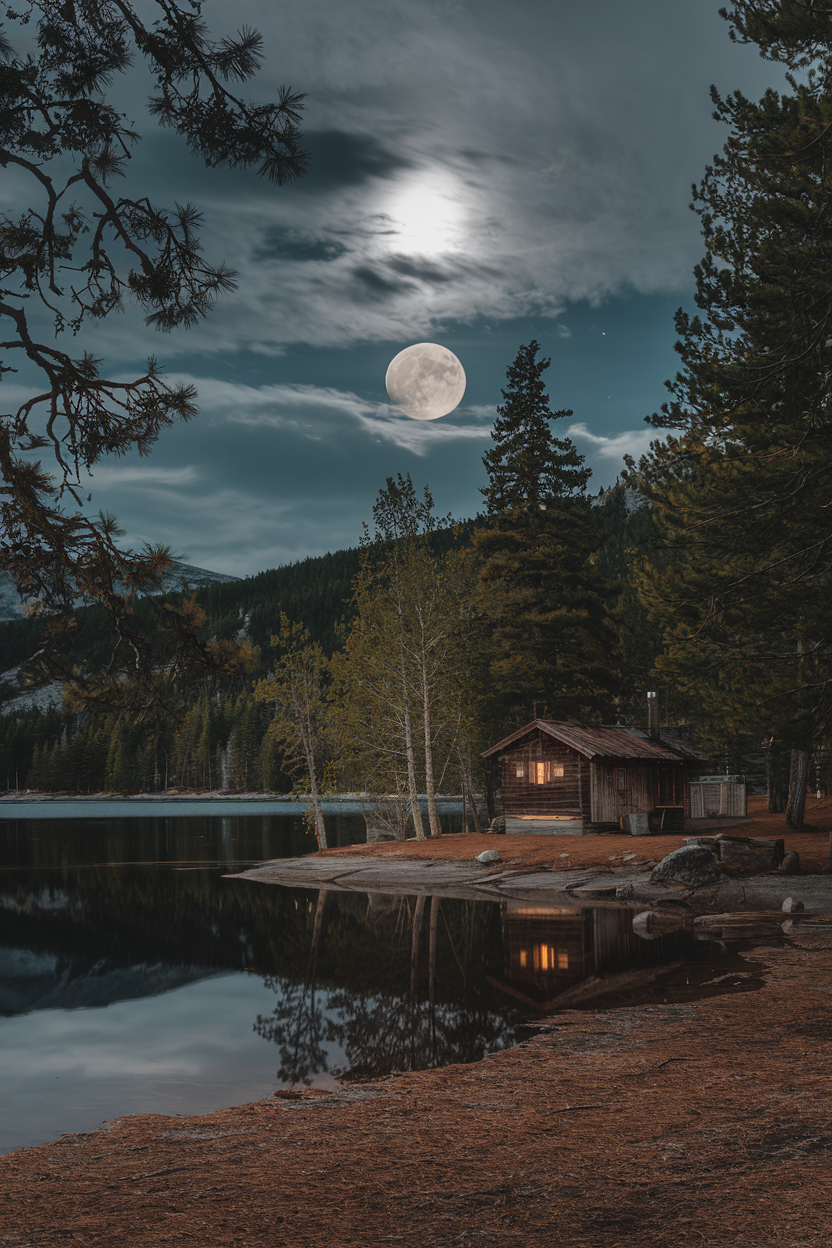
**Color palette** steers the colors of the image. Treat it as a direction, not an exact color match; it works best alongside color words in your prompt.

Choose **None**, a preset (**Ember**, **Fresh**, **Jungle**, **Magic**, **Melon**, **Mosaic**, **Pastel** or **Ultramarine**) or **Custom**. Custom shows a **Palette colors** field where you type up to 8 hex codes separated by spaces, such as `#FF5733 #0133FF #DE3357`.

Custom palettes need a Plus, Pro, Team or Enterprise plan. On other plans the option shows as **Custom (Plus)** and can't be picked.

<div><figure><img src="https://1799634369-files.gitbook.io/~/files/v0/b/gitbook-x-prod.appspot.com/o/spaces%2FzjhNby3LLsIikYuvxAJP%2Fuploads%2FDmickR7KKoRDyEUbm2jg%2Fimage.png?alt=media&amp;token=a7732947-3122-4a58-a2ef-3b42c004f916" alt="Moon rising over a lakeside cabin among pines in natural night tones"><figcaption><p>No palette.</p></figcaption></figure> <figure><img src="https://1799634369-files.gitbook.io/~/files/v0/b/gitbook-x-prod.appspot.com/o/spaces%2FzjhNby3LLsIikYuvxAJP%2Fuploads%2FmExrgqoe4nbAMNaCFkIV%2Fimage.png?alt=media&amp;token=48b07af2-9473-4f1f-95de-d937a73410a8" alt="The same lakeside scene in deep ultramarine blues"><figcaption><p>Ultramarine.</p></figcaption></figure></div>