> For the complete documentation index, see [llms.txt](https://docs.ideogram.ai/llms.txt). Markdown versions of documentation pages are available by appending `.md` to page URLs; this page is available as [Markdown](https://docs.ideogram.ai/create/describe.md).

# Describe

Use Ideogram Describe to turn an image into a text or JSON prompt. Choose Upload or Library, understand file limits, undo replacements and resolve errors.

Describe looks at an image and writes a prompt for it. Use it to recreate a look you like, or to learn which words Ideogram links to what it sees.

## Where to find it

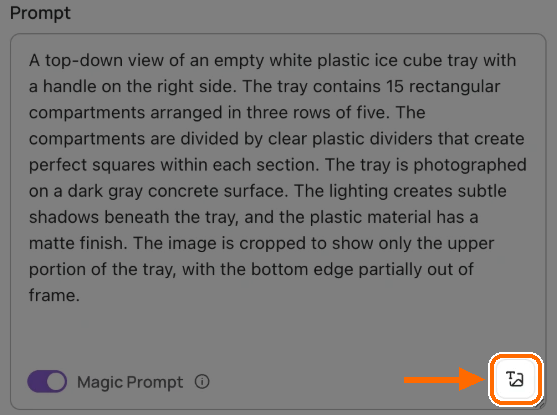
Every model's prompt box in the Image app has a **Describe** button (tooltip "Describe an image"). The **Negative prompt** field on Ideogram 3.0 has one too.

The Home prompt box has no Describe button. Open the Image app first.

<figure><img src="https://1799634369-files.gitbook.io/~/files/v0/b/gitbook-x-prod.appspot.com/o/spaces%2FzjhNby3LLsIikYuvxAJP%2Fuploads%2Fgit-blob-80b0b0d5b8464e307dbc4eebd5e390e6d3e8f137%2Fdescribe-1.png?alt=media" alt="Prompt box filled with a Describe caption of an ice cube tray, with the Describe button at the bottom right highlighted"><figcaption><p>Click the <strong>Describe</strong> button at the bottom right of the prompt box. The caption fills the box.</p></figcaption></figure>

## Describe an image

1. Click **Describe** at the bottom right of the prompt box. A source menu opens.
2. Choose **Upload** to pick a file from your computer, or **Library** to choose an image you already have in Ideogram. Library requires you to sign in.
3. Choose an image.
4. Wait while the box reads "Describing image…". Click **Cancel** to stop.

You can also drop an image on the prompt box from your computer or from your feed. Pasting an image from the clipboard doesn't start Describe; save a screenshot as an image file, then upload or drop it instead. Pasting ordinary text still works.

In apps such as Remix and Precise Edit, the menu also offers **Use source image**. Add a source image first, then choose this option to describe it without selecting it again.

### Which files can Describe use?

Use JPEG, PNG or WebP for a straightforward upload, up to **50 MB per file**. SVG, AVIF and HEIC are rejected by the image validator. Describe's upload limit is different from the Image app's 25 MB reference-image limit.

### Describe an image from your Library

1. In your Library, open an image's menu.
2. Choose **Describe**. It opens the Image app and writes the prompt there, clearing any reference images you had attached.

## What you get

The description **replaces** whatever was in the prompt box. Press Cmd+Z (Mac) or Ctrl+Z (Windows) to get your old prompt back.

The replacement happens when Describe succeeds. **Cancel** stops a pending description without replacing the existing text. Copy a prompt you want to keep before trying another description. Undo works in the current prompt-editing session; don't rely on it to recover text after refreshing or resetting the app.

The result can be a plain-text paragraph or, on models such as Ideogram 4.5 and 4.0, a structured JSON prompt. The format depends on the model and the version of Describe available to your account. You can generate directly from either format, or edit it first. See [JSON Prompting](/prompting/json-prompting.md) for help with the structured format.

If something goes wrong you may see "Failed to upload image", "This image can't be described" or "Failed to describe image". Try again, or try another image.

| Message                           | Next step                                                                         |
| --------------------------------- | --------------------------------------------------------------------------------- |
| **Failed to upload image**        | Check the file format and size, then upload again.                                |
| **This image can't be described** | Choose another supported image or upload a local copy through the source menu.    |
| **Failed to describe image**      | The description wasn't completed. Keep your existing prompt and retry when ready. |

Describe creates a description of visible content, not a recovery of the original prompt or its model settings. To keep the original image as an input, use [reference images](/create/reference-images.md). To restore a supported Ideogram generation's recorded settings, use [Recreate](/create/create.md#copy-prompt-reuse-prompt-or-recreate).

## Example

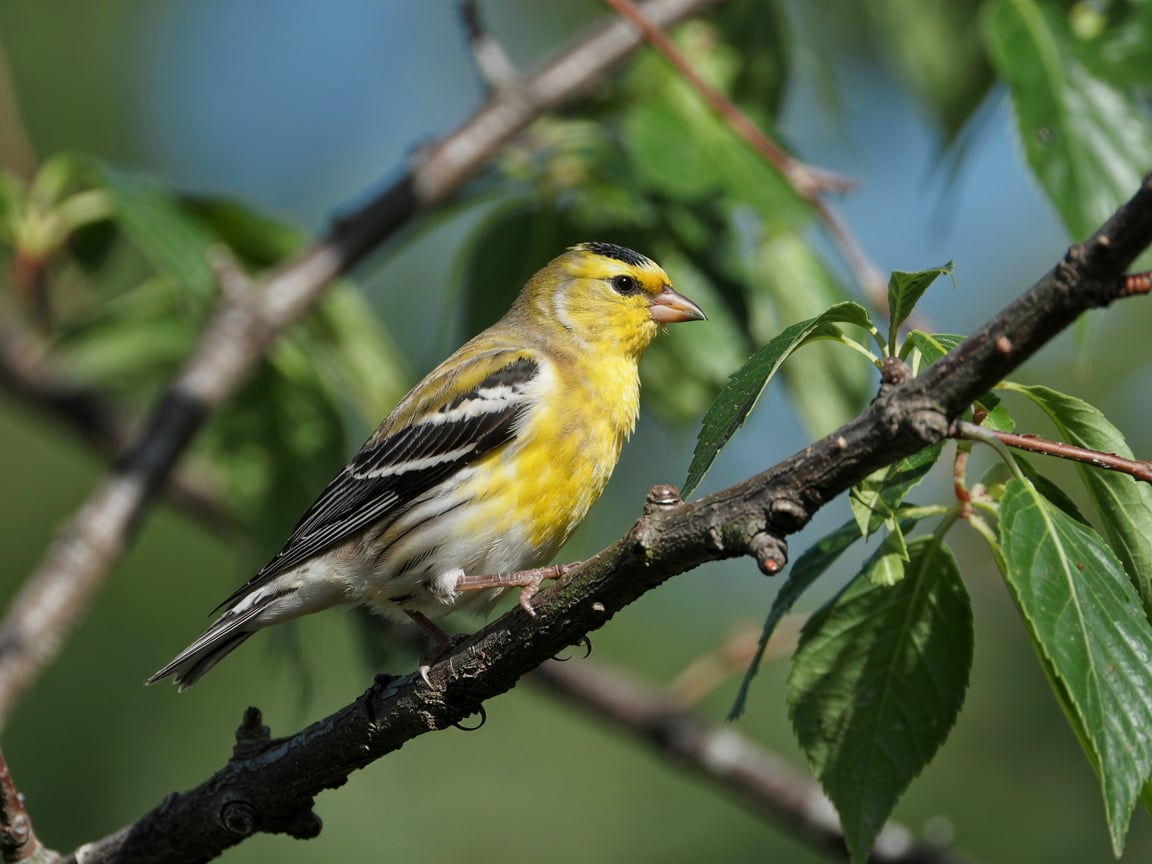
<figure><img src="https://1799634369-files.gitbook.io/~/files/v0/b/gitbook-x-prod.appspot.com/o/spaces%2FzjhNby3LLsIikYuvxAJP%2Fuploads%2FtXKvlbWj6XVP9FKavZJI%2Fimage.png?alt=media&amp;token=161be11b-ef36-4336-9a5a-f4e969249a39" alt="Photo of an American Goldfinch with bright yellow plumage and black and white wings perched on a branch among green leaves"><figcaption><p>Original photo.</p></figcaption></figure>

Describe wrote:

> *A close-up photograph of an American Goldfinch perched on a dark brown tree branch. The bird has vibrant yellow plumage on its head, back, and wings, with distinctive black and white wing bars. The goldfinch's beak is bright orange-yellow, and its eye is dark and alert. The bird is positioned facing right, gripping the rough-textured branch with its feet. In the background, there are green leaves visible, slightly out of focus, creating a natural bokeh effect. The lighting is bright and natural, highlighting the bird's bright yellow feathers. The composition is sharp and detailed, with the goldfinch positioned in the left two-thirds of the frame. The background has a blue-green tint, suggesting a summer or late spring setting.*

<figure><img src="https://1799634369-files.gitbook.io/~/files/v0/b/gitbook-x-prod.appspot.com/o/spaces%2FzjhNby3LLsIikYuvxAJP%2Fuploads%2FdfxnhLDJtK0YM3Qhnj5t%2Fimage.png?alt=media&amp;token=75df9720-dd69-4550-b108-773b6abec8eb" alt="AI-generated goldfinch with streaky olive-yellow plumage perched on a bare branch surrounded by green leaves"><figcaption><p>A new image made from that prompt with Ideogram 3.0, Realistic style.</p></figcaption></figure>

## Tips

* The prompt describes the image; it doesn't copy it. To keep the image itself in play, attach it as a [reference image](/create/reference-images.md).
* Trim what you don't need and add what's missing before you generate. See [Prompting](/prompting/prompting.md).