> For the complete documentation index, see [llms.txt](https://docs.ideogram.ai/llms.txt). Markdown versions of documentation pages are available by appending `.md` to page URLs; this page is available as [Markdown](https://docs.ideogram.ai/organize-and-share/download.md).
# Download
Download one image in the file type and size you want, or many images and videos at once as a ZIP.
Use Ideogram's **Download** button rather than your browser's "Save image". The button lets you pick the file type and size.
## Download one image
{% stepper %}
{% step %}
### Open the image
Open the image to see its asset page.
{% endstep %}
{% step %}
### Click Download
Click **Download** in the action bar.
Click Download at the top right.
{% endstep %}
{% step %}
### Pick a file type
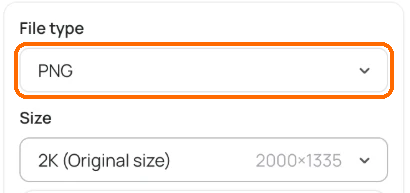
Pick a **File type**: **JPEG**, **PNG** or **WEBP**.
Choose the file type.
{% endstep %}
{% step %}
### Pick a size
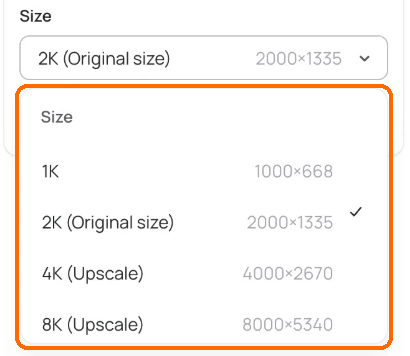
Pick a **Size**: **1K**, **2K**, **4K** or **8K**. Each size shows its pixel dimensions and a tag:
* **(Original size)**: the image as it was made.
* **(Upscale)**: Ideogram upscales the image first, then downloads it.
Each size shows its pixel dimensions and a tag.
{% endstep %}
{% step %}
### Download
Click the button at the bottom of the menu.
{% endstep %}
{% endstepper %}
The menu lists the original size, any smaller sizes, and upscale sizes up to the largest that fits. A 2K image, for example, offers 1K, 2K (Original size), 4K and 8K. The button text changes with your choice:
| Button | When |
| ------------------------- | --------------------------------------------------------------------------------------------------------------------------------------------------------------- |
| **Download** | You picked the original size or a smaller one. |
| **Upscale & download** | You picked an upscale size. This spends credits, and the button shows how many. See [how credits work](/plans-and-billing/available-plans.md#how-credits-work). |
| **Subscribe to download** | Your choice needs a paid plan. |
To control the upscaler yourself, use the Upscale app instead. It works without a plan if you've [bought credits](/plans-and-billing/buying-extra-credits.md), while **Upscale & download** needs a paid plan. See [Upscale](/edit/upscale.md).
### Free and paid accounts
| | Without a paid plan | With a paid plan |
| --------------------- | ------------------------------------- | ------------------ |
| JPEG at original size | Yes | Yes |
| PNG or WEBP | No, except transparent images (below) | Yes |
| Upscale sizes | No | Yes, for credits |
| Starts on | JPEG, original size | PNG, original size |
Options you can't use show a crown icon. Click one to see plans. See [Available Plans](/plans-and-billing/available-plans.md).
### Transparent images
Images with a removed or transparent background are different. Anyone can download them as PNG at 1K, free. JPEG is turned off for them, because JPEG can't keep transparency. See [Transparent Backgrounds](/create/transparent-backgrounds.md) and [Remove Backgrounds and Objects](/edit/remove-backgrounds-and-objects.md).
## Quick download from the grid
Tiles in Assets show a Download icon, and the right-click menu has **Download image**. Both skip the menu and download the original size: PNG on a paid plan or for transparent images, otherwise JPEG.
## Download many at once
{% stepper %}
{% step %}
### Open Assets
Open **Assets** or a collection.
{% endstep %}
{% step %}
### Select items
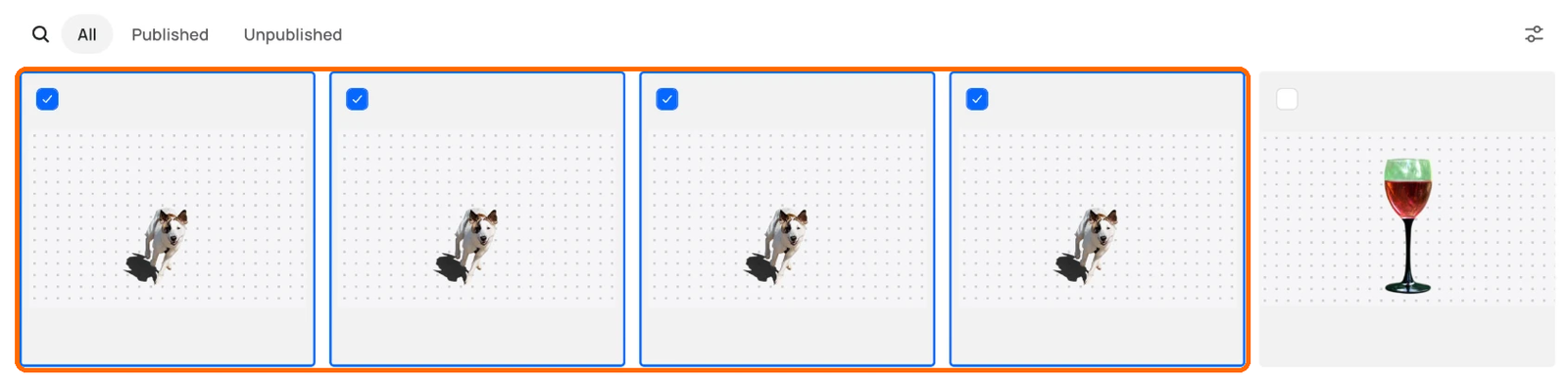
Select the items you want. See [Assets and Likes](/organize-and-share/assets.md#select-several-items).
Tick each item you want.
{% endstep %}
{% step %}
### Click Download
Click **Download** in the bar at the bottom.
Click Download in the bar.
{% endstep %}
{% endstepper %}
Ideogram builds a ZIP file named `ideogram-images-.zip`. Images come as PNG if you subscribe and JPEG if you don't.
The ZIP also holds a CSV file with one row per item. It lists the file name, prompt, Magic Prompt text, aspect ratio, model, visibility, seed, style, color palette and a link to the asset.
Limits:
* Up to 250 items in one selection.
* Up to 50 videos in one download.
* One bulk download at a time. If you start another, you'll see "You already have bulk downloads in progress…".
To download a whole collection, open its **…** menu and click **Download**.
## Videos
Videos download as one MP4 file, named after the asset. There's no format or size choice. If a video is still being made, you'll see "Video is not available for download yet."