
> For the complete documentation index, see [llms.txt](https://docs.ideogram.ai/llms.txt). Markdown versions of documentation pages are available by appending `.md` to page URLs; this page is available as [Markdown](https://docs.ideogram.ai/edit/remix.md).

# Remix

Remix an AI image or uploaded photo with a new prompt. Compare Auto and manual image strength, understand source-prompt behavior, and fix common Remix input errors.

Remix makes variations of an image you already have. Your prompt says what should change, and the source image holds the layout, subject and colors in place. Use it when you like an image but want a new take on it, such as a different style or setting.

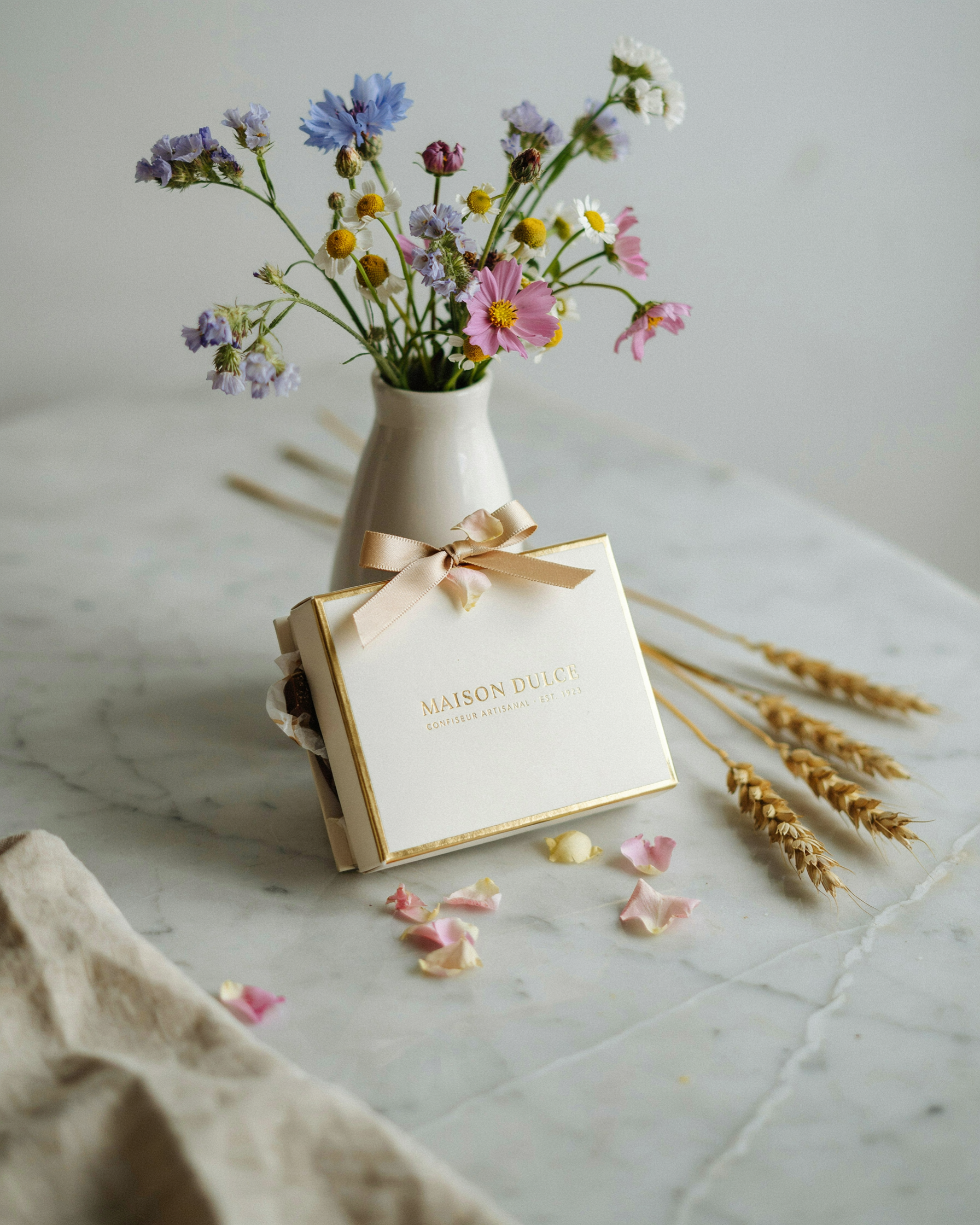
<div><figure><img src="https://1799634369-files.gitbook.io/~/files/v0/b/gitbook-x-prod.appspot.com/o/spaces%2FzjhNby3LLsIikYuvxAJP%2Fuploads%2Fgit-blob-2ea39767088e6a85893302e300f4c5da00ace696%2FRemix%20-%20Before.png?alt=media" alt="Original image used as the Remix source."><figcaption><p>Source image.</p></figcaption></figure> <figure><img src="https://1799634369-files.gitbook.io/~/files/v0/b/gitbook-x-prod.appspot.com/o/spaces%2FzjhNby3LLsIikYuvxAJP%2Fuploads%2Fgit-blob-dbf4bddd90fa35fb0730af20cc44d56cef957b2c%2FRemix%20-%20After.png?alt=media" alt="Image created by remixing the source."><figcaption><p>Remixed image.</p></figcaption></figure></div>

You can remix in two places:

|                | Remix app                          | Remix in Studio                              |
| -------------- | ---------------------------------- | -------------------------------------------- |
| Plan           | Any plan (6 credits per image)     | Paid plan                                    |
| Images per run | 1 to 8 (default 4)                 | 1 to 4 on the canvas, 1 on a layer           |
| Model choice   | Auto, Ideogram 4.0 or Ideogram 3.0 | Set by Studio                                |
| Result         | New images in **Assets**           | A new version, or the layer changes in place |

## The Remix app

### Open it

* On an image page, open **More options** and choose **Remix** under **Use**.
* Right-click an image, or open its **…** menu in the Library's **Generations** or **Uploads** tab, and choose **Remix**.
* Open **Apps** and search for Remix.

### Settings

* **Model**: **Auto**, **Ideogram 4.0** or **Ideogram 3.0**. Auto is the default and picks for you.
* **Source image**: the one image you remix.
* **Prompt**: describe the result you want, up to 10,000 characters. With **Ideogram 3.0**, selecting a source fills this from its Magic Prompt when available, otherwise its original prompt. Uploads without a prompt start empty. With **Auto** or **Ideogram 4.0**, write your prompt or use **Describe** to draft one from the source image.
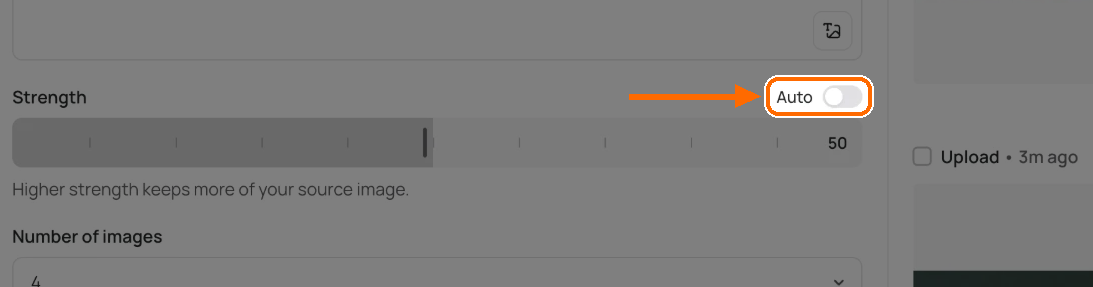
* **Strength**: **Auto** is on by default. Turn it off to show a slider from 1 to 100 (default 50). "Higher strength keeps more of your source image."
* **Number of images**: 1 to 8, default 4.
* **Render speed** (Ideogram 3.0 only, under **Advanced**): Default on paid plans, Turbo on the free plan.

Choose the source and model before you polish the prompt. When **Ideogram 3.0** loads a different source, its prompt replaces the current text; check it again after changing the image.

### Run it

{% stepper %}
{% step %}

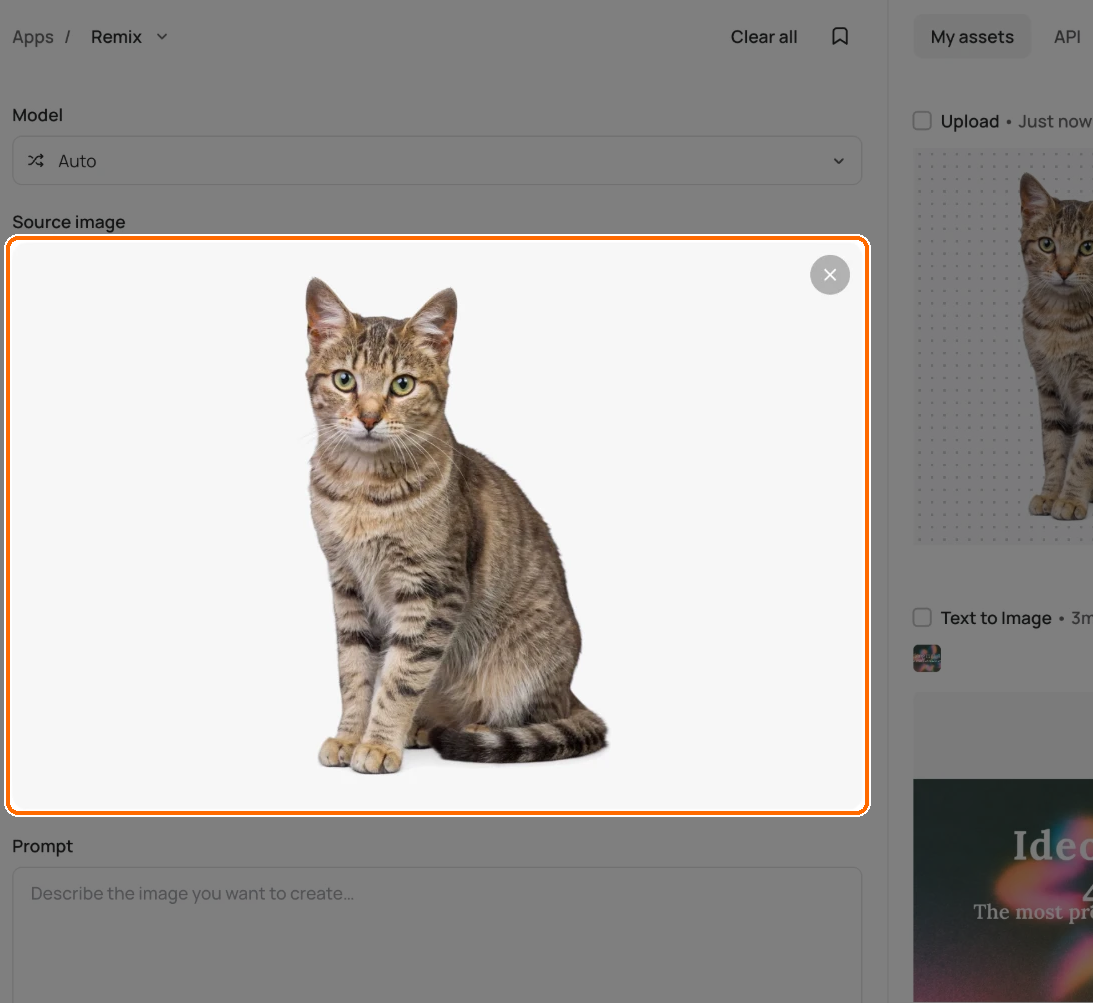
### Add a source image

Under **Source image**, click **+ Add** to upload a picture or choose one you already have.

<figure><img src="https://1799634369-files.gitbook.io/~/files/v0/b/gitbook-x-prod.appspot.com/o/spaces%2FzjhNby3LLsIikYuvxAJP%2Fuploads%2Fgit-blob-7afdde0cc76eb6e761572a9e8911e161f36abd1e%2Fremix-1.png?alt=media" alt="Remix app with a cat photo loaded in the highlighted Source image box, under the Model picker set to Auto."><figcaption><p>Add the image you want to remix.</p></figcaption></figure>
{% endstep %}

{% step %}

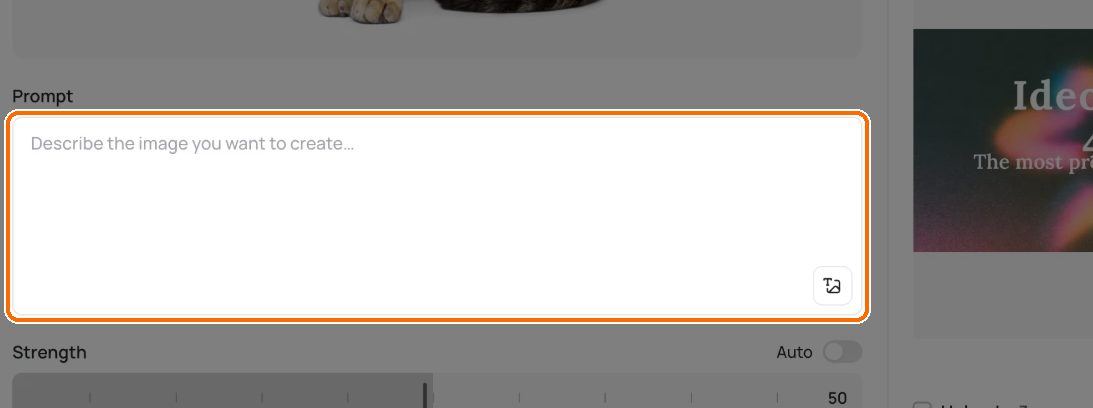
### Edit the prompt

Edit the **Prompt** to describe the result you want.

<figure><img src="https://1799634369-files.gitbook.io/~/files/v0/b/gitbook-x-prod.appspot.com/o/spaces%2FzjhNby3LLsIikYuvxAJP%2Fuploads%2Fgit-blob-b6d45c723a45bc7b90e4b942fc4f03d985dde2c6%2Fremix-2.png?alt=media" alt="Remix Prompt box, highlighted, with the Describe button in its corner."><figcaption><p>Describe the result you want.</p></figcaption></figure>
{% endstep %}

{% step %}

### Set the strength

Leave **Strength** on **Auto**, or turn Auto off and set the slider.

<figure><img src="https://1799634369-files.gitbook.io/~/files/v0/b/gitbook-x-prod.appspot.com/o/spaces%2FzjhNby3LLsIikYuvxAJP%2Fuploads%2Fgit-blob-da9a5591210156c544ae05020ee3f9fe5f2f064d%2Fremix-3.png?alt=media" alt="Strength row with the Auto switch highlighted and turned off, the slider at 50 and the line Higher strength keeps more of your source image."><figcaption><p>Turn <strong>Auto</strong> off to set the slider yourself.</p></figcaption></figure>
{% endstep %}

{% step %}

### Click Remix

Click **Remix**. The button shows the cost first. See [how credits work](/plans-and-billing/available-plans.md#how-credits-work).

<figure><img src="https://1799634369-files.gitbook.io/~/files/v0/b/gitbook-x-prod.appspot.com/o/spaces%2FzjhNby3LLsIikYuvxAJP%2Fuploads%2Fgit-blob-28ee45f04f909cbeb4f51ed05b20f0f6de35330f%2Fremix-4.png?alt=media" alt="Remix button, highlighted, next to Add to Collection."><figcaption><p>Click <strong>Remix</strong> to run it.</p></figcaption></figure>
{% endstep %}
{% endstepper %}

On paid plans, your remixes stay private until you publish one from its image page. On the free plan, they're public.

### Example: restyle a product photo

Add the product photo, then describe the complete image you want, for example: "A studio photograph of the same ceramic mug on a pale blue table, soft side lighting, simple background." Start with one image per run while you compare settings. Keep the source and prompt fixed when testing **Strength**, so you can compare that control alone.

If you need one small, bounded change while leaving the surrounding image alone, use a mask in [Precise Edit](/edit/masks-and-inpainting.md) instead of remixing the entire image.

### If Remix will not start

* **Choose an image to remix:** attach one source image; the app accepts one at a time.
* **Enter a prompt for your remix:** write a prompt or use **Describe**. A source image alone is not enough.
* **Wait for the source image to finish loading:** let the preview load before running. If the app says it cannot read the source, remove it and choose it again.
* **Use a prompt of 10,000 characters or fewer:** shorten the prompt before trying again.

## Remix in Studio

Remix inside [Studio](/edit/studio.md) needs a paid plan. It works on the whole canvas or on one image layer.

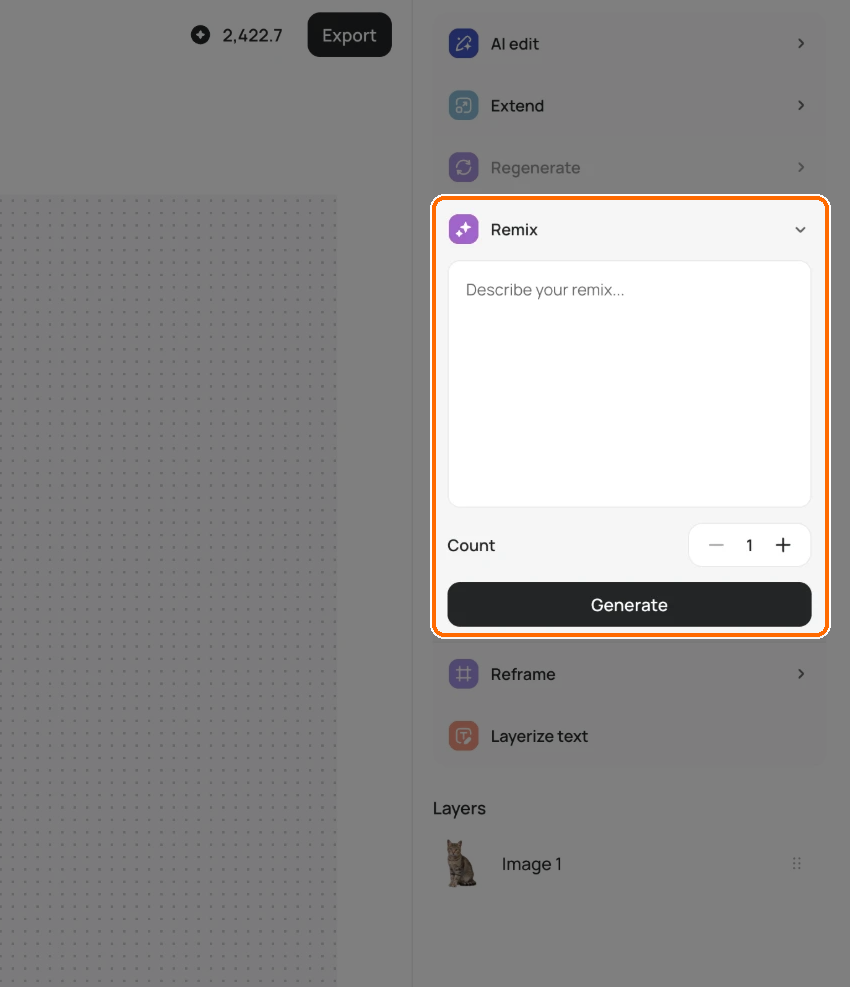
### Remix the whole canvas

1. Click an empty spot so nothing is selected.
2. Choose **Remix** in the right sidebar.
3. Write your prompt in "Describe your remix...".
4. Set **Count** (1 to 4).
5. Click **Generate**.

   <figure><img src="https://1799634369-files.gitbook.io/~/files/v0/b/gitbook-x-prod.appspot.com/o/spaces%2FzjhNby3LLsIikYuvxAJP%2Fuploads%2Fgit-blob-7ff065f545899cbe83879c3e7c363bf35a98d2c6%2Fremix-5.png?alt=media" alt="Studio right sidebar with nothing selected and the Remix tool highlighted, showing the Describe your remix box, Count set to 1 and the Generate button."><figcaption><p>With nothing selected, open <strong>Remix</strong>, describe the change and click <strong>Generate</strong>.</p></figcaption></figure>

Each run adds a new version to the version strip, so your original stays put. A **Strength** slider (0 to 100, default 50) appears only when Studio isn't using Auto.

### Remix one image layer

1. Select the layer.
2. Choose **Remix** under **Tools**.
3. Describe the change.
4. Click **Generate**.

You get one result, and it replaces that layer. There is no strength slider on desktop.

## Tips on strength

* Start with **Auto** if you don't need to choose a manual strength.
* Want the result to look close to the source, with small changes in color or detail? Turn Auto off and go above 50.
* Want a bigger change in style or setting, with only the rough layout kept? Go below 50.
* If a high strength ignores your prompt, lower it in steps of 10 to 20 and run again.
* Change one thing at a time in the prompt. You can then tell what the strength did.