> For the complete documentation index, see [llms.txt](https://docs.ideogram.ai/llms.txt). Markdown versions of documentation pages are available by appending `.md` to page URLs; this page is available as [Markdown](https://docs.ideogram.ai/create/batch.md).
# Batch Generation
Generate up to 500 prompts at once from a spreadsheet, then download the images as a zip.
Batch Generation turns a spreadsheet of prompts into images. Upload the file, confirm the cost, and keep using Ideogram while the batch runs. You get a notification when it's ready.
## Who can use it
Batch Generation comes with Pro, Team and Enterprise plans. On other plans you see "Upgrade to Pro to access Batch Generation." See [Available Plans](/plans-and-billing/available-plans.md).
## File types and limits
* Formats: .csv, .xls, .xlsx or .ods
* Size: up to 1 MB
* Rows: up to 500 prompt rows, plus the header row
Each prompt row is one generation. The `num_images` column sets how many images that row makes.
## Template columns
Start from a template. The **Simple template** covers the basics; the **Full template** has every column. Only `prompt` is required. Leave any other cell blank to use its default.
| Column | Required | Allowed values | Default |
| ----------------- | -------- | --------------------------------------------------------------------------- | --------- |
| `prompt` | Yes | Your prompt text | — |
| `model` | No | `1.0`, `2a`, `2.0`, `3.0`, `4.0`, `auto`, or a custom model's id or name | `3.0` |
| `num_images` | No | `1` to `4` | `4` |
| `aspect_ratio` | No | `W:H` such as `16:9` or `2.40:1`, `auto`, `landscape`, `portrait`, `square` | — |
| `magic_prompt` | No | `off`, `auto`, `on` | `auto` |
| `visibility` | No | `private`, `public` | `private` |
| `rendering` | No | `turbo`, `default`, `quality` | `default` |
| `seed_number` | No | A number | — |
| `negative_prompt` | No | What to leave out of the image | — |
| `style` | No | A style value; ignored for `4.0` rows | `auto` |
| `color_palette` | No | A preset palette name, or up to 5 hex codes separated by spaces | — |
For `4.0` rows, describe the look in the prompt instead of using `style`. The review screen warns you if a `4.0` row has a style.
Custom models run on their Ideogram 3.0 base. See [Custom Models](/create/custom-models.md).
## Supported models
Batch supports Ideogram 1.0 through 4.0 and your custom models.
{% hint style="warning" %}
Batch does not support Ideogram 4.5, partner models such as GPT Image or Nano Banana, or video. Use the [Image app](/create/create.md) or [Video app](/create/video.md) for those.
{% endhint %}
## Formatting tips
* Keep the header row the same as the template's column names.
* Delete the example rows before you upload.
* Save CSV files as UTF-8.
* In spreadsheet apps, format cells as text so values like `2:3` don't turn into dates.
## Run a batch
{% stepper %}
{% step %}
### Open Batch
In the sidebar, open **More** and select **Batch**.
{% endstep %}
{% step %}
### Download a template
Select **Download template**, then choose **Simple template** or **Full template**.
{% endstep %}
{% step %}
### Fill in your prompts
Fill in one prompt per row and save the file.
{% endstep %}
{% step %}
### Upload the file
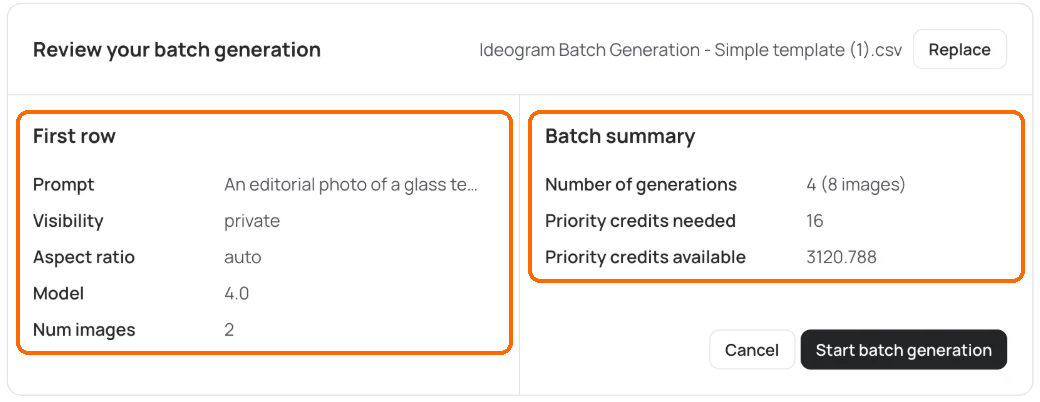
Select **Upload spreadsheet**. To swap the file, select **Replace**.
Select Replace to swap the file.
{% endstep %}
{% step %}
### Review the batch
On **Review your batch generation**, check the **First row** and the **Batch summary**.
Check the First row and the Batch summary.
{% endstep %}
{% step %}
### Start the batch
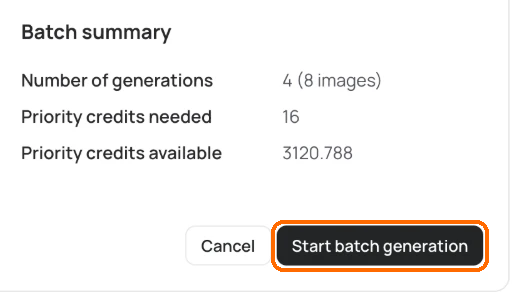
Select **Start batch generation**, or **Cancel** to go back.
Select Start batch generation.
{% endstep %}
{% step %}
### Confirm
When **Batch submitted** appears, select **Got it**.
{% endstep %}
{% endstepper %}
## Cost
The **Batch summary** shows **Number of generations** (with the image count), **Priority credits needed** and **Priority credits available**. Batch still says "priority credits"; these are the same credits as everywhere else. Cost depends on the models, the number of rows and `num_images`. See [How credits work](/plans-and-billing/available-plans.md#how-credits-work).
You need at least 2 credits to submit a batch; Enterprise plans skip this check. If your credits run out midway, the batch stops. Add credits, then select **Resume**. On a Team plan, only team owners can buy more credits. See [Buying Extra Credits](/plans-and-billing/buying-extra-credits.md).
## Results and download
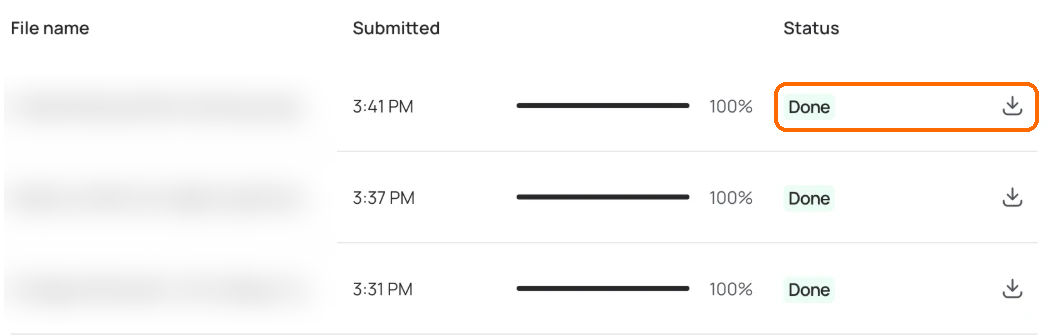
The Batch Generation page lists your batches with **File name**, **Submitted** and **Status** (In progress, Done or Stopped). Use **Stop** to halt a running batch and **Resume** to restart it.
When a batch is done, select **Download** to get a zip file named "Ideogram Batch Download - " plus your file name.
When a batch reads Done, select the download button.