Text in Images
How to get clean, correctly spelled text in images with Ideogram 4.5 and 4.0, for posters, flyers, logos, book covers, YouTube thumbnails, t-shirt slogans, signs and greeting cards.
Ideogram can put text almost anywhere in an image: a caption over a photo, a headline on a poster, a brand name on a bottle, a slogan on a t-shirt, a title on a book cover or YouTube thumbnail, or the words on a flyer, invitation or greeting card. Put the exact words in quotation marks and describe where they sit.
Prompt:
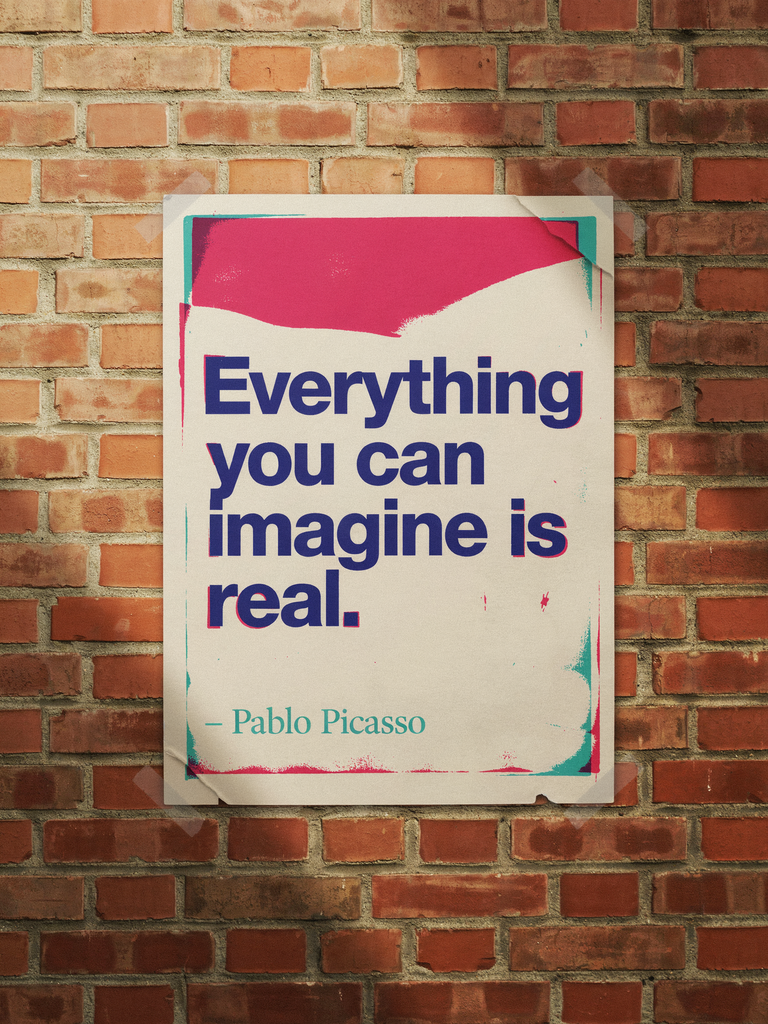
A risograph poster pasted on a sunlit brick wall with text that reads: "Everything you can imagine is real. – Pablo Picasso"

Write the text into the prompt
Quote the exact words. Anything inside quotation marks is text to render. Keep spelling and capitals as you want them to appear.
Mention the text early. Text named near the start of the prompt comes out more reliably than text added at the end.
Say where it appears. "Painted across the mural behind the artist" or "curving along the bottom" gives the model a place to put the words.
Keep it short. Each extra word raises the odds of a typo or a dropped letter. Short phrases work best.
Keep the scene simple. A busy scene leaves less room for clean lettering.
On the wall behind the artist, the phrase "Inspire Daily" is painted in large brush strokes across a mural, at the back of a vibrant and creative studio.
A vintage poster design with the words "Ride Free" curving along the bottom in retro lettering, featuring a smiling woman on a bicycle on a countryside road.
Text can be part of an object, or the object can form the text:
Text on an object

A close-up detailed product photo of a vibrant and energetic baseball cap, featuring a stylish red panda embroidered emblem that exudes vitality. The cap is embroidered with the team's name, "Red Panda," displayed boldly in white bold script font below the sleek red panda design.
Text formed by objects

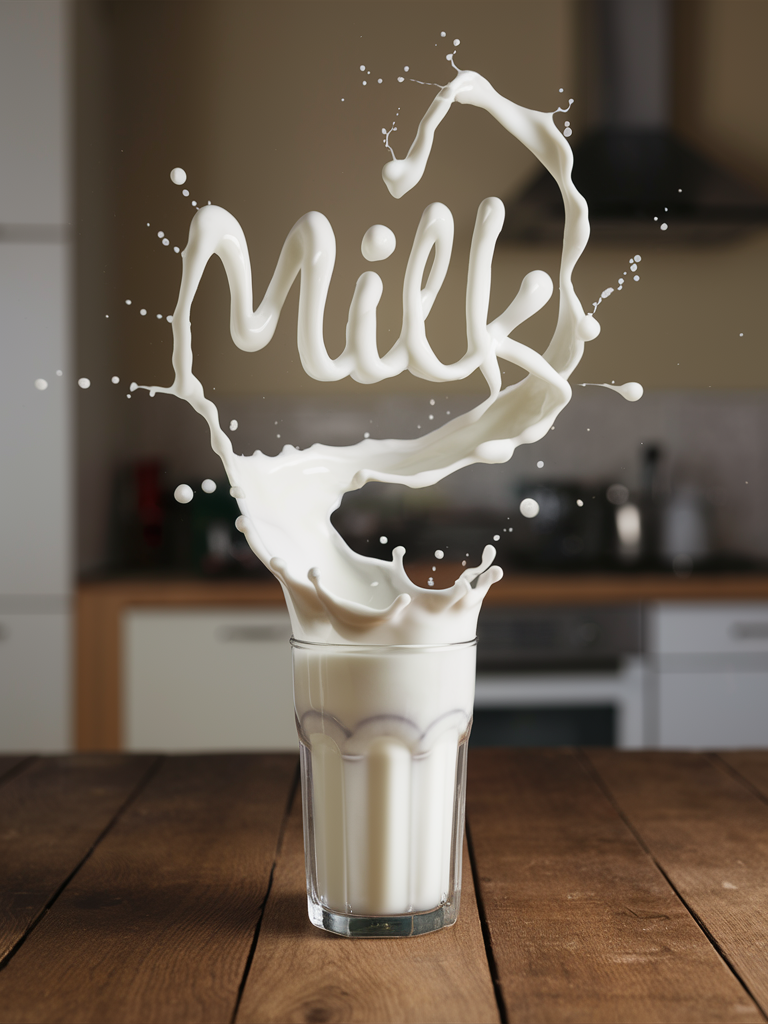
A striking photograph in which a glass of milk is placed on a wooden table. A splash of milk comes out of the glass, forming the word "Milk" in a swirly manner just above the glass. The background is blurred but looks like a homely kitchen.
Describe the lettering
You can't pick a font by name. Ideogram doesn't load real fonts; it learned what text styles look like from images. Describe the weight, shape and mood of the letters instead.

The word "Welcome" written in bold sans-serif typeface, in deep forest green on a warm cream background.

The word "Welcome" written in ultra thin sans-serif typeface, in deep forest green on a warm cream background.

The word "Welcome" written in serif typeface, in deep forest green on a warm cream background.

The word "Welcome" written in thin rounded bauhaus style typeface, in deep forest green on a warm cream background.

The word "Welcome" written in thin and refined formal script typeface with flourishes, in deep forest green on a warm cream background.

The word "Welcome" written in an elongated and artistic 1960's hippie-style typeface, in deep forest green on a warm cream background.
If you leave the style out, the model picks one that suits the scene. Magic Prompt will also add a fitting style when it expands your prompt.
More than one block of text
Give each block its own words, style and place. Describe them in reading order, from the top of the image down:
A vintage jazz poster. At the top, the headline "BLUE NOTE SESSIONS" in large gold serif capitals. Below the trumpeter, "Live jazz every Saturday night" in off-white italic serif. At the bottom, "THE VELVET ROOM" in small gold sans-serif capitals.
Plain text gets you close, but the layout can shift from one run to the next. When each line must land in an exact spot, use a JSON prompt. On Ideogram 4.5 and 4.0, each text element gets its own text, desc (how it looks), color_palette and bbox. See JSON Prompting for the format and a full poster example.
Limits
Long passages. Ideogram handles titles and short blocks well. Add body copy or full documents later in a design tool.
Languages. Text comes out most accurately in English. Non-Latin scripts and accented letters can come out wrong or not at all.
Fix misspelled text
An image can still come back with a doubled letter or a missing word. Try these in order:
Generate again. Each run gives the text another chance.
Swap long or unusual words for shorter ones.
Fix just the text in Studio, so the rest of the image stays the same. See Fix the text in Studio.
It's often easier to keep an image whose text is right and fix the scene around it than the other way round. For more on editing a result, see Refine and Iterate.
Once you have an image you like, Layerize text in Studio turns its text into editable layers you can retype, move or restyle. See Text and Layers.
Fix the text in Studio
Download the image.
Upload it in Studio.
Use AI edit to describe the fix, like "change the sign to read Open Daily".
Or use Select area: paint over the wrong word and say what it should read. Select area needs a paid plan.
Last updated