> For the complete documentation index, see [llms.txt](https://docs.ideogram.ai/llms.txt). Markdown versions of documentation pages are available by appending `.md` to page URLs; this page is available as [Markdown](https://docs.ideogram.ai/plans-and-billing/team-plan.md).

# Team Plan

Set up a Team workspace, invite and remove members, and manage Team billing and credits.

The Team plan is for organizations or groups that want centralized plan administration, billing, and member access.

The Team plan costs $30 per user each month, or $20 per user each month billed yearly ($240 per user a year). The minimum is 2 users.

Each member gets 3,600 credits a month. Credits belong to each member: members don't share one pool, and one member's unused credits can't move to another. See [Plans and Credits](/plans-and-billing/available-plans.md).

## Switch workspaces

The workspace switcher sits at the top of the sidebar. It shows **Personal** or your team's name.

{% stepper %}
{% step %}

### Open the switcher

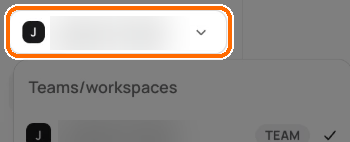
Click the workspace switcher.

<figure><img src="https://1799634369-files.gitbook.io/~/files/v0/b/gitbook-x-prod.appspot.com/o/spaces%2FzjhNby3LLsIikYuvxAJP%2Fuploads%2Fgit-blob-399fd72348b0055719765f795a30bbdb9b02d722%2Fteam-plan-1.png?alt=media" alt="Workspace switcher button at the top of the sidebar highlighted"><figcaption><p>Click the switcher at the top of the sidebar.</p></figcaption></figure>
{% endstep %}

{% step %}

### Pick a workspace

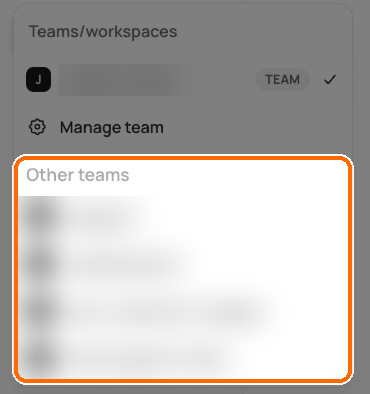
Pick **Personal** or a team under **Other teams**.

<figure><img src="https://1799634369-files.gitbook.io/~/files/v0/b/gitbook-x-prod.appspot.com/o/spaces%2FzjhNby3LLsIikYuvxAJP%2Fuploads%2Fgit-blob-8c26b76bb0c4dd9a4aa7d5de6bbfe3cb4f23665e%2Fteam-plan-2.png?alt=media" alt="Open workspace switcher showing the current team with a TEAM tag, Manage team, and the Other teams list highlighted"><figcaption><p>Pick a workspace under <strong>Other teams</strong>.</p></figcaption></figure>
{% endstep %}
{% endstepper %}

## Create a team

1. Click the workspace switcher.
2. Click **Create a team**.

This opens the plans page, where you buy a Team plan.

## Manage your team

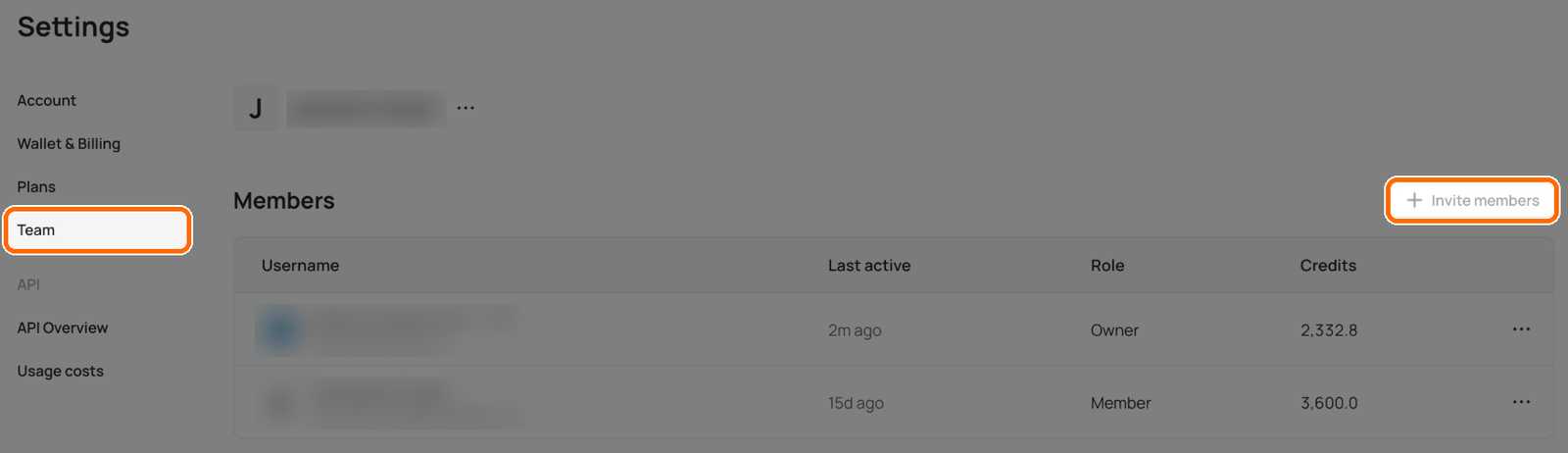
If you're the team's owner (or an admin, on enterprise plans), open the workspace switcher in your team workspace and click **Manage team**. Anyone can also click their profile picture, select **Settings** and open the **Team** tab. It shows the team name, the **Members** list and **Invite members**.

The member list has columns for **Username**, **Last active**, **Role** and **Credits**. Every member can see the list. Only the owner (and admins, on enterprise) can change it.

To rename the team, edit the name at the top of the page. Names can be 1–30 characters: letters, numbers and spaces.

<figure><img src="https://1799634369-files.gitbook.io/~/files/v0/b/gitbook-x-prod.appspot.com/o/spaces%2FzjhNby3LLsIikYuvxAJP%2Fuploads%2Fgit-blob-3edb472ec4501c0f9cdc64b317dd11e4bcd0371b%2Fteam-plan-3.png?alt=media" alt="Settings Team tab with the team name, Members list and Invite members button, with the Team tab and Invite members highlighted"><figcaption><p>Open the <strong>Team</strong> tab to see members; <strong>Invite members</strong> sits at the top right. It's greyed out here because this plan has a pending cancellation.</p></figcaption></figure>

### Roles

| Role       | What it can do                                                     |
| ---------- | ------------------------------------------------------------------ |
| **Owner**  | Invite and remove members, top up members' credits, manage billing |
| **Member** | Create in the team workspace                                       |

Only enterprise plans have an **Admin** role. On a regular Team plan, the owner does everything in the table above.

## Team Owner and Billing

Only the team owner can manage billing, see invoices and buy credits for members. On enterprise plans, admins can also view billing and remove members.

Seat changes can affect billing. Review the confirmation screen in-product before adding or removing members.

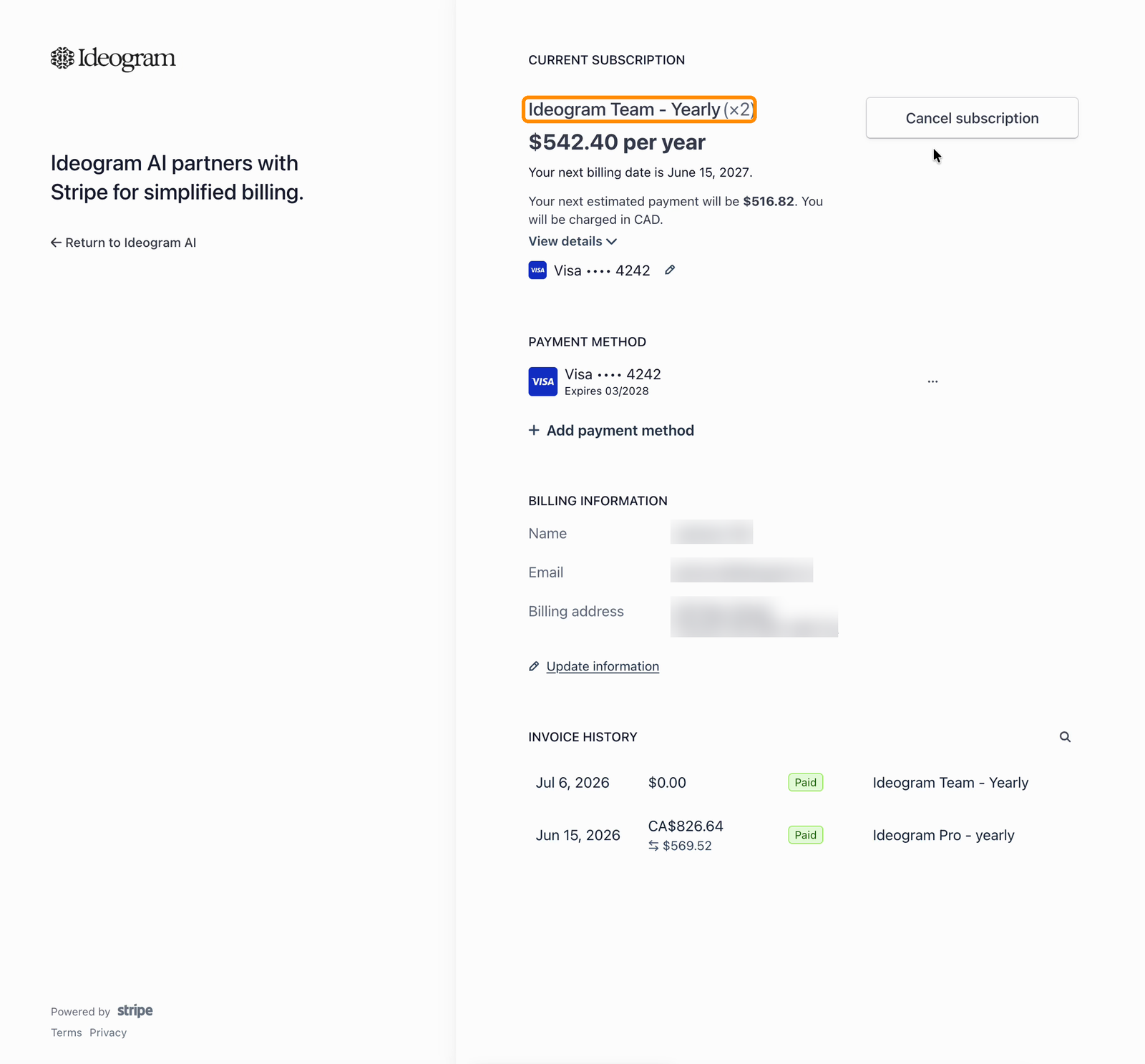
As the owner, go to **Settings** → **Wallet & Billing** in your team workspace. The **Team plan** card shows the next billing date, billed members and projected total, and **Manage billing** opens the billing portal. The Team subscription is billed per seat — the subscription line shows the seat quantity (for example, ×2) — and the portal shows your next billing date, estimated payment, payment method, billing information, and invoices. Cancelling, renewing, and downloading invoices work the same way as for personal subscriptions; see [Billing & Subscriptions](/plans-and-billing/billing-and-subscriptions.md).

<figure><img src="https://1799634369-files.gitbook.io/~/files/v0/b/gitbook-x-prod.appspot.com/o/spaces%2FzjhNby3LLsIikYuvxAJP%2Fuploads%2Fgit-blob-33709d9277bb13acc38cb47ee683145973df49ed%2Fteam-portal-billing.png?alt=media" alt="Billing portal showing the Ideogram Team yearly subscription with a seat quantity of two highlighted, along with payment method, billing information, and invoice history"><figcaption><p>The Team subscription in the billing portal, billed per seat.</p></figcaption></figure>

## Invite members

1. In **Settings → Team**, click **Invite members**.
2. Enter one or more usernames or email addresses in **Username or email**.
3. Click **Invite**.

People are added, and billed to your plan, when they join. Each invitee gets a notification with **Accept** and **Ignore**. Invites expire after 30 days; the card shows how many days are left.

For a pending invite, the row menu has **Resend invitation** and **Cancel invitation**. For an expired one, it has **Resend invitation** and **Remove**.

If your Team plan has lapsed or has a pending cancellation, **Invite members** is greyed out with "Renew your Team plan to invite members."

## Remove members

{% stepper %}
{% step %}

### Open the row menu

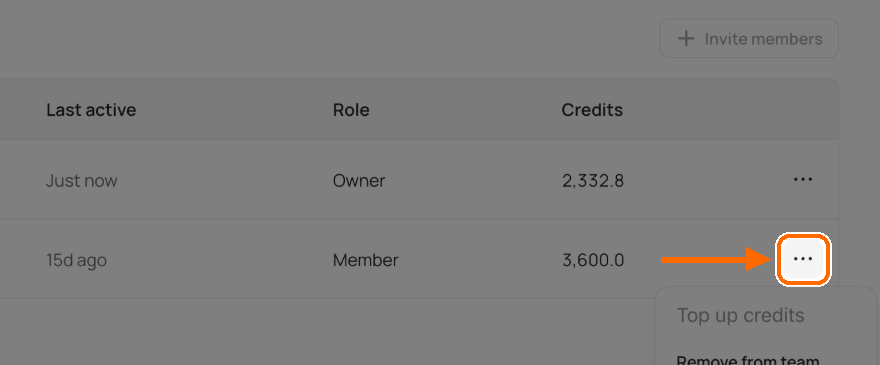
Click the **⋯** menu at the end of the member's row.

<figure><img src="https://1799634369-files.gitbook.io/~/files/v0/b/gitbook-x-prod.appspot.com/o/spaces%2FzjhNby3LLsIikYuvxAJP%2Fuploads%2Fgit-blob-6002e2ec9fe86dba59ca1ef50864fb3c50ad090e%2Fteam-plan-4.png?alt=media" alt="Members table with the ⋯ menu button at the end of a member row highlighted"><figcaption><p>Click <strong>⋯</strong> at the end of the row.</p></figcaption></figure>
{% endstep %}

{% step %}

### Remove the member

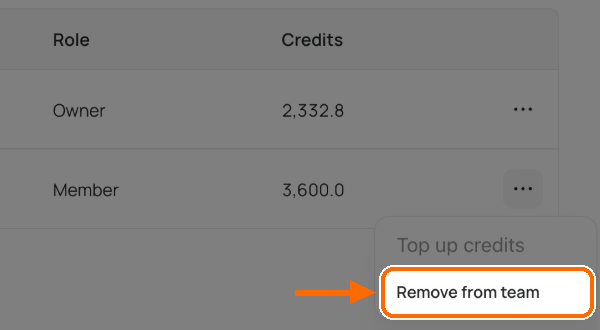
Click **Remove from team** and confirm.

<figure><img src="https://1799634369-files.gitbook.io/~/files/v0/b/gitbook-x-prod.appspot.com/o/spaces%2FzjhNby3LLsIikYuvxAJP%2Fuploads%2Fgit-blob-14846edf2fbd85375639f3f1d79edade8a65e432%2Fteam-plan-5.png?alt=media" alt="Member row menu with Remove from team highlighted below the greyed-out Top up credits"><figcaption><p>Click <strong>Remove from team</strong>. (<strong>Top up credits</strong> is greyed out here because of a pending cancellation.)</p></figcaption></figure>
{% endstep %}
{% endstepper %}

Their unused credits are lost. You can't undo this. Your next bill reflects the change.

## Leave a team

Members can leave from their own row: click **⋯**, then **Leave team**. Any unused credits are lost, and you can't undo it. Owners can't leave their own team.

## Member limit

A Team plan holds up to 1,000 members. Enterprise plans hold up to 10,000.

## Team features

A team workspace adds a few things a personal one doesn't have:

* Share collections with other members. See [Collections](/organize-and-share/collections.md).
* A **Team apps** tab in the apps catalog.

## Adding Credits for a Member

Members can't buy credits themselves. The team owner buys them for each member from the Team page. Each $4 buys 400 credits:

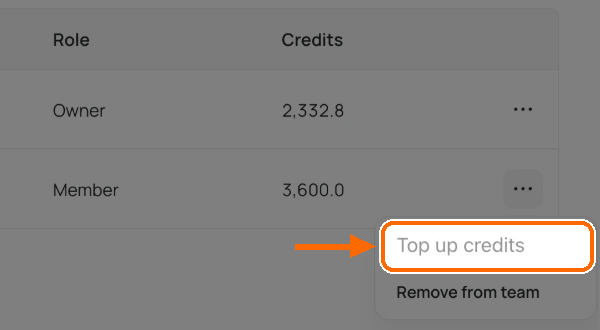
1. Click the **⋯** menu at the end of the member's row and select **Top up credits**. It's greyed out while the Team plan has a pending cancellation.

<figure><img src="https://1799634369-files.gitbook.io/~/files/v0/b/gitbook-x-prod.appspot.com/o/spaces%2FzjhNby3LLsIikYuvxAJP%2Fuploads%2Fgit-blob-b691e90e8d34fa7994eaa39dcc116a26f81bedc1%2Fteam-plan-6.png?alt=media" alt="Member row menu with Top up credits highlighted above Remove from team"><figcaption><p>Pick <strong>Top up credits</strong> from the row menu.</p></figcaption></figure>

2. Pick an amount ($20, $40, $100 or $200) and click **Continue to checkout**.

The member spends these credits after their monthly credits run out. Unused ones carry over to the next month.

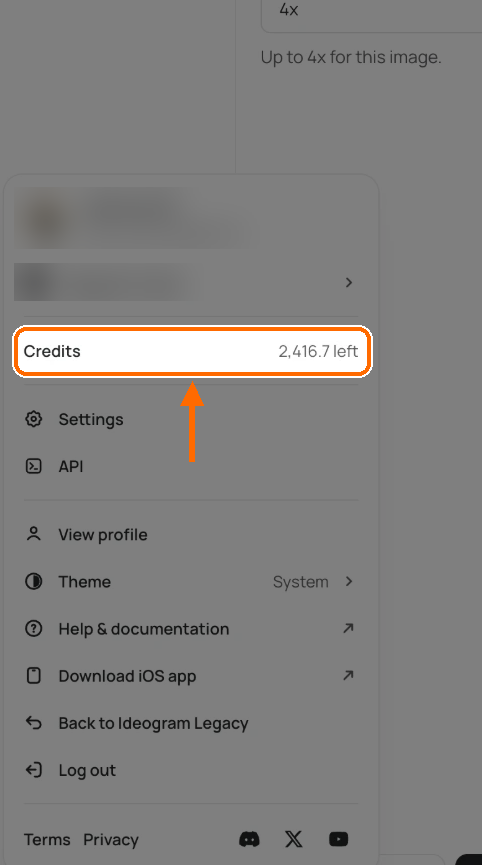
Members see how many credits they have left in the user menu, under **Credits**. Members don't see **Buy credits** or **Wallet & Billing** in a team workspace; owners do.

<figure><img src="https://1799634369-files.gitbook.io/~/files/v0/b/gitbook-x-prod.appspot.com/o/spaces%2FzjhNby3LLsIikYuvxAJP%2Fuploads%2Fgit-blob-a991bd72e0d47a13d3f265920fa53c3895614387%2Fuser-menu-team-credits.png?alt=media" alt="User menu in a team workspace with the Credits row showing 2,416.7 left highlighted, and no Wallet &#x26; Billing item"><figcaption><p>In a team workspace, the user menu shows your credits only.</p></figcaption></figure>