Custom Models
Train a custom image model on your own images, such as your brand style, product or illustration style, then use it in the Image app for on-brand images.
A custom model learns a look from images you give it, such as your brand style or an illustration style. After training, it applies that look to new prompts.
Who can train one
Pro plan, in your personal space
Team plan, in a team space
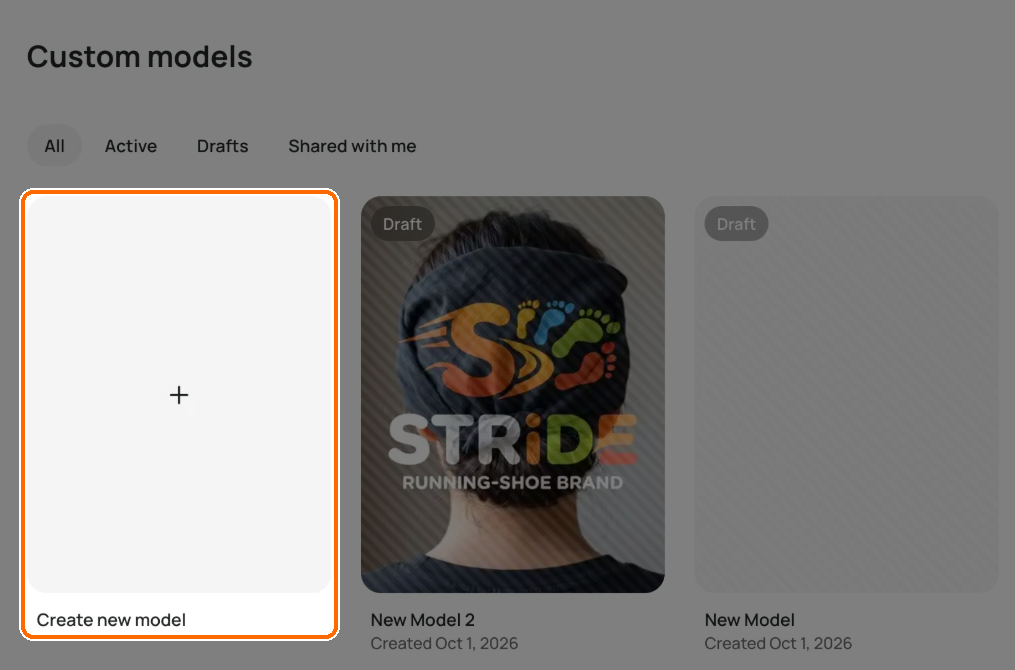
On other plans, Create new model opens an upgrade prompt. See Available Plans.
Training works on desktop only.
What you need
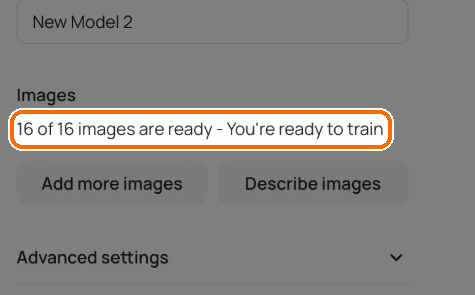
15 to 100 images of the style or subject you want.
Files in AVIF, HEIC, JPG, PNG or WebP, up to 25 MB each. You can also upload a ZIP.
Enough credits. The Start training button shows the cost (4,000 credits). If you're short, Ideogram asks you to top up. See How credits work.
Training usually takes a few hours. Ideogram notifies you when it's done.
Train a model
Tips for a good training set
Quality over quantity. A smaller set of strong images beats a large mixed one.
Add enough variety. Show the style on different subjects, angles and settings.
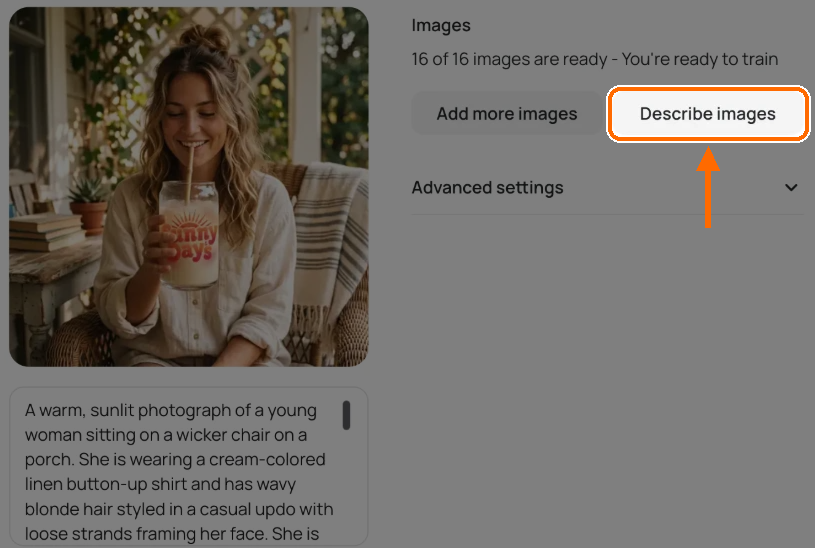
Captions matter. Make each caption say what is in the image.
Share your model
Your model starts private.
Open your model.
Click Share in the model's header.
Choose one:
Share it with your team (in a team space).
Publish it: "Make your model discoverable in the community gallery. Anyone will be able to find and use your model."
Copy a link to it.
To take a published model down, click Unpublish.
Use a custom model
In the Image app, open the Model picker.
Find your model under My models, Team models or Recent.
Write your prompt.
Click Generate.
Click View all in the picker to see more of your models.
Use a community model
In the Image app, open the Model picker.
Click Browse community models.
Pick a model.
Click Use model.
Write your prompt.
Click Generate.
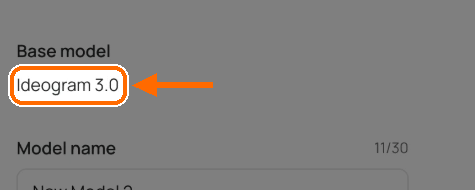
The panel shows the Ideogram 3.0 settings, without the Style select.
You can also run a custom model in Batch Generation.
Last updated