> For the complete documentation index, see [llms.txt](https://docs.ideogram.ai/llms.txt). Markdown versions of documentation pages are available by appending `.md` to page URLs; this page is available as [Markdown](https://docs.ideogram.ai/create/custom-models.md).

# Custom Models

Train an image model on your own images, then use it in the Image app.

A custom model learns a look from images you give it, such as your brand style or an illustration style. After training, it applies that look to new prompts.

## Who can train one

* **Pro** plan, in your personal space
* **Team** plan, in a team space

On other plans, **Create new model** opens an upgrade prompt. See [Available Plans](/plans-and-billing/available-plans.md).

Training works on desktop only.

## What you need

* **15 to 100 images** of the style or subject you want.
* Files in AVIF, HEIC, JPG, PNG or WebP, up to 25 MB each. You can also upload a ZIP.
* Enough credits. The **Start training** button shows the cost (4,000 credits). If you're short, Ideogram asks you to top up. See [How credits work](/plans-and-billing/available-plans.md#how-credits-work).

Training usually takes a few hours. Ideogram notifies you when it's done.

## Train a model

{% stepper %}
{% step %}

### Open Custom Models

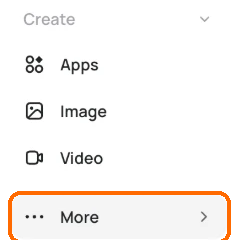
In the sidebar, open **More** and select **Custom Models**.

<figure><img src="https://1799634369-files.gitbook.io/~/files/v0/b/gitbook-x-prod.appspot.com/o/spaces%2FzjhNby3LLsIikYuvxAJP%2Fuploads%2Fgit-blob-c9cc17c5da86a2c91d8087abc0c75c287b4e2319%2Fcustom-models-1.png?alt=media" alt="Sidebar with the More item highlighted below Apps, Image and Video"><figcaption><p>Open <strong>More</strong> in the sidebar.</p></figcaption></figure>
{% endstep %}

{% step %}

### Create a model

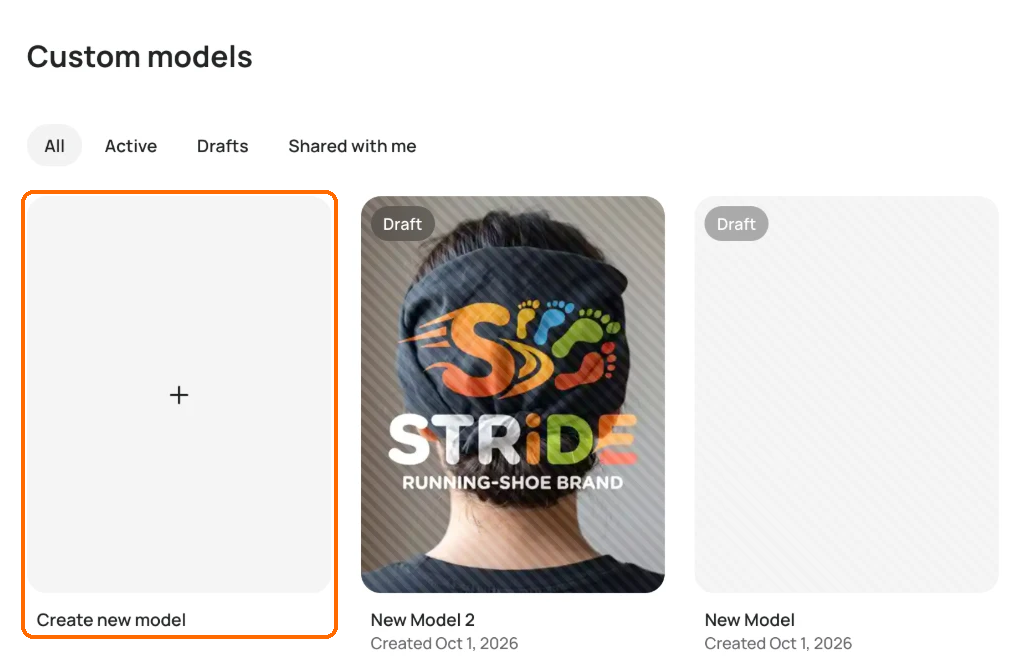
Click **Create new model**.

<figure><img src="https://1799634369-files.gitbook.io/~/files/v0/b/gitbook-x-prod.appspot.com/o/spaces%2FzjhNby3LLsIikYuvxAJP%2Fuploads%2Fgit-blob-608cf1ef6f34de7cf1d77136253a2dd07ad06970%2Fcustom-models-2.png?alt=media" alt="Custom models page with All, Active, Drafts and Shared with me tabs, and the Create new model tile highlighted"><figcaption><p>Click the tile with the plus sign to start a new model.</p></figcaption></figure>
{% endstep %}

{% step %}

### Accept the terms

The first time, read the terms and click **Accept terms & Continue**.
{% endstep %}

{% step %}

### Add your images

Add your images with **Upload images**, or pull them in with **Select from** (My images or a collection).
{% endstep %}

{% step %}

### Caption your images

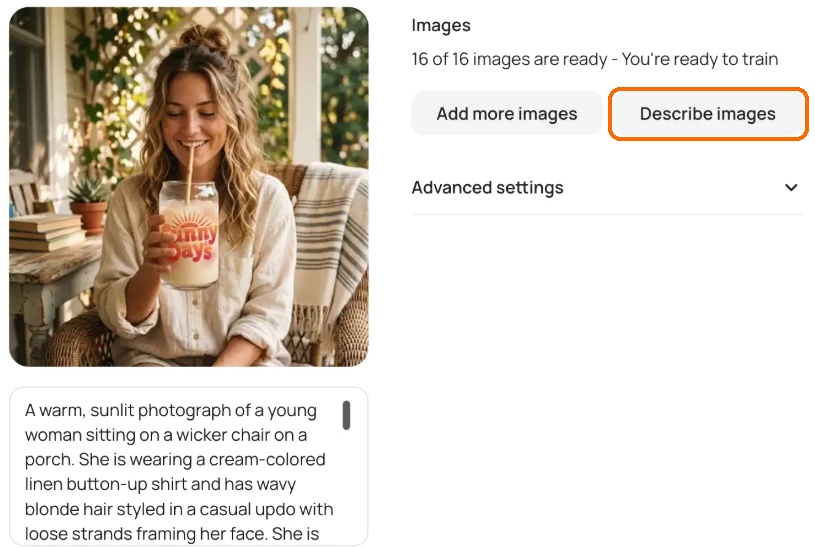
Click **Describe images** to write a caption for each image. Read the captions and fix any that are wrong.

<figure><img src="https://1799634369-files.gitbook.io/~/files/v0/b/gitbook-x-prod.appspot.com/o/spaces%2FzjhNby3LLsIikYuvxAJP%2Fuploads%2Fgit-blob-5a9e382522246662b1d8a96fc9c7e98aedbd2beb%2Fcustom-models-3.png?alt=media" alt="Training image with its caption below, next to the Images panel with the Describe images button highlighted"><figcaption><p>Click <strong>Describe images</strong>. Each caption appears under its image.</p></figcaption></figure>
{% endstep %}

{% step %}

### Check the base model

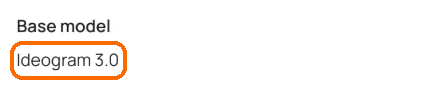
The **Base model** field reads **Ideogram 3.0**. You can't change it.

<figure><img src="https://1799634369-files.gitbook.io/~/files/v0/b/gitbook-x-prod.appspot.com/o/spaces%2FzjhNby3LLsIikYuvxAJP%2Fuploads%2Fgit-blob-bbdcaedb68ea27a660cdce72e3d24a9aadc72da9%2Fcustom-models-4.png?alt=media" alt="Base model field reading Ideogram 3.0, highlighted"><figcaption><p>Custom models are built on <strong>Ideogram 3.0</strong>.</p></figcaption></figure>
{% endstep %}

{% step %}

### Start training

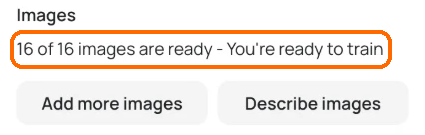
When you see "You're ready to train", click **Start training**.

<figure><img src="https://1799634369-files.gitbook.io/~/files/v0/b/gitbook-x-prod.appspot.com/o/spaces%2FzjhNby3LLsIikYuvxAJP%2Fuploads%2Fgit-blob-b228894efe829f8891d890b6072f61b0dd50901c%2Fcustom-models-5.png?alt=media" alt="Images panel reading 16 of 16 images are ready - You&#x27;re ready to train, highlighted"><figcaption><p>Wait for this line, then start training.</p></figcaption></figure>
{% endstep %}
{% endstepper %}

### Tips for a good training set

* **Quality over quantity.** A smaller set of strong images beats a large mixed one.
* **Add enough variety.** Show the style on different subjects, angles and settings.
* **Captions matter.** Make each caption say what is in the image.

## Share your model

Your model starts private. Click **Share** in the model's header to:

* Share it with your team (in a team space).
* **Publish** it: "Make your model discoverable in the community gallery. Anyone will be able to find and use your model." Click **Unpublish** to take it down.
* Copy a link to it.

## Use a custom model

1. In the Image app, open the **Model** picker.
2. Find your model under **My models**, **Team models** or **Recent**. Click **View all** to see more. To use someone else's, click **Browse community models**, pick one and click **Use model**.
3. Write your prompt and click **Generate**.

The panel shows the [Ideogram 3.0 settings](https://docs.ideogram.ai/create/pages/JFpq87UvVKb2DYDQdwSa#ideogram-3.0-settings), without the **Style** select.

You can also run a custom model in [Batch Generation](/create/batch.md).