> For the complete documentation index, see [llms.txt](https://docs.ideogram.ai/llms.txt). Markdown versions of documentation pages are available by appending `.md` to page URLs; this page is available as [Markdown](https://docs.ideogram.ai/create/apps/colorways.md).

# Colorways

Recolor parts of a product photo with Colorways. Paint up to 4 regions, give each its own color or hex code, and get new colorways that keep the product's shape and details.

Colorways recolors chosen parts of a product photo, such as a shoe's upper and laces or a bag's straps, and keeps everything else the same: the shape, materials, stitching, prints and logos. Use it to show a product in new colors for a store listing, a launch or a mockup without a new photo shoot.

<div><figure><img src="https://1799634369-files.gitbook.io/~/files/v0/b/gitbook-x-prod.appspot.com/o/spaces%2FzjhNby3LLsIikYuvxAJP%2Fuploads%2Fgit-blob-8b8f8d658be28e9a3b484753dd4120574150ac21%2Fcolorways-before.jpg?alt=media" alt="A low-top canvas sneaker with a sage green upper, white laces, white rubber sole and toe cap, and a brown heel tab"><figcaption><p>Before: the original product photo.</p></figcaption></figure> <figure><img src="https://1799634369-files.gitbook.io/~/files/v0/b/gitbook-x-prod.appspot.com/o/spaces%2FzjhNby3LLsIikYuvxAJP%2Fuploads%2Fgit-blob-f474b8d1d66987c1e940f4d03c695fdb6e145c77%2Fcolorways-after.jpg?alt=media" alt="The same sneaker after Colorways, with a navy upper and burgundy laces; the white sole and toe cap and the brown heel tab are unchanged"><figcaption><p>After: region 1 (the upper) set to Navy and region 2 (the laces) set to Burgundy. The sole, toe cap and heel tab stay the same.</p></figcaption></figure></div>

Colorways is a premium app. It needs a paid plan or bought credits. See [Plans and Credits](/plans-and-billing/available-plans.md).

## Make a colorway

1. Open the app: in the sidebar, select **More** → **All apps** and choose **Colorways**.
2. Under **Product photos**, add a clear photo of the product. You can add up to 6 photos.
3. Paint the first part you want to recolor, such as the upper of a shoe. See [Paint a region](#paint-a-region).
4. Pick a color for that region. See [Choose colors](#choose-colors).
5. To recolor another part, click **Add region**, paint it and pick its color. Each photo can have up to 4 regions.
6. Optional: change **Quality** or **Image shape**. See [Settings](#settings).
7. Click **Generate**. The button shows the cost.

Results appear in **Assets**.

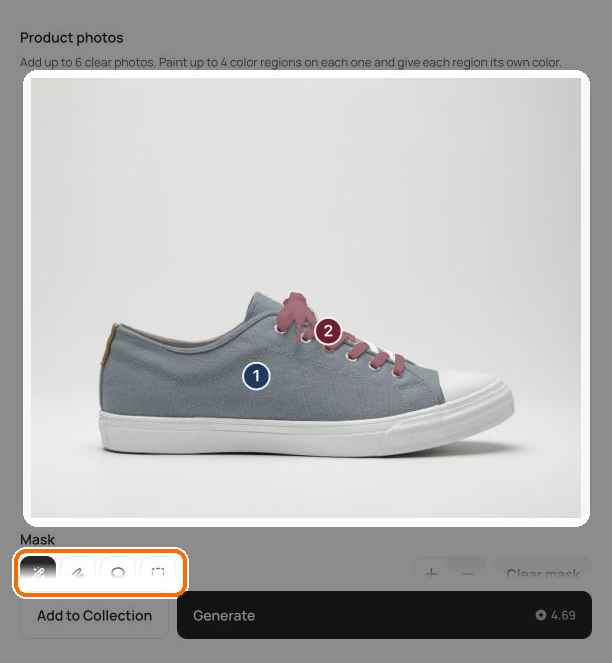
<figure><img src="https://1799634369-files.gitbook.io/~/files/v0/b/gitbook-x-prod.appspot.com/o/spaces%2FzjhNby3LLsIikYuvxAJP%2Fuploads%2Fgit-blob-23de01e30de47d38b44efe9e63ae1ff24363c9e0%2Fcolorways-paint-regions.png?alt=media" alt="Colorways with a sneaker photo, the upper painted as region 1 and the laces as region 2, and the Magic wand, Brush, Lasso and Rectangle mask tools highlighted"><figcaption><p>Each painted region shows its number on the photo.</p></figcaption></figure>

## Paint a region

A region is the part of the photo that gets one color. Use the tools under **Mask**:

* **Magic wand**: click a part to select it, such as one panel of a shoe. Click more parts to add them to the same region.
* **Brush**: paint over the area. Set **Brush size** to match the detail.
* **Lasso**: draw around the area.
* **Rectangle**: drag a box.

Use **+** (**Add to mask**) to add to the region and **−** (**Remove from mask**) to take away from it. Hold Option (Alt on Windows) to switch to removing for a moment. **Clear mask** starts the region over.

A region can hold several separate areas. For example, select every lace segment into one region so all the laces get the same color.

## Choose colors

Each region has its own color. Select a region in the **Color regions** list, then pick its color in any of these ways:

* Click a preset color. The color group menu switches between **Classic**, **Earthy**, **Pastel**, **Bold**, **Muted**, **Jewel**, **Neon**, **Denim** and **Metallic**.
* Type a hex code, such as `#1F3A5F`, in the region's hex field.
* Click a saved color under **My colors**. Click **+** to save the current color for later. You can save up to 12.

Each region in the list shows **Painted** or **Not painted yet**. To delete a region, click the **×** on its row.

<figure><img src="https://1799634369-files.gitbook.io/~/files/v0/b/gitbook-x-prod.appspot.com/o/spaces%2FzjhNby3LLsIikYuvxAJP%2Fuploads%2Fgit-blob-7ea94805ef760b162559b4ded714cce0db6adf42%2Fcolorways-region-colors.png?alt=media" alt="Color regions list showing Region 1 in Navy #1F3A5F and Region 2 in Burgundy #6E1F2E, both Painted, with the Classic preset colors highlighted below"><figcaption><p>Each region has its own color. Presets, hex codes and My colors all apply to the selected region.</p></figcaption></figure>

## Recolor several photos

Add up to 6 photos of the same product, such as the front, side and back. Select each photo's thumbnail and paint its regions. Each photo needs at least one painted region, and every region needs a color.

If a region isn't ready when you click **Generate**, Colorways tells you what's missing, such as "Paint every color region on every photo" or "Pick a color for every region."

## Settings

| Setting               | Options                             | Default  |
| --------------------- | ----------------------------------- | -------- |
| **Quality**           | Low, Medium, High                   | Medium   |
| **Image shape**       | Original, 1:1, 3:4, 4:3, 16:9, 9:16 | Original |
| **Add to Collection** | Save every result into a collection | None     |

**Original** keeps your photo's framing. A different shape extends the scene to fill the new shape, so part of the image is newly created.

## Tips for better results

* **Use a sharp, evenly lit photo** on a plain background. The cleaner the edges, the cleaner the recolor.
* **Paint each part as its own region** when it needs its own color: the upper, the laces, the sole.
* **Check small parts** such as laces, zippers or stitching. Click each piece with **Magic wand** until all of them are in the region.
* **Use hex codes for brand colors** so every colorway matches your palette exactly.
* **Compare the result with the original** before you publish. Check that logos and prints stayed sharp.

## In this topic: product images

1. [Apps and Workflows](/create/apps.md): choose the right app
2. [Remove Backgrounds and Objects](/edit/remove-backgrounds-and-objects.md): cut out the product or clean up the photo
3. **Colorways** (this page): show the product in new colors
4. [Material Swap](/create/apps/material-swap.md): show it in new fabrics and finishes
5. [Upscale](/edit/upscale.md): enlarge it for print and store listings
6. [Ad Resizer](/create/apps/ad-resizer.md): resize the finished ad for each placement
7. [Troubleshooting](/help/troubleshooting.md): fix common problems

## Related

* [Masks and Inpainting](/edit/masks-and-inpainting.md)