> For the complete documentation index, see [llms.txt](https://docs.ideogram.ai/llms.txt). Markdown versions of documentation pages are available by appending `.md` to page URLs; this page is available as [Markdown](https://docs.ideogram.ai/using-ideogram/features-and-tools/image-studio.md).

# Image Studio

Image Studio is Ideogram's image editor: a canvas where you refine, extend, composite, and export images using AI tools and layers. It replaces the legacy Canvas and Editor workflows.

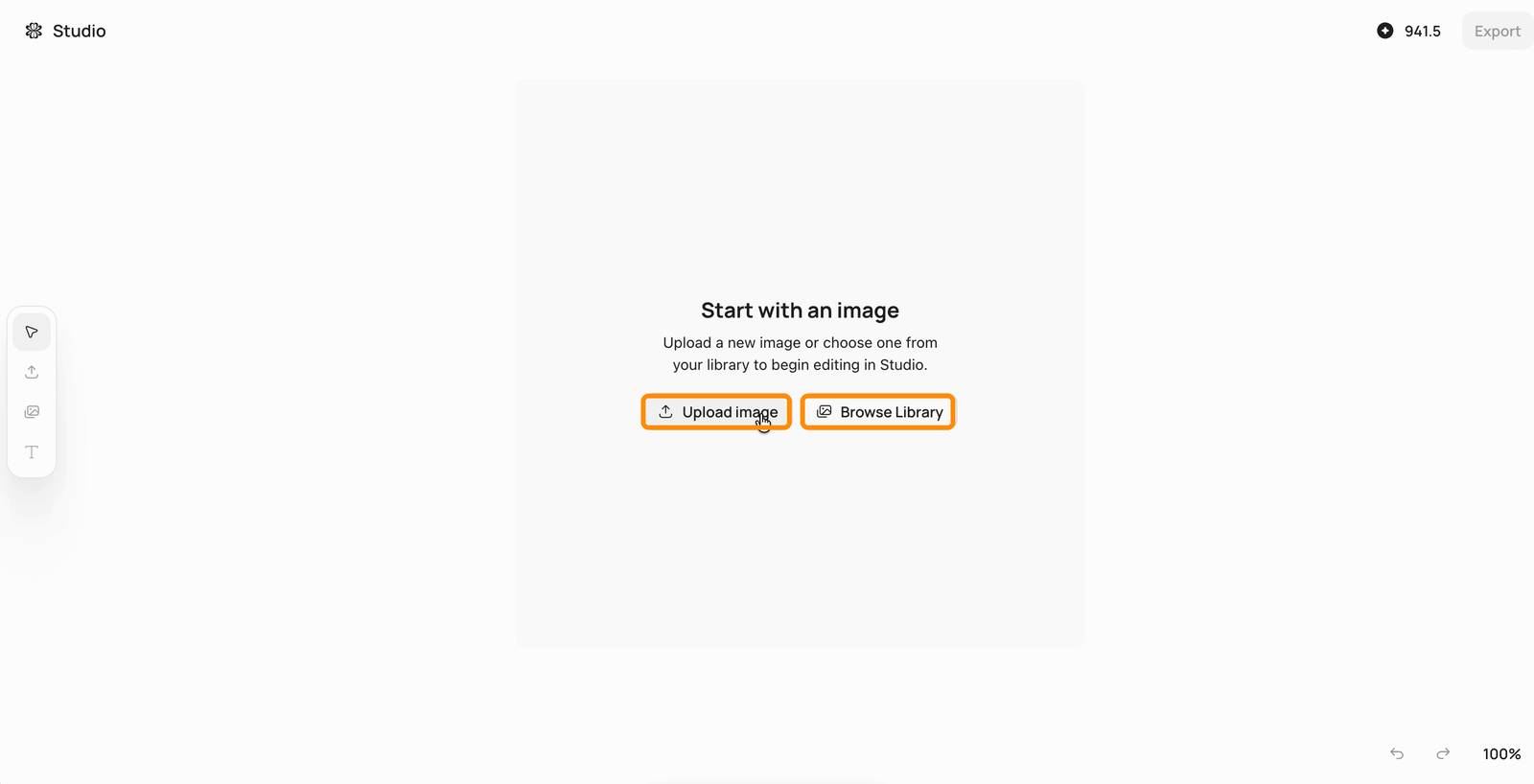
To open it, click **Image Studio** in the sidebar's Tools section. Studio starts by asking for an image: **Upload image** brings in a file, **Browse Library** picks one of your existing generations.

<figure><img src="https://1799634369-files.gitbook.io/~/files/v0/b/gitbook-x-prod.appspot.com/o/spaces%2FzjhNby3LLsIikYuvxAJP%2Fuploads%2Fgit-blob-8e0a1b095094a4e4eb72078c9a36c263ae482f97%2Fstudio-start.png?alt=media" alt="Image Studio start screen with the Upload image and Browse Library buttons highlighted under the heading Start with an image"><figcaption><p>Start from an upload or from an image in your library.</p></figcaption></figure>

## The workspace

Once an image is loaded, the workspace has:

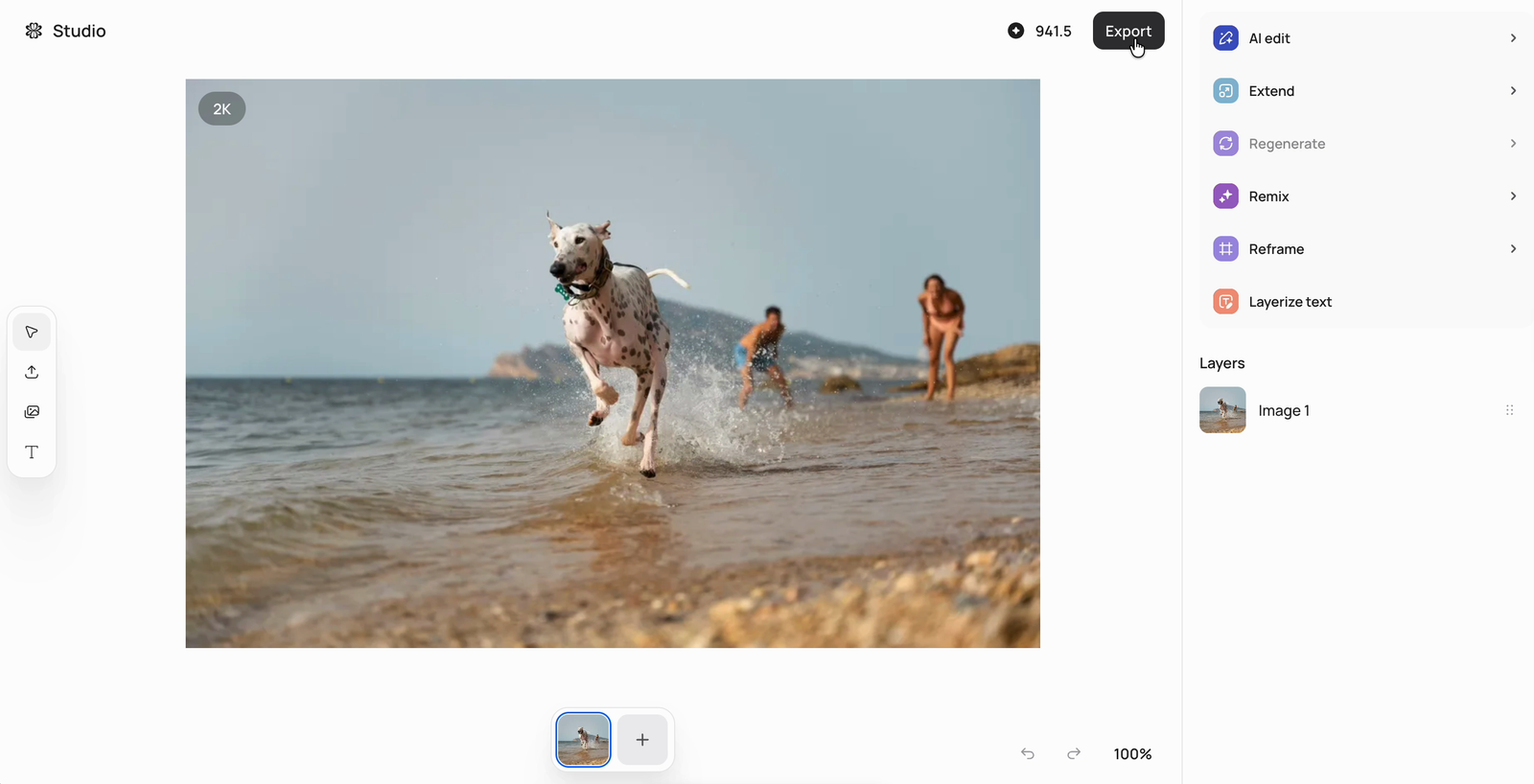
* **Left toolbar** — Select, Upload image, My images (your library), and the Text tool.
* **Canvas** — your image, with a resolution badge in its corner. Zoom and undo/redo sit at the bottom right.
* **Right panel** — the editing tools, and the **Layers** list below them.
* **Version carousel** (bottom) — every generation becomes a version thumbnail; click **+** to branch a new version from the selected one.
* **Top right** — your credit balance and the **Export** button for downloading the result.

<figure><img src="https://1799634369-files.gitbook.io/~/files/v0/b/gitbook-x-prod.appspot.com/o/spaces%2FzjhNby3LLsIikYuvxAJP%2Fuploads%2Fgit-blob-4c488497a731a078b33e0f57967301a83b8996bb%2Fstudio-canvas-tools.png?alt=media" alt="Image Studio workspace showing a photo of a dog on a beach, the left toolbar, the right panel with AI edit, Extend, Regenerate, Remix, Reframe, and Layerize text tools, and the Layers list"><figcaption><p>The Studio workspace: tools and layers on the right, versions at the bottom.</p></figcaption></figure>

Generative tools consume credits like regular generations — the balance at the top right updates as you work.

## Canvas tools

With nothing selected, the right panel's tools act on the whole canvas:

### AI edit

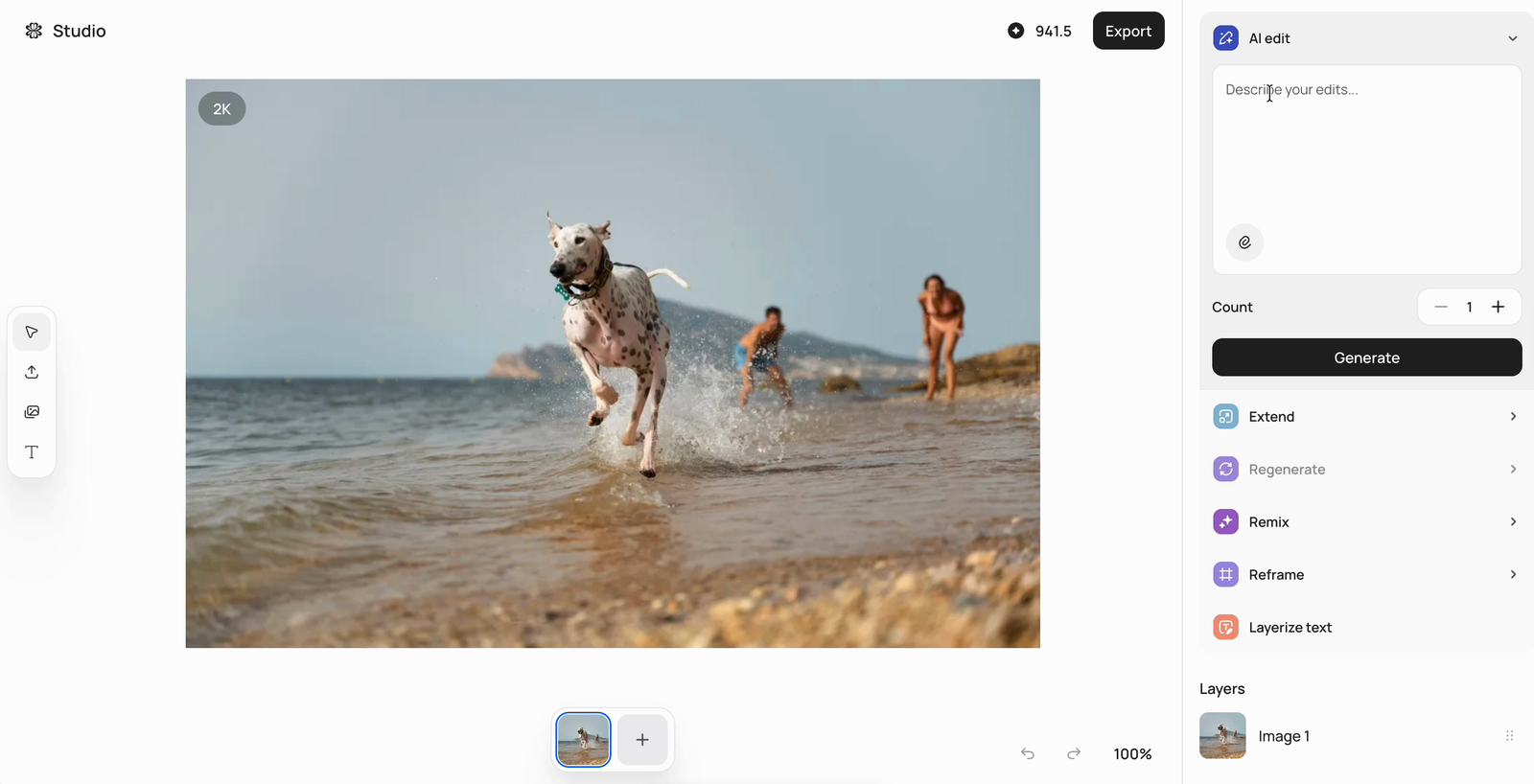
Describe the changes you want in plain language, set how many variants to generate (**Count**), and click **Generate**. Each result lands in the version carousel.

<figure><img src="https://1799634369-files.gitbook.io/~/files/v0/b/gitbook-x-prod.appspot.com/o/spaces%2FzjhNby3LLsIikYuvxAJP%2Fuploads%2Fgit-blob-4ae62a1f2512cbed433987c10c279dcf7b1ad42a%2Fstudio-ai-edit.png?alt=media" alt="AI edit panel open in Image Studio with a Describe your edits field, a count control, and a Generate button"><figcaption><p>AI edit: describe the change, choose a count, generate.</p></figcaption></figure>

### Extend

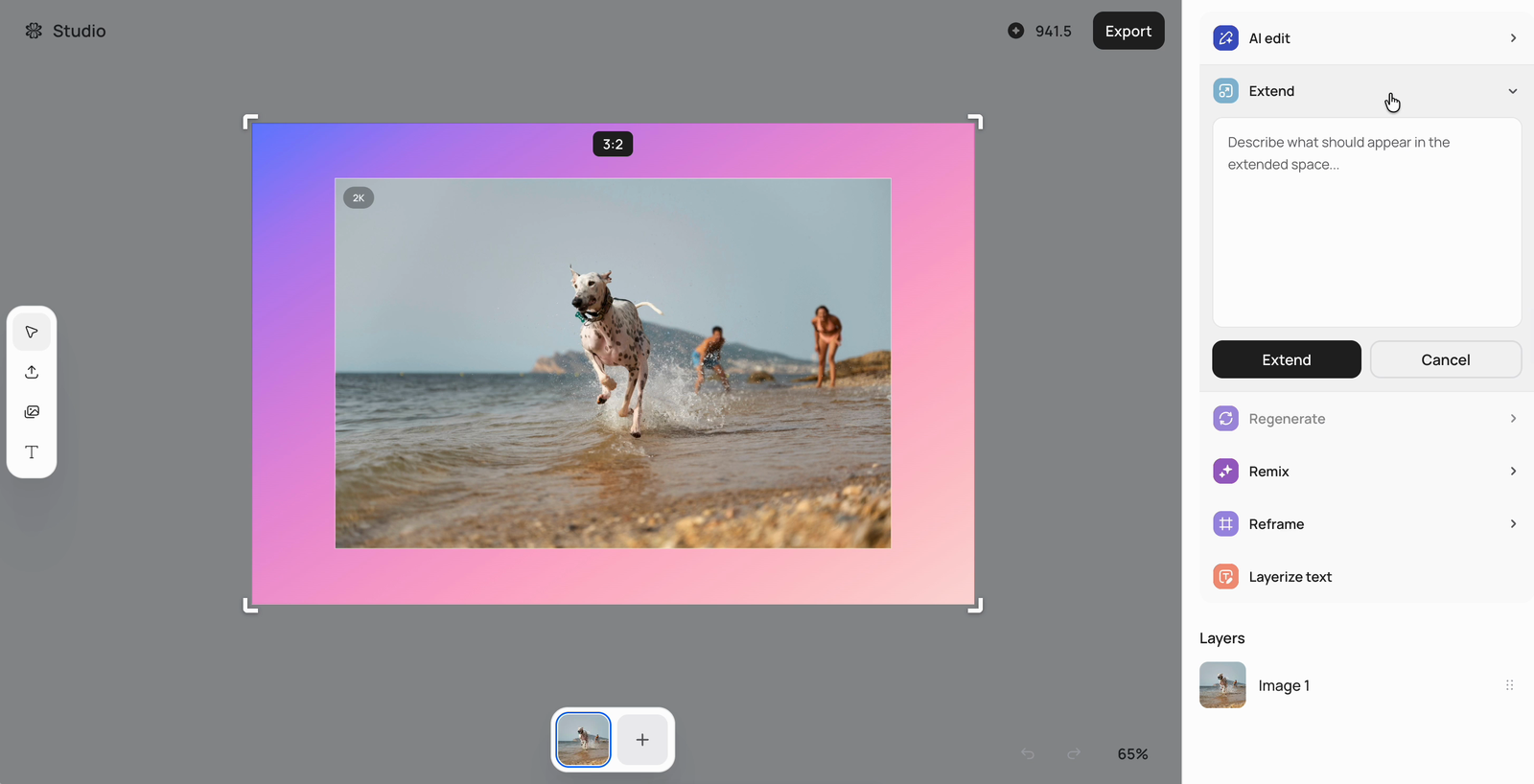
Grow the canvas in any direction, then generate content for the new space. Drag the corner handles to set the new bounds (the target ratio is shown above the frame), optionally describe what should appear in the extended space, and click **Extend**.

<figure><img src="https://1799634369-files.gitbook.io/~/files/v0/b/gitbook-x-prod.appspot.com/o/spaces%2FzjhNby3LLsIikYuvxAJP%2Fuploads%2Fgit-blob-6662e571133fdd2c103042aad58548f71441dd08%2Fstudio-extend.png?alt=media" alt="Extend tool in Image Studio showing the image inside a larger 3:2 frame to be filled, with a field to describe what should appear in the extended space"><figcaption><p>Extend: set the new frame, describe the new space, generate.</p></figcaption></figure>

### Regenerate

Re-run the generation that produced the image. Only available for images generated on Ideogram (not uploads).

### Remix

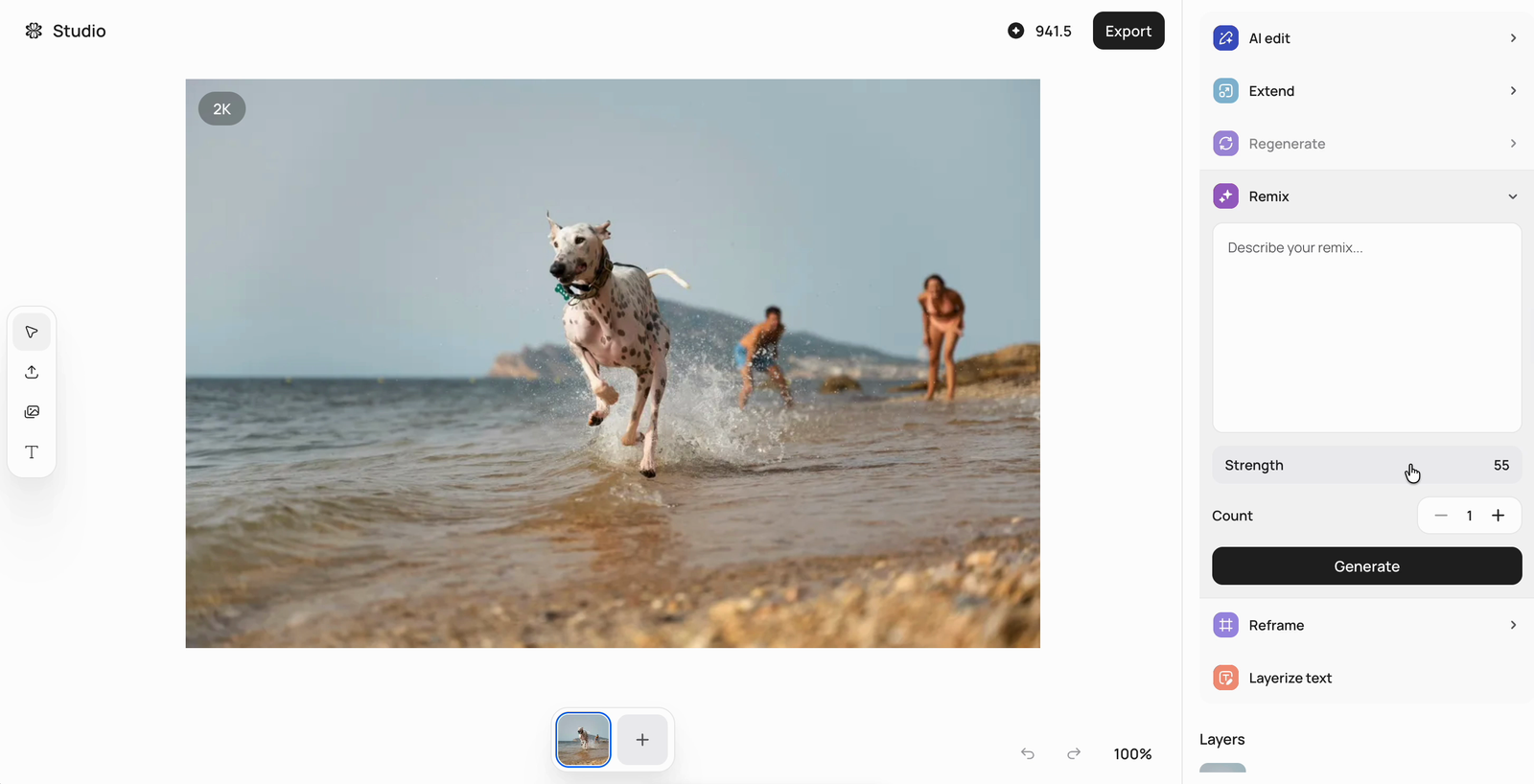
Use the canvas as a base and generate variations. The **Strength** slider controls how closely the result follows the current canvas — higher stays closer, lower gives your prompt more influence.

<figure><img src="https://1799634369-files.gitbook.io/~/files/v0/b/gitbook-x-prod.appspot.com/o/spaces%2FzjhNby3LLsIikYuvxAJP%2Fuploads%2Fgit-blob-0cac0e6cb5a50b72823f938ef279abaa92365081%2Fstudio-remix.png?alt=media" alt="Remix panel in Image Studio with a Describe your remix field, a strength slider set to 55, a count control, and a Generate button"><figcaption><p>Remix: prompt plus a strength slider against the current canvas.</p></figcaption></figure>

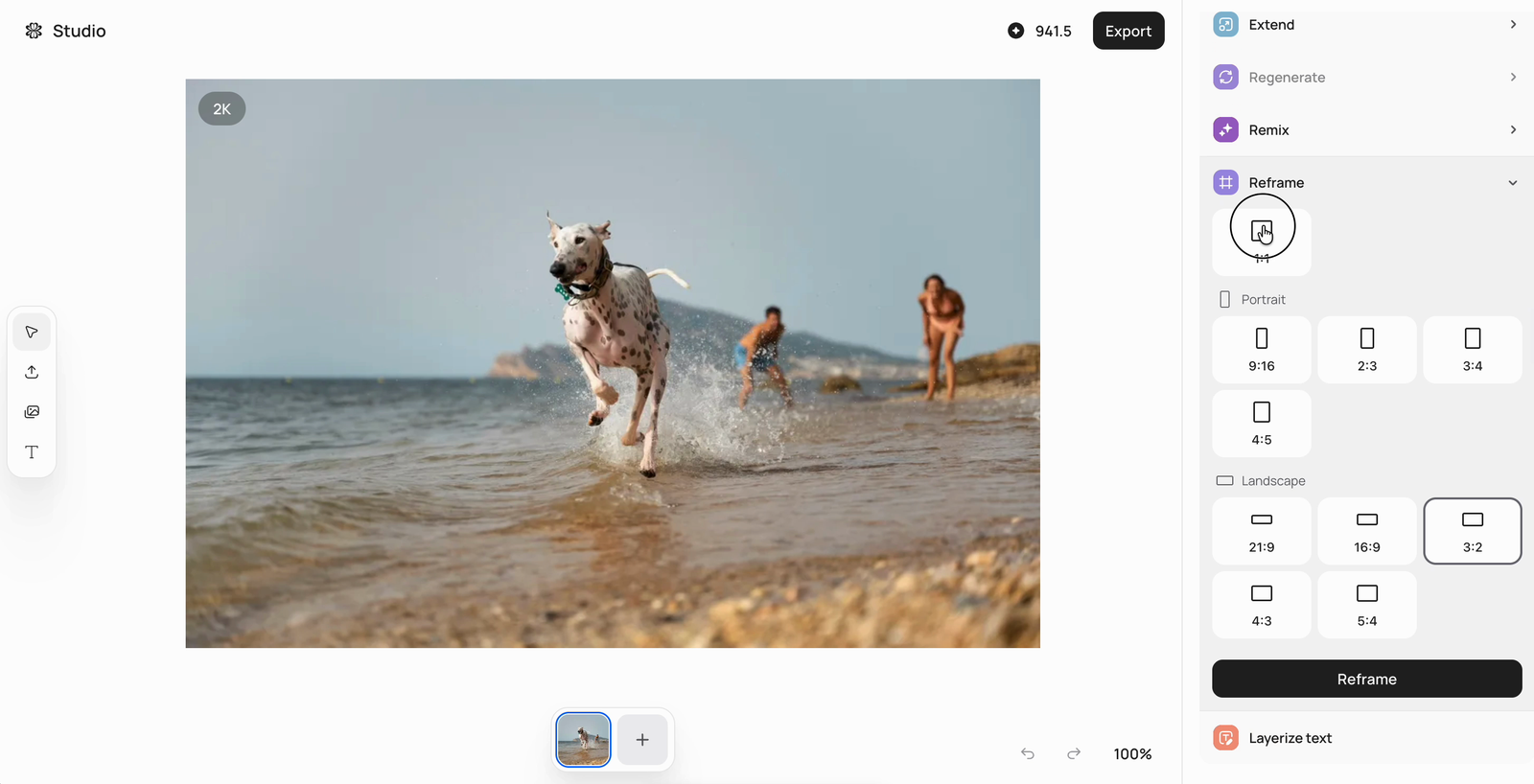
### Reframe

Choose a new aspect ratio for the canvas — square, portrait (9:16, 2:3, 3:4, 4:5), or landscape (21:9, 16:9, 3:2, 4:3, 5:4) — then click **Reframe** to generate the recomposed image.

<figure><img src="https://1799634369-files.gitbook.io/~/files/v0/b/gitbook-x-prod.appspot.com/o/spaces%2FzjhNby3LLsIikYuvxAJP%2Fuploads%2Fgit-blob-25c9e10c5bd98d86a4f1066126007fc4ce7bbf2d%2Fstudio-reframe.png?alt=media" alt="Reframe panel in Image Studio showing square, portrait, and landscape aspect ratio presets with 3:2 selected and a Reframe button"><figcaption><p>Reframe recomposes the canvas at a new aspect ratio.</p></figcaption></figure>

### Layerize text

Detects text in the image and turns it into editable text layers, so you can refine the copy, placement, and styling precisely instead of re-generating.

## Working with layers

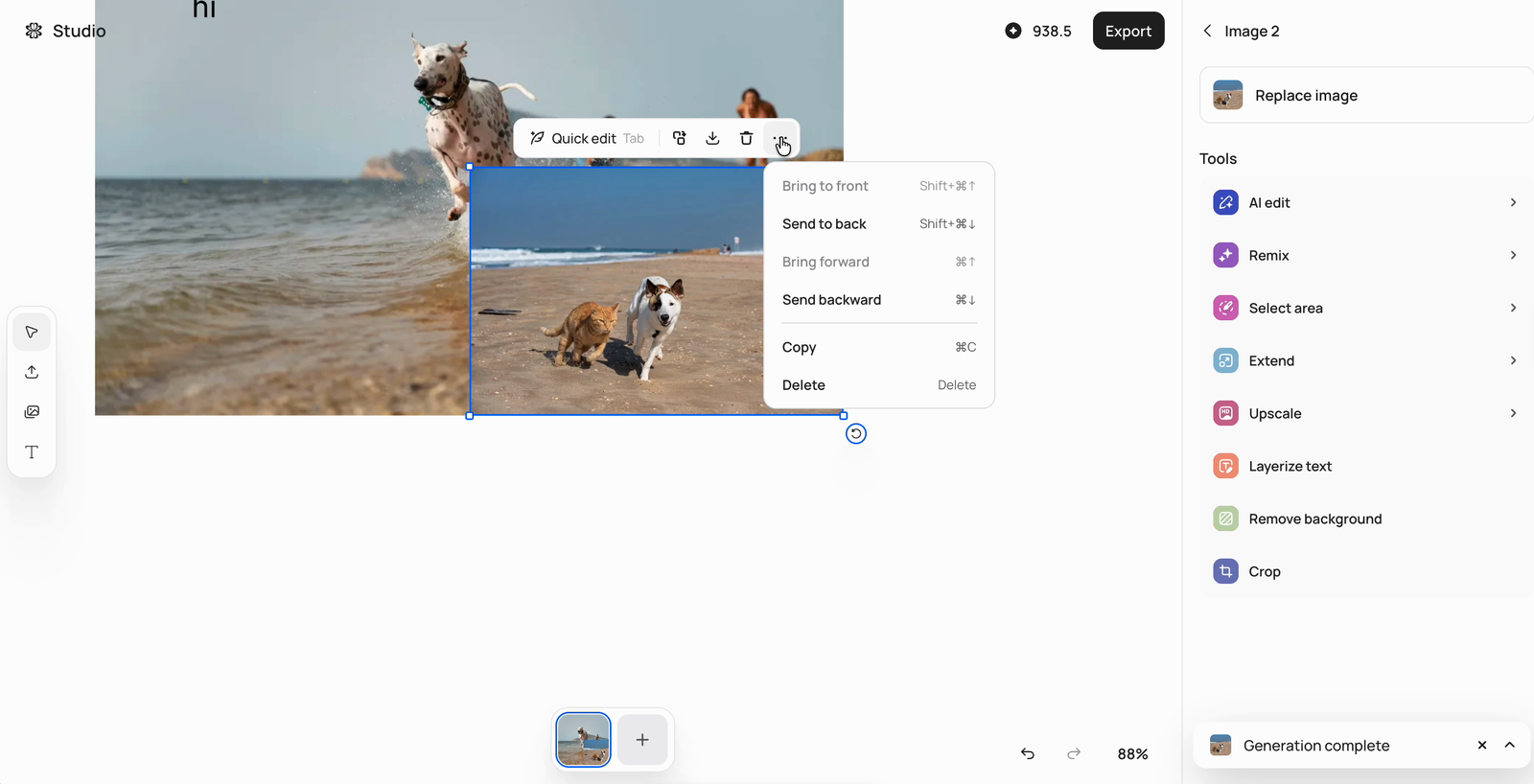
Click any image on the canvas to select it as a layer. A **Quick edit** bar appears above it — type a change directly, or use the **⋯** menu to arrange (**Bring to front**, **Send to back**, **Bring forward**, **Send backward**), **Copy**, or **Delete** the layer. Add more layers with the Upload or My images tools, and reorder everything from the Layers list.

<figure><img src="https://1799634369-files.gitbook.io/~/files/v0/b/gitbook-x-prod.appspot.com/o/spaces%2FzjhNby3LLsIikYuvxAJP%2Fuploads%2Fgit-blob-3cfccb1bfa7622bb7abe45a99ef835f3c3ea6c43%2Fstudio-layer-menu.png?alt=media" alt="A selected image layer in Image Studio with the Quick edit bar and the arrange menu open, showing Bring to front, Send to back, Bring forward, Send backward, Copy, and Delete with their keyboard shortcuts"><figcaption><p>Each layer has a Quick edit bar and an arrange menu.</p></figcaption></figure>

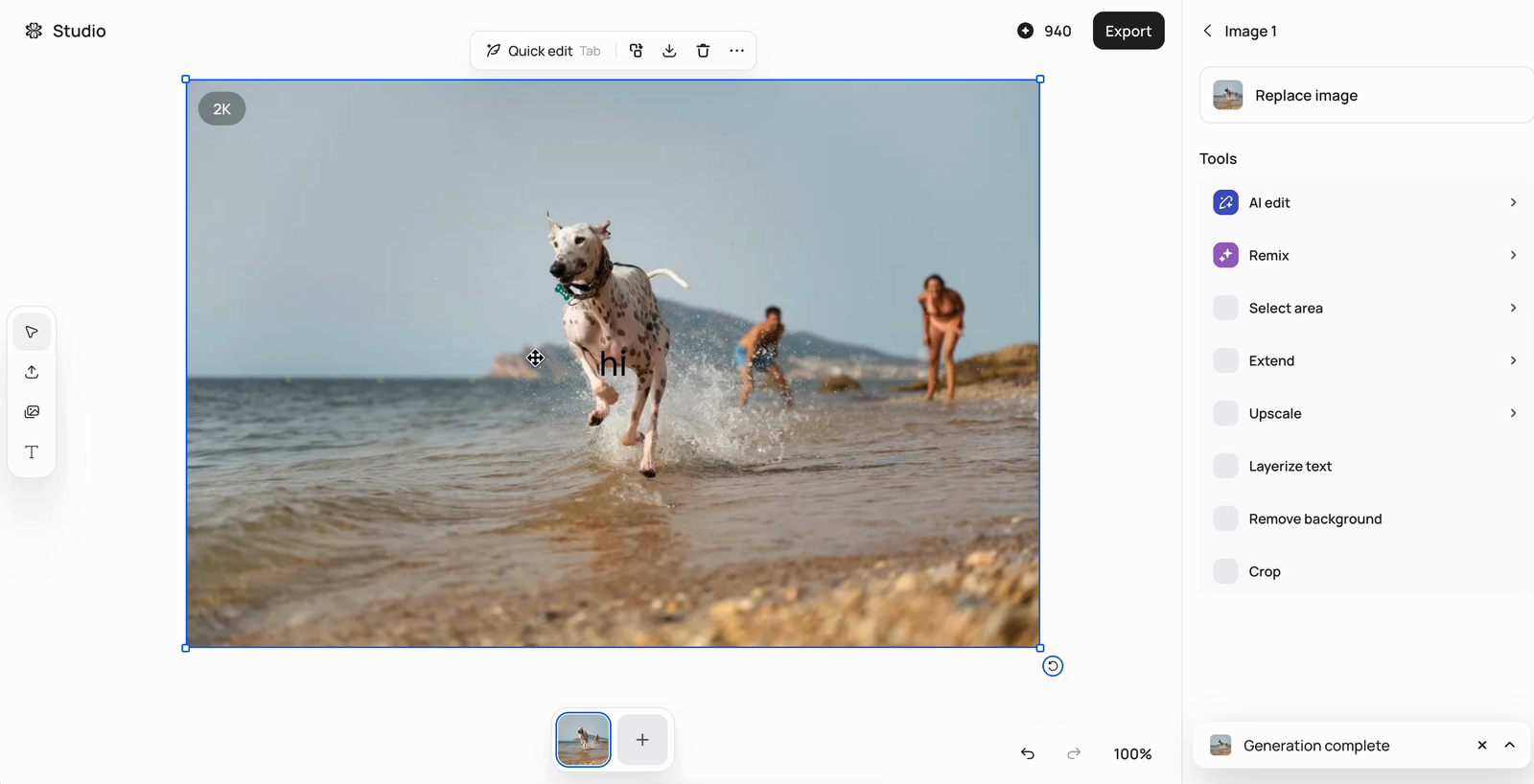
Selecting a layer also switches the right panel to per-layer tools: **Replace image**, **AI edit**, **Remix**, **Select area**, **Extend**, **Upscale** (add detail and sharpness so the layer holds up as you keep editing), **Layerize text**, **Remove background** (cut out just this layer's background), and **Crop**.

<figure><img src="https://1799634369-files.gitbook.io/~/files/v0/b/gitbook-x-prod.appspot.com/o/spaces%2FzjhNby3LLsIikYuvxAJP%2Fuploads%2Fgit-blob-eb50a0d398393d97314fcd5b45ea3721a4184cd5%2Fstudio-layer-tools.png?alt=media" alt="Per-layer tools panel in Image Studio listing Replace image, AI edit, Remix, Select area, Extend, Upscale, Layerize text, Remove background, and Crop for the selected layer"><figcaption><p>Per-layer tools apply to the selected layer only.</p></figcaption></figure>

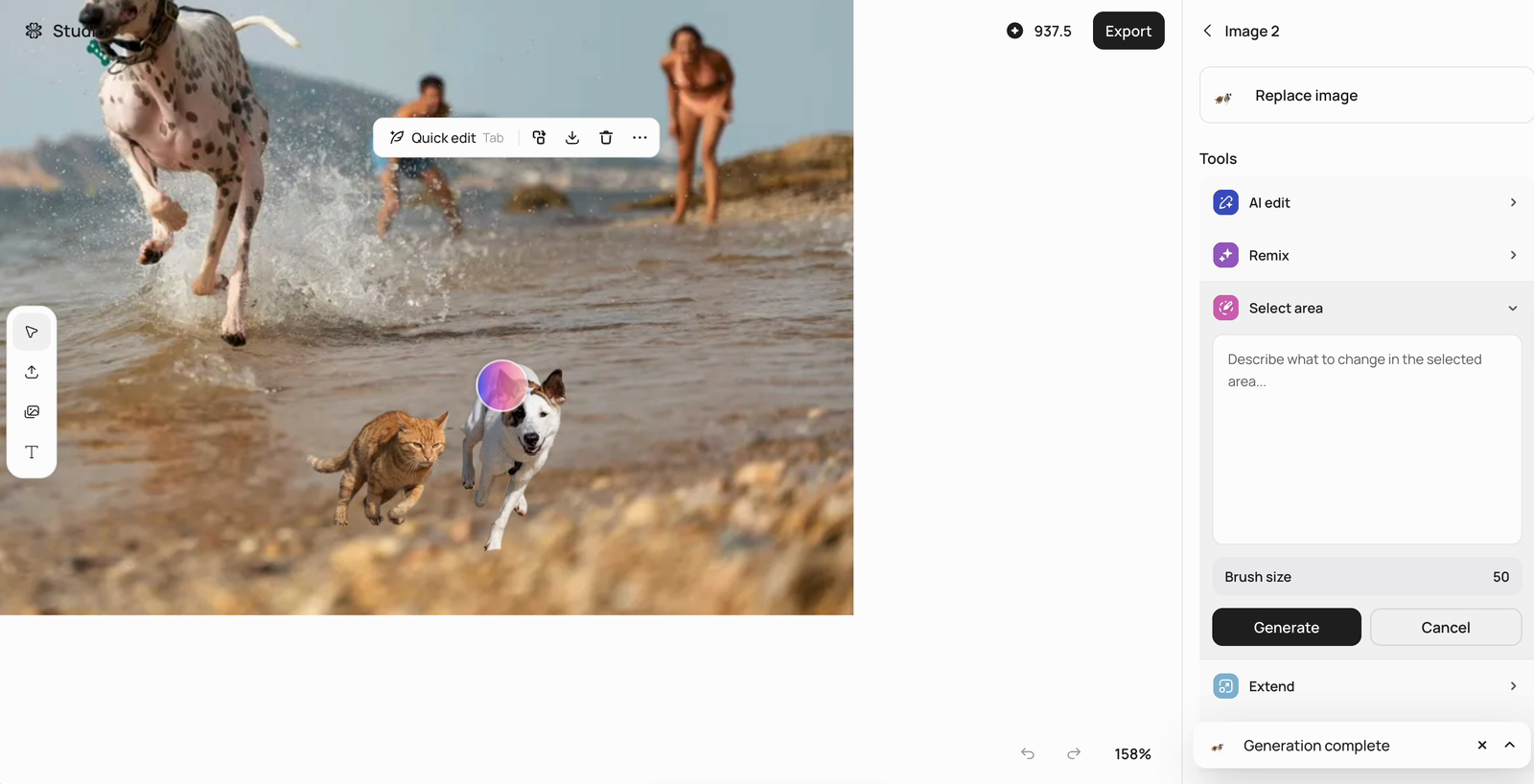
### Select area

Paint over part of a layer with the brush (adjustable **Brush size**), then describe exactly what to change in the selected area and click **Generate**. Use it for targeted edits that leave the rest of the layer untouched.

<figure><img src="https://1799634369-files.gitbook.io/~/files/v0/b/gitbook-x-prod.appspot.com/o/spaces%2FzjhNby3LLsIikYuvxAJP%2Fuploads%2Fgit-blob-e4ba8c481917a207ecb8caf5c66e5a013a5dd752%2Fstudio-select-area.png?alt=media" alt="Select area tool in Image Studio with a brush cursor over part of the image and a panel asking to describe what to change in the selected area, with a brush size control and Generate button"><figcaption><p>Select area: paint the region, describe the change.</p></figcaption></figure>

## Text layers

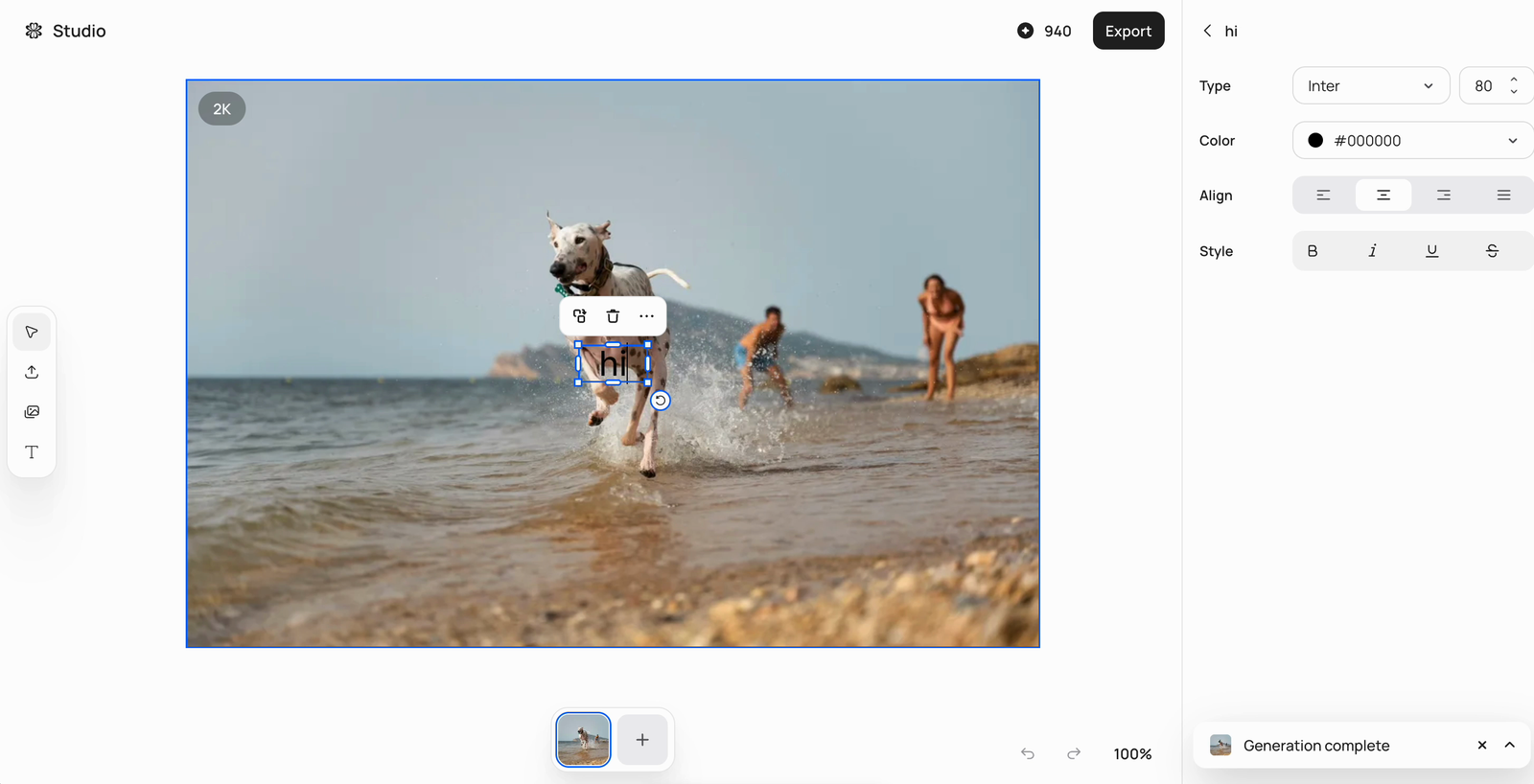
The **T** tool in the left toolbar adds a text layer. Select it to edit the content inline and style it from the right panel: font (searchable, with sans serif, serif, slab serif, and display categories), size, color, alignment, and bold/italic/underline/strikethrough.

<figure><img src="https://1799634369-files.gitbook.io/~/files/v0/b/gitbook-x-prod.appspot.com/o/spaces%2FzjhNby3LLsIikYuvxAJP%2Fuploads%2Fgit-blob-9fbb978fd732864c090fe961e039390414c76ab3%2Fstudio-text-style.png?alt=media" alt="Text layer style panel in Image Studio with font type set to Inter at size 80, a color picker, alignment options, and bold, italic, underline, and strikethrough styles"><figcaption><p>Text layers have full typography controls.</p></figcaption></figure>

## Versions and exporting

Every generation adds a version to the carousel at the bottom — switch between them freely, click **+** to start a new version from the selected one, or delete a version you don't need (this only removes it from the carousel). When you're happy, click **Export** at the top right to download the result.