> For the complete documentation index, see [llms.txt](https://docs.ideogram.ai/llms.txt). Markdown versions of documentation pages are available by appending `.md` to page URLs; this page is available as [Markdown](https://docs.ideogram.ai/edit/studio.md).
# Studio
Edit images in layers with Studio, Ideogram's editor. Tools, versions, saving and export.
Studio is Ideogram's editor. You work on a canvas made of layers: images and text. Some tools rework the whole canvas and give you new versions. Others change one layer and leave the rest alone.
## Open Studio
1. In the sidebar, select **More** → **Studio**.
2. Under **Start with an image**, select **Upload image** and pick a file.
To edit an image you made in Ideogram, download it first, then upload it to Studio.
Uploads must be JPG, PNG or WEBP, up to 50 MB. Once an image is open, you can paste or drag more image files onto the canvas. Each one becomes a new layer.
To leave, select **Studio** at the top left. It reads **Exit** when you point at it.
## The layout
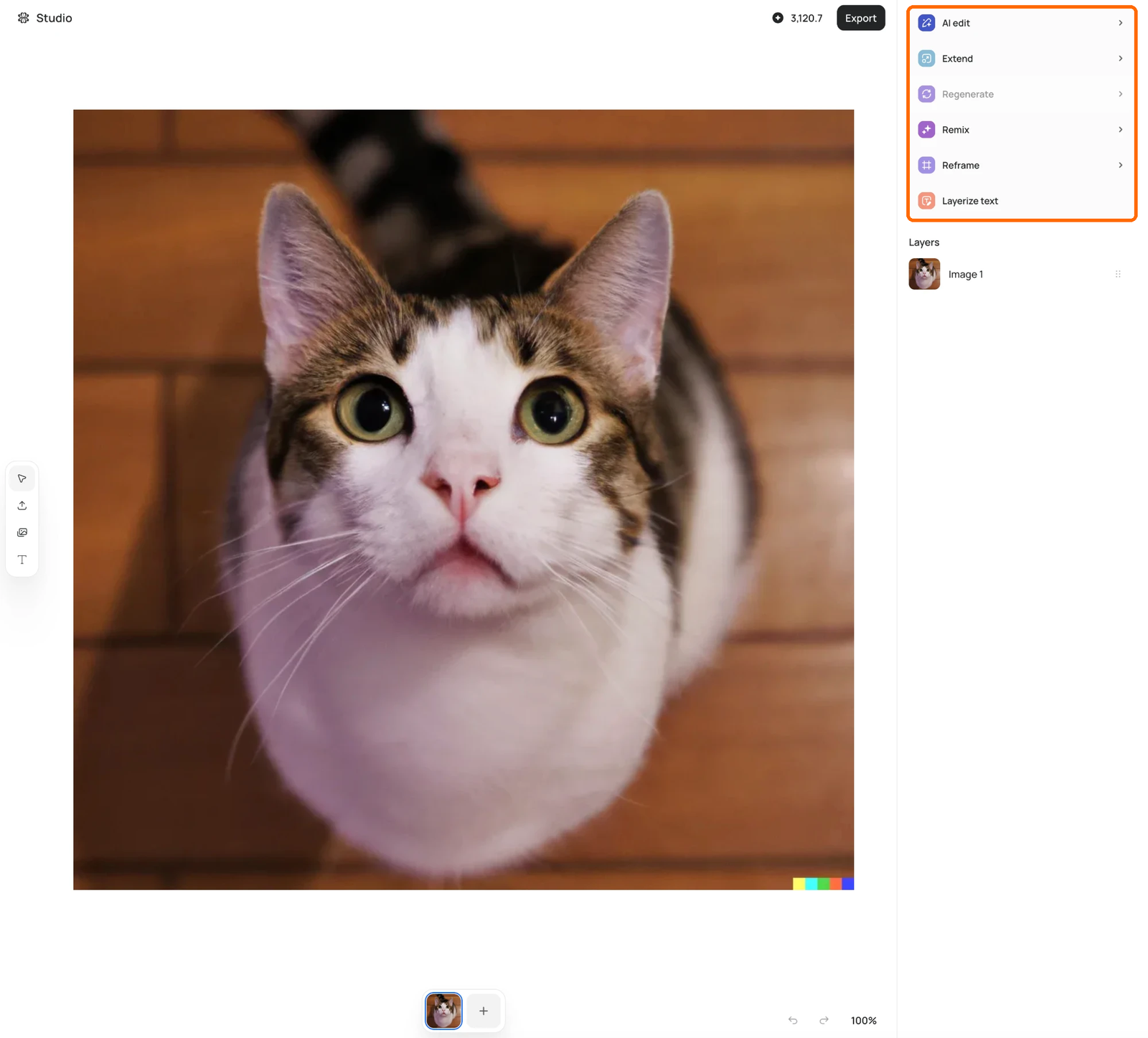
With nothing selected, the canvas tools sit at the top right.
* **Left toolbar**: **Select**, **Upload**, **My Images** (add an image from your library as a layer) and **Text** (add a text layer).
* **Right sidebar**: tools for whatever you've selected. With nothing selected, you get the canvas tools and the **Layers** list. Drag its edge to resize it.
* **Bottom**: the version strip.
* **Bottom right**: **Undo**, **Redo** and zoom (50% to 300%). Click the zoom badge to fit the canvas. Hold Space and drag to pan.
* **Top right**: your credit balance and **Export**.
Studio tools use credits, but the **Generate** buttons don't show a price. Watch the balance at the top right. See [how credits work](/plans-and-billing/available-plans.md#how-credits-work).
## Canvas tools: make new versions
Click an empty spot so nothing is selected. Each of these tools works on the whole canvas and adds the result to the version strip.
| Tool | What it does | Plan |
| ----------------- | ------------------------------------------------------------------------------------------------------------------------------------------------------------------------------ | -------------- |
| **AI edit** | Describe your edits and get edited versions. Attach reference images with the paperclip (up to 14). **Count** sets 1 to 4 results. | Any |
| **Extend** | Drag the handles to grow the canvas, describe what should fill the new space, then select **Extend**. Output tops out at 2048 px on the long side. | Paid |
| **Regenerate** | Runs the original prompt and settings again. Edit the prompt first if you like; bigger changes give a more different image. Greyed out for uploaded images. | Any |
| **Remix** | Uses the canvas as a base for new images. Describe your remix and set **Count** (1 to 4). There's no strength setting in Studio; use the [Remix app](/edit/remix.md) for that. | Paid |
| **Reframe** | Pick a new aspect ratio (1:1, 3:2, 2:3, 4:3, 3:4, 5:4, 4:5, 16:9, 9:16 or 21:9) and select **Reframe**. Ideogram recomposes the image to fit. | Any |
| **Layerize text** | Finds the text in the image and turns it into text layers you can edit. See [Text and Layers](/edit/text-and-layers.md#layerize-text). | Any, signed in |
## Layer tools: change one layer in place
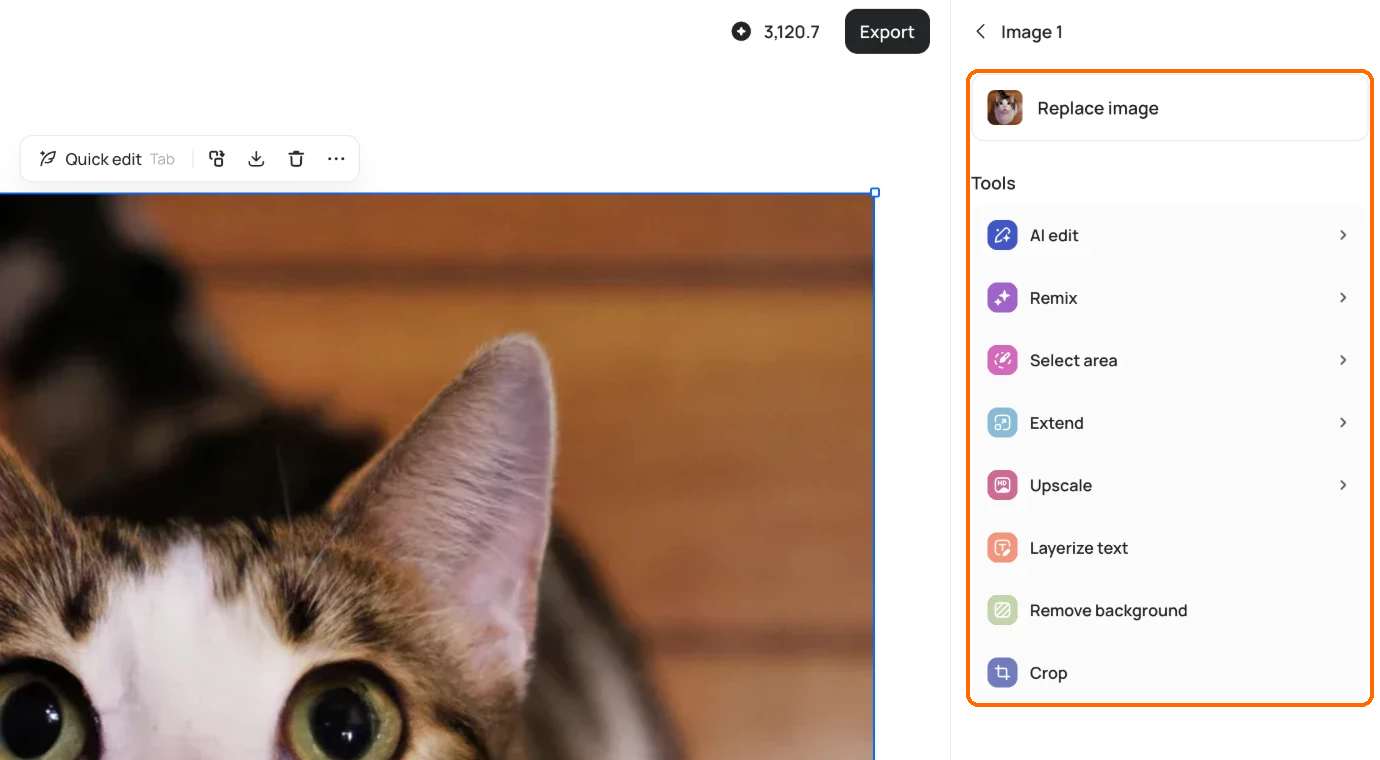
Click an image on the canvas to select it as a layer. The sidebar shows its name, a **Replace image** button and a **Tools** list. These tools change that layer only, on the current version. They don't add a new version.
Select an image layer to get Replace image and its Tools.
| Tool | What it does | Plan |
| --------------------- | ------------------------------------------------------------------------------------------------------------------------------------------------ | -------------- |
| **Replace image** | Pick a file to swap in for this layer. | Any |
| **AI edit** | Describe a change for just this layer. You can attach reference images. | Any |
| **Remix** | Makes a variation that starts from this layer. | Paid |
| **Select area** | Paint over part of the layer (**Brush size** 10 to 80), describe what to change there, then **Generate**. The rest of the layer stays as it was. | Paid |
| **Extend** | Pull the layer's edges out and describe what should appear in the new space. | Paid |
| **Upscale** | Adds detail and sharpness: **2x**, **4x** or **Ultra 8x**. Sizes that would pass 8192 × 8192 px are greyed out. | Paid |
| **Layerize text** | Replaces the layer with the text layers it finds. | Any, signed in |
| **Remove background** | One click removes the background from this layer only. Uses credits. | Any |
| **Crop** | Drag the frame. Click outside to apply, or press Esc to cancel. | Any |
On desktop, a bar also floats over the selected layer. **Quick edit** (or press **Tab**) opens a prompt box with starters like "Change text to..." and "Remove...". The bar also has Duplicate, Download, Delete and More. On mobile, the layer tools sit in a toolbar under the canvas.
Studio doesn't have Precise Edit or Object Remover. Use those as separate apps; see [Edit Images](/edit/edit.md#single-purpose-apps).
## Versions
Each canvas tool run adds a thumbnail to the version strip at the bottom.
* Click a thumbnail, or use the ← and → keys, to switch versions. **Undo** also steps back through switches.
* Select **+** to duplicate the current version, layers included, and keep working on the copy.
* To remove a version, delete it from the strip and confirm **Delete image**. Studio says this removes it "from the editor carousel."
## Saving
Studio saves for you. There's no Save button. Layer edits save to the same image as you work, and again when you switch versions or exit. If you try to leave while a layer tool is still running, Studio asks you to confirm, since you'd lose that result.
Studio has no Share or Publish. To share or publish, open the image's page. See [Sharing images](/organize-and-share/share-and-publish.md).
## Export
Select **Export** at the top right. It opens the same menu as **Download** on the image page, for the version you're on: pick a **File type** and **Size**, then download. Sizes larger than the original upscale the image first and cost credits. Some formats and sizes need a plan. See [Downloading images](/organize-and-share/download.md).
To save one layer's source file on its own, select the layer and use Download in its floating bar.