Ideogram API
Create and revoke Ideogram API keys, choose the credits they charge, filter usage reports and look up operation prices in the app.On this page
The Ideogram API lets you generate and edit images from your own code. This page covers what you manage in the app. For endpoints, request formats and examples, see the API reference at developer.ideogram.ai.
Open the API pages
- Click your avatar.
- Click API to open Settings → API Overview. The sidebar's API button also opens this overview in the integrated app.
The workspace switcher selects the account or organization you're working in. Choose the workspace before creating a key or managing its credits.
In Ideogram Legacy, API opens a separate API page; use its Dashboard, API Keys, Usage and Billing pages there. It has its own workspace switcher. The pages and actions you see depend on the selected workspace and your role.
The page shows:
- Credit balance: the credits you have left. Manage credits opens Wallet & Billing. Postpaid enterprise workspaces don't show a prepaid balance here.
- Current plan: the plan you're on.
- Create an API key and View our docs.
- Track your usage, when your workspace supports the Usage page. See Track usage.
- MCP server: connect Ideogram to AI tools that support the Model Context Protocol.
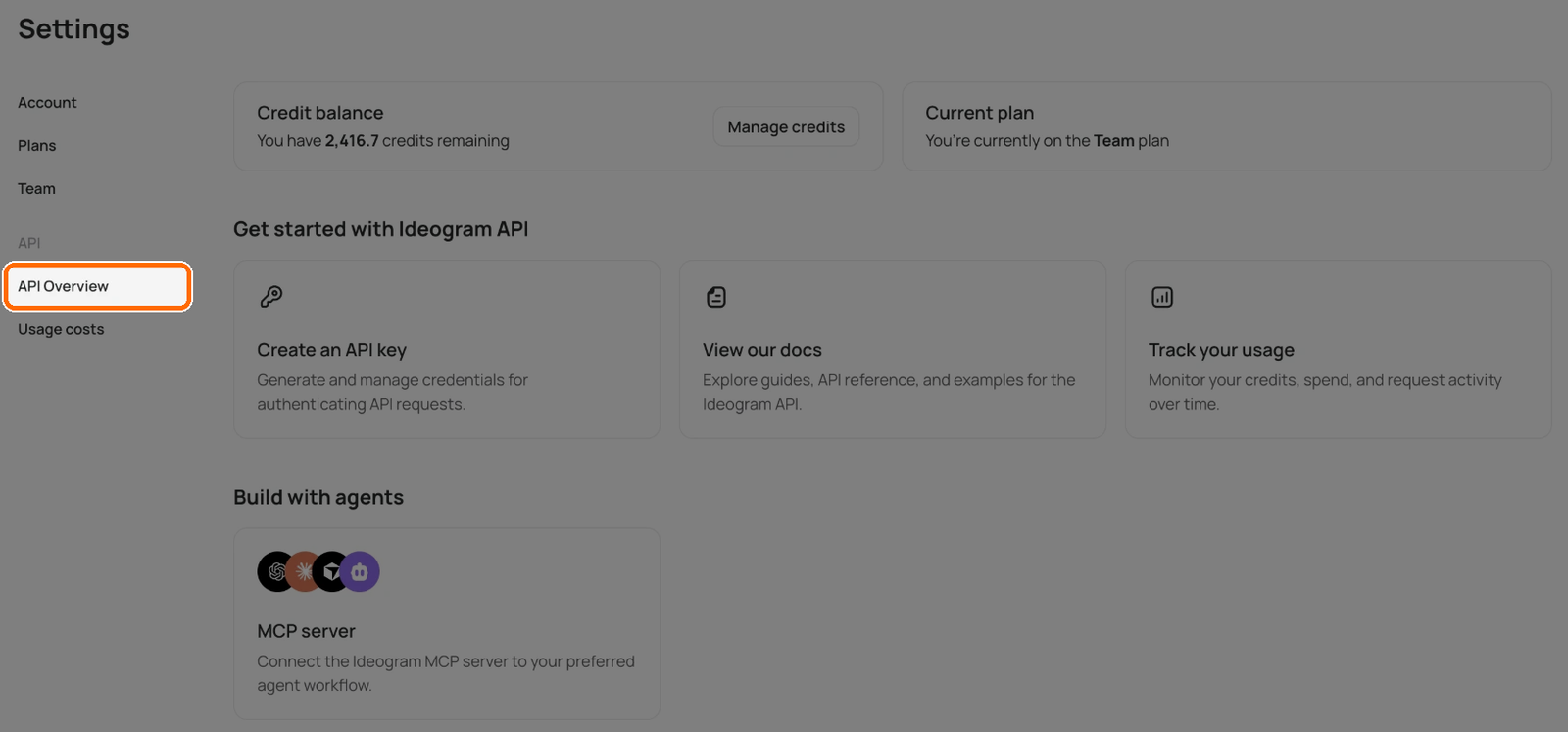
An API Overview example. The credit balance and Track your usage card depend on the workspace and your access.
Usage costs in Settings lists the prices for supported operations. It is a price list; Usage shows recorded spending where available.
Create an API key
- Select the workspace whose credits the key should use.
- Open API Keys, or select Create an API key from the overview.
- Click Create key.
- Enter an optional name of up to 64 characters, then click Create.
- Copy the full key from the confirmation dialog and store it securely before closing the dialog.
The full key is shown only once. You can't reveal it again from the key list. If you lose it, create a replacement, update the applications that use it, then revoke the old key. Keep keys out of public code and messages: anyone with a working key can spend the balance it uses.
Which balance does a key use?
| Workspace | What API calls charge | Who sees and manages keys in the app |
|---|---|---|
| Personal | Your monthly plan credits when they cover the whole request. Otherwise the whole request is charged to your purchased credits. A request is never split between the two. | You create, view, label and revoke your own keys. |
| Team plan | The credits of the member who created the key, in that team. | Members create and manage their own keys. Owners and admins, where that role exists, can see and manage all members' keys; Created by identifies the member. |
| Enterprise Prepaid / API workspace | The organization's shared prepaid balance. | Members can create keys and see the workspace's key list. Owners and admins have the label and revoke controls. |
| Enterprise agreement | The organization's billing agreement. | Members can create keys and see the workspace's key list. Owners and admins have the label and revoke controls. |
Switching workspaces doesn't change which balance an existing key uses. To use another workspace, create a key there. Team credits and prepaid organization credits work differently; see Team Plan and Enterprise Prepaid.
Edit a key's name
- In API Keys, open ⋯ on an active key's row.
- Select Edit label, change the name and save.
The label helps you recognize a key; changing it doesn't replace the secret.
Revoke a key
- In API Keys, open ⋯ on the key's row.
- Select Revoke key.
- Read the warning and confirm with Revoke key.
Revocation is immediate and can't be undone. Applications using that key lose API access. Create and install a replacement first if those applications need to keep running.
Revoked keys are hidden from the list by default. Turn on Show revoked keys to review them. You can't edit or reactivate a revoked key.
Track usage
In Settings, Usage is available to owners and admins of Enterprise and prepaid API workspaces. Personal accounts and seat-based Team plans don't have this page. Its absence doesn't mean you haven't used credits; check your balance in the user menu or Wallet & Billing.
In Ideogram Legacy's API page, Usage is shown only to eligible owners and admins with usage reporting set up. Ordinary members and seat-based Team profiles don't see it.
If your workspace has the Usage page, follow these steps:
- Select the workspace you want to inspect.
- Open Usage, or Track your usage from the overview.
- Filter by app or API source, member, API key and date range.
The displayed date range uses UTC. Use Usage costs to look up prices and Billing or Wallet & Billing for charges and invoices.
Which date ranges can I inspect?
Usage starts on Last 30 days. The timeframe menu also offers Month to date, Last 3 days and Last 90 days. Last 3 days uses hourly buckets; the other ranges use daily buckets. Keep the UTC range in mind when comparing activity with a local calendar date.
Can I review usage from a revoked key?
Yes. The usage filter includes inactive or revoked keys, listed after active ones. Select the key by its partial value to inspect attributed usage in the chosen date range. Revoking a key stops future authentication; it doesn't remove that key from the usage filter.
Look up usage costs
- Open Usage costs in Settings, or Pricing in Ideogram Legacy's API page.
- Search by model name, endpoint path or tool. Clear the search to return to the complete list.
- Where an operation offers Rates and examples or Examples, expand it to see the unit rate or example calculations.
- Use Show … older models and legacy endpoints to open the older-operation section when needed.
No matches means your search found nothing; try a shorter model or tool name. Pricing unavailable means the price list couldn't load, so try again before relying on it for a cost estimate.
For request formats and supported parameters, continue to the public API reference. The cost table helps you understand pricing; it doesn't replace endpoint documentation.
Credits and billing
In your personal workspace, the API and app share your credit balance. An API call is charged to your monthly plan credits when they cover the whole call, and otherwise entirely to your purchased credits. In a Team plan, each key uses its creator's team credits. Prepaid API workspaces share the organization's wallet; enterprise agreements follow their agreed billing terms.
For example, say a call costs 20 credits (an illustrative amount). With 50 monthly credits left, it uses 20 of them. With 10 left, all 20 come from purchased credits and your 10 monthly credits stay.
Open Wallet & Billing in Settings, or Billing in Ideogram Legacy's API page, for the workspace you're funding. Billing controls are available to the personal account holder or authorized organization managers. Team members ask the owner to add credits for their seat.
See Buying Extra Credits, Enterprise Prepaid and Invoices, Receipts, and Tax Details for the appropriate payment workflow.
Use Ideogram in Claude, ChatGPT or Cursor (MCP)
The Ideogram MCP server lets AI assistants and agents such as Claude, Claude Code, ChatGPT, Cursor and Cline generate, edit and upscale images, remove backgrounds and train custom models with your Ideogram account. You sign in with your Ideogram account the first time a client connects. Setup steps for each app are in Use Ideogram in AI Assistants and on the Ideogram MCP page. MCP use spends the chosen workspace's credits: plan credits first, then credits you bought.