> For the complete documentation index, see [llms.txt](https://docs.ideogram.ai/llms.txt). Markdown versions of documentation pages are available by appending `.md` to page URLs; this page is available as [Markdown](https://docs.ideogram.ai/plans-and-billing/billing-and-subscriptions/invoices-receipts-and-tax-details.md).
# Invoices, Receipts, and Tax Details
Download an Ideogram invoice or receipt, find a missing one, add a company name or VAT ID, and understand tax on your invoice. What can and can't be changed after a charge.
Every Ideogram charge has an invoice and a receipt. You can download both yourself, and add your company details for future invoices.
* An **invoice** lists what you bought, the tax and the total.
* A **receipt** shows that the payment went through. Ideogram emails one after each charge, with a subject like "Your receipt from Ideogram AI #1234-5678".
{% hint style="warning" %}
**An invoice can't be changed after it's issued.** It records your billing details at the time of the charge. Add your company name, address and tax ID before your next payment, and they'll appear on every invoice after that. See [Add a company name, address or VAT ID](#add-a-company-name-address-or-vat-id).
{% endhint %}
## Download an invoice or receipt
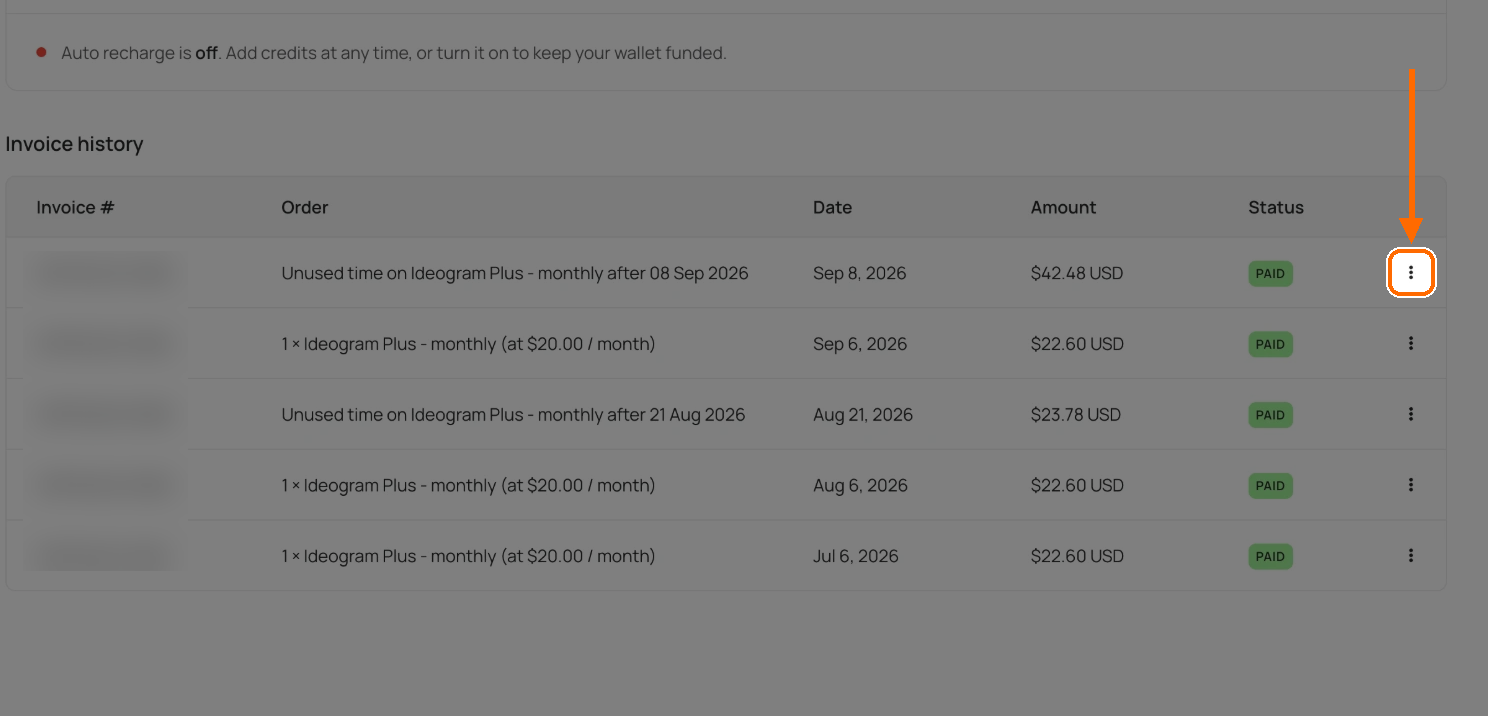
1. Click your avatar and select **Wallet & Billing**. For a Team-plan charge, switch to the team workspace first. You need to be its owner.
2. Under **Invoice history**, find the charge. The list shows 10 rows a page; use the arrows below it for older charges.
3. Click **⋮** at the end of its row.
Each invoice row has a ⋮ menu.
4. Click **Download** for a PDF, or **Go to Stripe** to open the invoice online.
### Get both the invoice and the receipt
For both documents, use the billing portal:
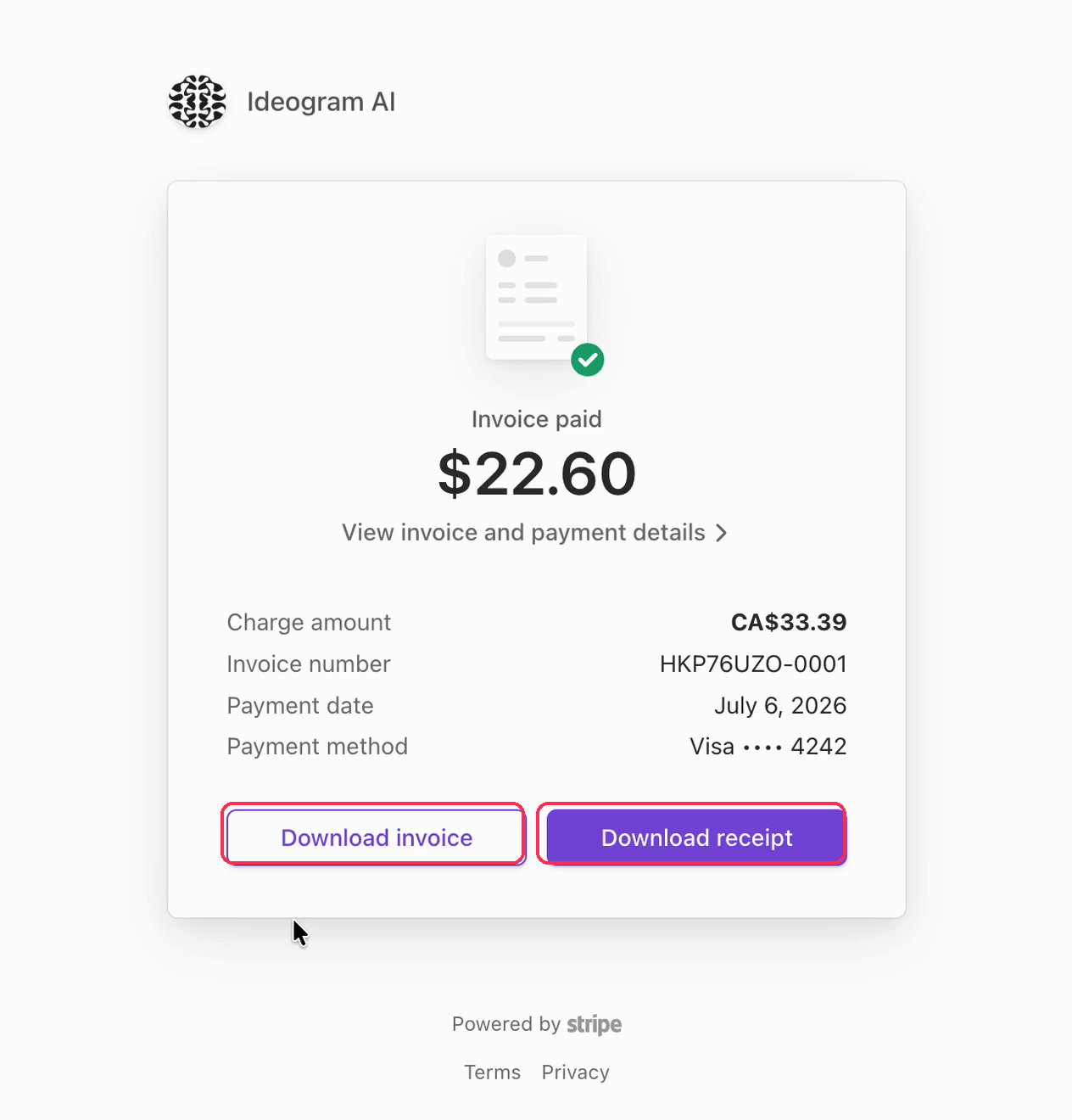
1. In **Wallet & Billing**, click **Manage plan & billing** for a subscription, or **Manage billing** for credits or the Team plan.
2. Under **Invoice history**, click the charge.
3. Click **Download invoice** or **Download receipt**.
Every charge has a downloadable invoice and receipt.
## I can't find an invoice
Work through these in order:
1. **Check the account.** The account that paid is the one whose email got the receipt. If you have more than one Ideogram account, sign in to that one. See [Sign In and Accounts](/get-started/signup-and-registration.md).
2. **Check the workspace.** Team-plan charges appear in the team workspace, not in **Personal**. Only the team's owner can open them.
3. **Check whether Apple billed you.** If you subscribed in the iOS app, Apple sends the receipt, and the charge doesn't appear in Ideogram. Find it in your Apple purchase history. See [Subscriptions Through the iOS App](/plans-and-billing/billing-and-subscriptions/ios-app-subscriptions.md).
4. **Check for API credits.** Credits for the Ideogram API are billed in the separate developer platform. Open **Billing** there.
5. **Reload the page.** **Unable to load invoices** is a loading error, not an empty history. Try again before you assume there are no charges.
Still missing, or did you delete the account that paid? Email from the address that received the receipt. Include the date and amount of the charge.
## Add a company name, address or VAT ID
Your details appear on invoices issued after you save them.
1. In **Wallet & Billing**, open the billing portal: **Manage plan & billing** for a subscription, or **Manage billing** for credits or the Team plan.
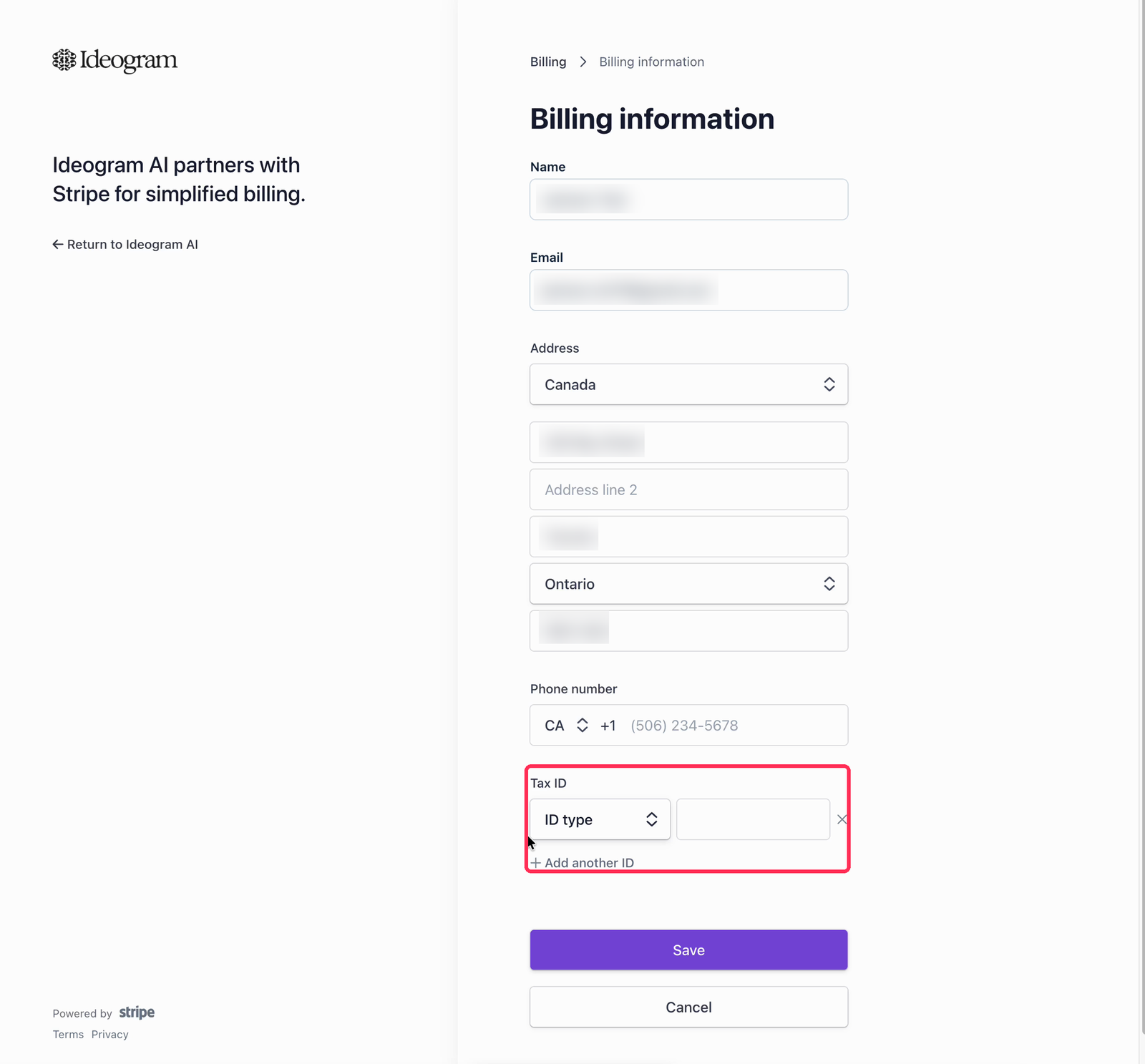
2. Under **Billing information**, click **Update information**.
3. Fill in the details you need:
* **Name:** put your company name here. There is no separate company field.
* **Address:** your billing address.
* **Tax ID:** supports the VAT and tax ID formats of most countries. You can add more than one.
Add a company name, address, and tax or VAT IDs to your billing information.
4. Click **Save**.
Buying credits for the first time? Add these details before you pay, so the first invoice shows them.
## Why is there tax on my invoice?
Ideogram adds VAT, GST or sales tax where the law requires it, based on your billing address. The invoice shows the tax as its own line, and the total includes it.
A tax ID you add later applies only to future invoices. It doesn't change the tax on invoices already issued.
## Why does my bank show a different amount?
* **Another currency:** if your card uses a different currency, your bank converts the amount and may add a fee. The invoice shows what Ideogram charged.
* **Tax:** compare your bank statement with the invoice **total**, which includes tax, not the plan price.
* **Two charges:** check for a second subscription on another account or through Apple. See [Troubleshooting Billing Issues](/plans-and-billing/billing-and-subscriptions/troubleshooting-billing-issues.md).
## Can I get an invoice before I pay?
No. Ideogram creates an invoice when a payment goes through, so there's nothing to download for a charge that hasn't happened yet. Invoices for a subscription appear when each renewal is paid.
## Tax forms and compliance documents
For tax residency certificates or other compliance documents, email with the list of documents you need. Support checks with the finance team.
## Choose the right billing account
Open billing from the workspace that made the purchase:
| Purchase | Where to open billing | Portal action |
| --------------------------------------- | -------------------------------------------------------------- | -------------------------------------------------------------------------------------------------- |
| Personal web subscription | **Personal** → **Wallet & Billing** | **Manage plan & billing** |
| Personal pay-as-you-go credits | **Personal** → **Wallet & Billing** | **Manage billing**, after a payment method is saved |
| Team-plan subscription or member top-up | Team workspace → **Wallet & Billing**, as the owner | **Manage billing** |
| Enterprise Prepaid credits | Prepaid workspace → **Wallet & Billing**, as an owner or admin | **Manage billing**, when available |
| Enterprise agreement | Enterprise workspace → **Billing**, as an owner or admin | Follow the organization's invoicing arrangement; contact its billing owner or support for changes. |
In the developer platform, pick the API workspace in its own switcher and open **Billing**. Where shown, **Billing Information** → **Manage via Stripe** opens the portal and **Add tax information** opens the tax details.
## Organization invoices
Enterprise and prepaid API workspaces show the organization's invoice history to owners and admins. Personal-plan invoices don't appear there.
Open an invoice row to see its line items and total. Dates are in UTC. **ISSUED** means the invoice exists; it may still be waiting for payment. The list leaves out zero-total invoices paid fully from a prepaid balance or agreement.
If the page says billing isn't set up, contact [support](/help/support.md) to arrange invoicing.
## Update a payment method
Open the portal for the purchase, using [the table above](#choose-the-right-billing-account), and update the payment method there. Organization members who can't open billing should ask an owner or admin. Apple manages App Store subscriptions; see [Subscriptions Through the iOS App](/plans-and-billing/billing-and-subscriptions/ios-app-subscriptions.md).