> For the complete documentation index, see [llms.txt](https://docs.ideogram.ai/llms.txt). Markdown versions of documentation pages are available by appending `.md` to page URLs; this page is available as [Markdown](https://docs.ideogram.ai/using-ideogram/getting-started/prompting-guide/2-prompting-fundamentals/text-and-typography.md).

# Text and Typography

**Ideogram excels in the generation and integration of text into an image.** Whether as an overlay (e.g. a meme), as a typographic design (e.g. a t-shirt design) or as an integral part of various image elements (e.g. the name of a bottle of perfume), it's easy to get good results, often on the very first try.

To do this, all you need to do is write your prompt using complete sentences and punctuation, and indicate the text to be written by putting it in quotation marks and describing the context.

Here's an example:

**Prompt**:\
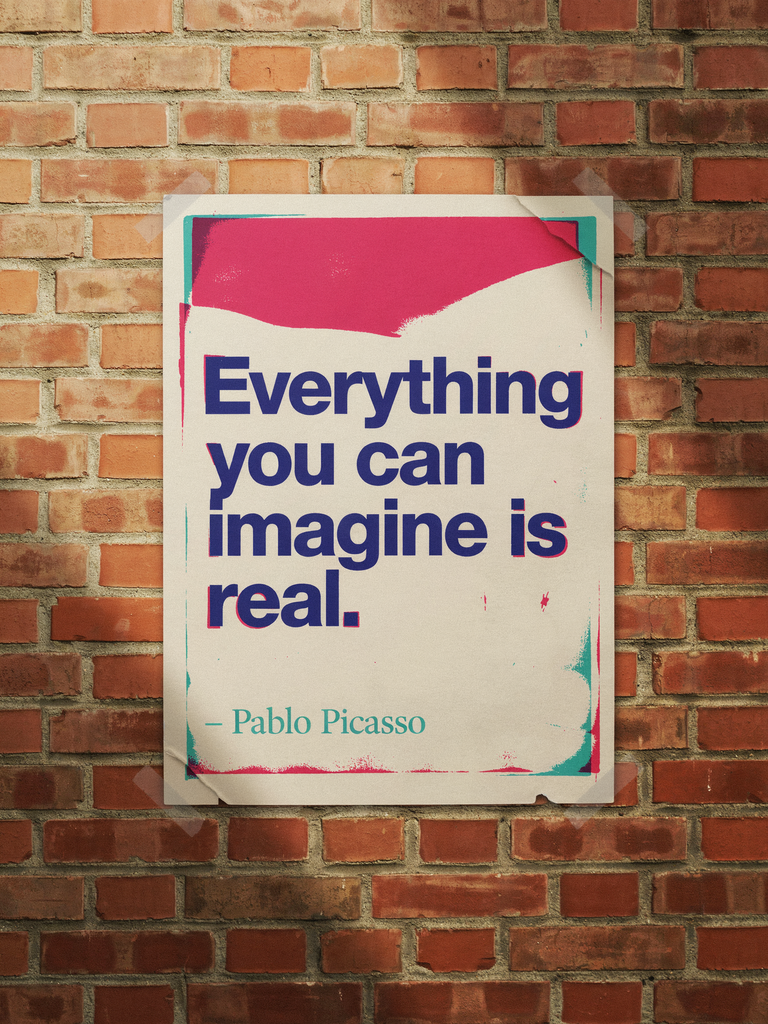
\&#xNAN;*A poster on a wall with text that reads: "Everything you can imagine is real. – Pablo Picasso"*

<figure><img src="/files/XG8GMD5PPcTfs6JvnvPt" alt="Black poster taped to a dark wall reading Everything You Can Imagine Is Real – Pablo Picasso in bold white capitals" width="375"><figcaption><p>The AI generated the requested text on a poster, on a wall.</p></figcaption></figure>

{% hint style="info" %}
In the image above, the AI has decided on the style and type of wall and poster that will be generated, as well as other visual aspects. Of course, you can describe these or any other elements you'd like to appear in the image yourself in the prompt, and the AI will generate them accordingly.
{% endhint %}

{% hint style="warning" %}
For the time being, text that you would like to be written using a non-Latin alphabet or accented Latin characters may have some difficulty being generated correctly, if at all.
{% endhint %}

With **Ideogram 4.0**, text rendering has improved further, and you can use JSON prompting for pixel-precise text placement with bounding boxes. Read more about that \[INSERT LINK]

## Tips and limitations for text

For plain-text prompts, the previous tips still apply:

> * *On the wall behind the artist, the phrase “Inspire Daily” is painted in large brush strokes across a mural, at the back of a vibrant and creative studio.*
> * *A vintage poster design with the words “Ride Free” curving along the bottom in retro lettering, featuring a smiling woman on a bicycle on a countryside road.*

**To achieve the best results:**

* **Use Visually Grounded Prompts**: Clearly describe the text's appearance, placement, and style within the image.
* **Position Text Early in the Prompt**: Mention the desired text near the beginning of your prompt to get better results.
* **Enclose Text in Quotation Marks**: Use quotation marks to specify the exact text you want to appear in the image.
* **Break longer text into chunks.**\
  If you're trying to generate more than one line of text, split the content into sections with specific placement instructions.
* **Reduce visual complexity if possible.**\
  The more intricate the rest of the scene, the harder it is for the AI to cleanly render text.

That said, there are a few **limitations to keep in mind:**

* **Text length matters.**\
  The longer the text you want to include, the higher the chance of spelling errors, distortions, or incomplete words. Think of it like taking a group photo: the more people in the shot, the greater the chance someone will blink. Short, punchy phrases work best.
* **Not suitable for layouts with full textual content**\
  Ideogram is not designed to generate complete, text-heavy documents. It can insert titles or short blocks of text, but long passages should be added afterward in a graphic editor.
* **Foreign language support is limited.**\
  Text rendering is most accurate in **English**. Non-Latin scripts often produce unpredictable results.

If precise, readable text is important to your design, consider using Ideogram to generate the visual concept and then add the text manually using graphic editing tools afterward.

## Various types of text renderings

As you will see in the examples below, Ideogram can easily integrate text in just about any situation.

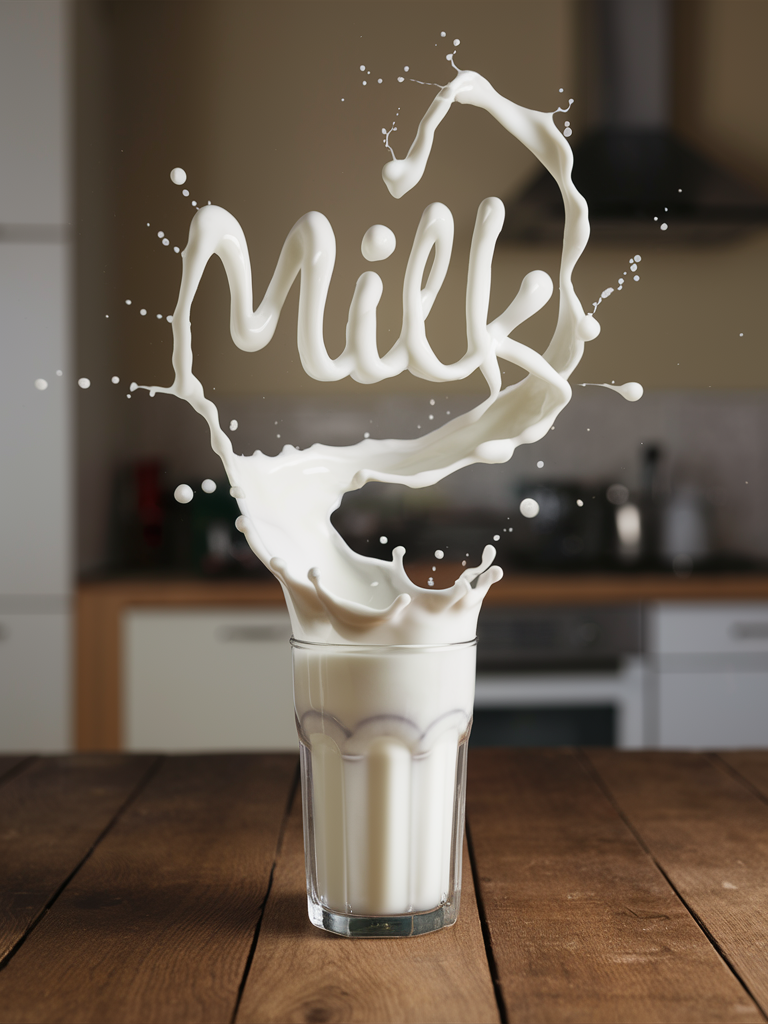
<table data-card-size="large" data-view="cards"><thead><tr><th></th><th></th><th></th></tr></thead><tbody><tr><td><strong>Simple text</strong></td><td><img src="/files/fALBD8e3W41zzivslxA1" alt="Three black diamonds on a grey panel beside bold white text on black reading Keep it simple, experience minimalism" data-size="original"></td><td><strong>Prompt</strong>:<br><em>A striking image split in three, where on the left part, a minimalist set of three black geometric forms are arranged vertically on a light grey background. The center and right parts are united as a black background, a block of geometric text emphasizes the essence of minimalism: "Keep it simple, experience minimalism."</em></td></tr><tr><td><strong>Text as logo</strong></td><td><img src="/files/xLRGsxifiUY0xupodcOV" alt="Jug and glass of orange juice on a patio table above a wooden crate of oranges printed with a Biorange logo" data-size="original"></td><td><strong>Prompt</strong>:<br><em>A striking photograph in which a jug of orange juice is placed on a patio table with a glass of orange juice next to it and a few oranges placed neatly on the table some cut in half. At the bottom of the image, the side of a wooden crate full of oranges shows the brand logo, which consists of a big orange in the background of the word 'Biorange' in stylish juicy/liquid lettering, which forms the logo for the orange juice brand. The background is blurred and a little dark, but it looks as though the photo was taken outside, in the garden of a house, on a sunny day.</em></td></tr><tr><td><strong>Text formed by objects</strong></td><td><img src="/files/uWNVx3lJ2jCyoArshQOJ" alt="Milk splashing out of a glass and forming the word Milk in swirly liquid lettering above a wooden kitchen table" data-size="original"></td><td><strong>Prompt</strong>:<br><em>A striking photograph in which a glass of milk is placed on a wooden table. A splash of milk comes out of the glass, forming the word "Milk" in a swirly manner just above the glass. The background is blurred but looks like a homely kitchen.</em></td></tr><tr><td><strong>Text as part of an object</strong></td><td><img src="/files/RRld5l5MDtuQyvZzQWlO" alt="Close-up of a red baseball cap with an embroidered snarling red panda emblem above the team name Red Panda in white script" data-size="original"></td><td><strong>Prompt:</strong><br><em>A close-up detailed product photo of a vibrant and energetic baseball cap, featuring a stylish red panda embroidered emblem that exudes vitality. The cap is embroidered with the team's name, "Red Panda," displayed boldly in white bold script font below the sleek red panda design. The dynamic perspective and intense focus on the cap create a sense of high-spirited enthusiasm and team spirit.</em></td></tr><tr><td><strong>Text as design</strong></td><td><img src="/files/wMD4Z7iCzeGPDxbATKGK" alt="Whimsical lettering reading Summer Lifestyle amid palm trees, a beach umbrella, cocktail and beach ball on a dark background" data-size="original"></td><td><strong>Prompt</strong>:<br><em>A vibrant and playful illustration of "Summer Lifestyle" set against a dark backdrop. The words are rendered in a whimsical, multi-colored font with splashes of pink, yellow, and green, perfectly capturing the essence of the season. Surrounding the text, a tropical paradise unfolds with palm trees swaying gently, a surfboard catching a wave, and a beach umbrella providing shade. A cocktail glass filled with a refreshing drink and a slice of lemon sits on the sand, while a beach ball and sunny skies complete the scene. The overall design exudes a laid-back, beach-themed vibe, with the bright colors and tropical motifs emphasizing the fun and carefree spirit of summer.</em></td></tr><tr><td><strong>Text as logo or design</strong></td><td><img src="/files/zGhrOH5K9o3cjHFU9ovT" alt="Woman&#x27;s silhouette with hair drawn as flowing script reading Take Care of Your Hair Naturally, above the words Herbal Shampoo" data-size="original"></td><td><p><strong>Prompt</strong>:</p><p><em>A captivating vintage-style calligraphy artwork featuring a woman's silhouette with intricately crafted hair, made up of elegant script that reads "Take care of your hair naturally." The brand name "Herbal Shampoo" is gracefully written in a fine sans-serif font below the main text, with the word shampoo being smaller, adding a touch of elegance to the design. The soft off-white background enhances the rich, vintage feel of the piece, while the seamless flow of the text emphasizes the message and the silhouette's feminine grace.</em></p></td></tr></tbody></table>

{% hint style="info" %}
Note how, in the examples above, there was no need to use [Style Tags](/using-ideogram/features-and-tools/reference-features/style-reference/styles-in-older-models.md), not even the Typography one. Everything was indicated in the prompt.
{% endhint %}

## Fonts and styles

You may find times when you would like to use a particular font or typographic style. At this time, it's not currently possible to specify a typeface by name. That said, it is possible to **describe certain stylistic properties** in order to obtain a satisfactory result.

<table data-card-size="large" data-view="cards"><thead><tr><th></th><th></th><th></th></tr></thead><tbody><tr><td><img src="/files/WO6YRTTEmphslndMzz31" alt="The word Welcome in a heavy bold sans-serif typeface, black on a white background" data-size="original"></td><td><strong>Prompt</strong>:<br><em>The word "Welcome" written in <mark style="color:green;">bold sans-serif</mark> typeface, in black on white background.</em></td><td></td></tr><tr><td><img src="/files/ebmnsELi0W8RRPjZgMLl" alt="The word Welcome in an ultra thin sans-serif typeface, black on a white background" data-size="original"></td><td><strong>Prompt</strong>:<br><em>The word "Welcome" written in <mark style="color:green;">ultra thin sans-serif</mark> typeface, in black on white background.</em></td><td></td></tr><tr><td><img src="/files/VE1Kr027yE3tAqSlhvCa" alt="The word Welcome in a classic serif typeface, black on a white background" data-size="original"></td><td><strong>Prompt</strong>:<br><em>The word "Welcome" written in <mark style="color:green;">serif</mark> typeface, in black on white background.</em></td><td></td></tr><tr><td><img src="/files/zDCWa2Ce2vCgbTsdUiVp" alt="The word welcome in lowercase thin rounded Bauhaus-style letters, black on an off-white background" data-size="original"></td><td><strong>Prompt:</strong><br><em>The word "Welcome" written in <mark style="color:green;">thin rounded bauhaus style</mark> typeface, in black on a white background.</em></td><td></td></tr><tr><td><img src="/files/3vEejfV5lAy1Xe0FDZd9" alt="The word Welcome in a thin formal script with long swirling flourishes above and below, black on an off-white background" data-size="original"></td><td><strong>Prompt</strong>:<br><em>The word "Welcome" written in <mark style="color:green;">thin and refined formal script</mark> typeface <mark style="color:green;">with flourishes</mark>, in black on a white background.</em></td><td></td></tr><tr><td><img src="/files/vbOPagV9AXIcSPFUWFKG" alt="The word Welcome in a bulbous, wavy 1960s hippie-style typeface, black on a cream background" data-size="original"></td><td><strong>Prompt</strong>:<br><em>The word "Welcome" written in <mark style="color:green;">an elongated and artistic 1960's hippie-style</mark> typeface, in black on white background.</em></td><td></td></tr></tbody></table>

As you can see in the examples provided, the AI will also do its best to find an appropriate font style or typography for the image it needs to render. The result will be even better if you activate the [Magic Prompt](/using-ideogram/generation-settings/magic-prompt.md) function. Here are two examples:

<table data-card-size="large" data-view="cards"><thead><tr><th></th><th></th><th></th></tr></thead><tbody><tr><td><img src="/files/TckIPa3lxGoQcvKJnRVa" alt="Birthday card of a rabbit in a chef hat and pink apron offering a candlelit cake under glittery Happy Birthday lettering" data-size="original"></td><td><strong>Prompt</strong>:<br><em>A fun whimsical birthday card design featuring a rabbit offering a cake and the text: "Happy Birthday"</em></td><td><strong>Magic Prompt</strong>:<br><em>A delightful and whimsical birthday card illustration featuring an adorable rabbit, wearing a cute chef's hat and apron, proudly offering a sumptuous cake with lit candles on it. The rabbit's eyes sparkle with joy and the background is a pastel-colored dreamy garden with fluffy clouds and blooming flowers. The text 'Happy Birthday' is written in a playful, cursive font, adding a touch of cheerfulness to the overall design.</em></td></tr><tr><td><img src="/files/DVZglaoHPKYaC84GWjvH" alt="Night cyberpunk cityscape with a light beam and crescent moons, the words New Horizons glowing in futuristic capitals" data-size="original"></td><td><strong>Prompt</strong>:<br><em>A cyberpunk cityscape with the word: "New Horizons"</em></td><td><strong>Magic Prompt</strong>:<br><em>An expansive and futuristic cyberpunk cityscape, with towering skyscrapers and neon lights that stretch into the night. The word "New Horizons" is prominently displayed in large, futuristic letters, signifying the beginning of a new era. The background features a holographic sky filled with multicolored clouds and a crescent moon. A few flying vehicles can be seen in the distance, adding to the bustling city atmosphere.</em></td></tr></tbody></table>

## Fonts and copyrights

**Ideogram's AI doesn't use real fonts to generate images the same way you use font in your computer.** To put it simply, the AI learns by looking at lots of different text images. It studies how different text looks and begins to understand the actual styles. Eventually, the AI figures out how to make text that matches those different styles. So, when you ask for a specific style of text, the AI makes text that looks like it's from a specific style or font, even though the AI is not loaded with that exact font.

## Errors and misspelled words or phrases

Although Ideogram excels at generating text in images, an image can sometimes contain a spelling error, a missing or extra word or letter. Depending on the nature of the error, it is possible to correct the situation in various ways.

* Simply generate your prompt again a few times and see if you get the text you want.
* Change some of the longer, more complex words for shorter synonyms.
* Use the [Editor](/canvas-and-editing/editor.md) to modify the text, adding or deleting parts and then remix the image.
* Use the Typographic [Style Tag](/using-ideogram/features-and-tools/reference-features/style-reference/styles-in-older-models.md) with version 1.0 as it helps to achieve better results.
* Upload an image containing the desired text, which will serve as a starting point and composition source for the image to be created by remixing it.

{% hint style="info" %}
It's a well-known fact that long, complex words and long sentences are harder to generate correctly than short, everyday words. Don't worry, it can be done with patience! Over time, it will get easier as the AI is updated and gets better.

It is often easier to remix an image to fix the image content itself while keeping the text right rather than trying to remix to fix the text while keeping the rest of the image.
{% endhint %}

Here's an example on how to fix text with the editor:

<table data-card-size="large" data-view="cards"><thead><tr><th></th><th></th><th></th></tr></thead><tbody><tr><td><img src="/files/HjY0JdtyUg6a1moN7Ew8" alt="Martini glass with an olive on a dark table under bold text misspelled as Got Martinii? with a doubled letter i" data-size="original"></td><td>Here's an example of an image where a word contains an error. The letter "i" in Martini has been doubled by mistake.</td><td></td></tr><tr><td><img src="/files/2TP1rrhqOndLSDSNl38p" alt="Same martini image in the editor with the extra i and question mark painted over so the text reads Got Martini" data-size="original"></td><td>In the editor, choose the background color to paint over the unwanted letter. In addition, the question mark has also been removed to be redrawn closer to the last word.</td><td></td></tr><tr><td><img src="/files/dRrxC5HAQFgdvQkZI0Ai" alt="Martini image with a rough hand-drawn question mark added after the corrected text Got Martini" data-size="original"></td><td>Now, the question mark as been redrawn. No need to be that precise but it is easier if the redrawn letters looks like what it should when remixing the modified image.</td><td></td></tr><tr><td><img src="/files/DSUTt5Kd9MvN7UaoRH8S" alt="Remixed martini poster where the text now cleanly reads Got Martini? with a smoothly integrated question mark" data-size="original"></td><td>Here's the result. The modified image has been remixed with a high level of image strength (90/100) and the roughly drawn question mark has been integrated and smoothed to fit perfectly with the text.</td><td></td></tr></tbody></table>