> For the complete documentation index, see [llms.txt](https://docs.ideogram.ai/llms.txt). Markdown versions of documentation pages are available by appending `.md` to page URLs; this page is available as [Markdown](https://docs.ideogram.ai/plans-and-pricing/billing-and-subscriptions/cancelling-your-subscription.md).

# Cancelling Your Subscription

You can cancel your Ideogram subscription at any time from the billing management screen. Cancelling stops future renewal charges — it does not end your current paid period early.

{% hint style="warning" %}
**Cancel at least 5 days before your renewal date.** Per Ideogram's [Terms of Service](https://ideogram.ai/legal/tos), cancellations must be made five (5) days before the subscription renewal date. If you cancel closer to the renewal date, the next charge may still be processed.
{% endhint %}

## How to cancel

1. Make sure you are signed in to the account that holds the subscription. If you don't see a paid plan on your account, check whether you subscribed under a different sign-in method or email — see [Troubleshooting Billing Issues](/plans-and-pricing/billing-and-subscriptions/troubleshooting-billing-issues.md).
2. Click your profile picture and select **Manage Subscription**, or open [ideogram.ai/pricing](https://ideogram.ai/pricing).
3. Click **Manage billing** at the top right of the plans page. This opens the billing portal.

<figure><img src="/files/MKu1WPwrzanGYcdZXoln" alt="Ideogram plans page with the Manage billing button at the top right highlighted"><figcaption><p><strong>Manage billing</strong> opens the billing portal.</p></figcaption></figure>

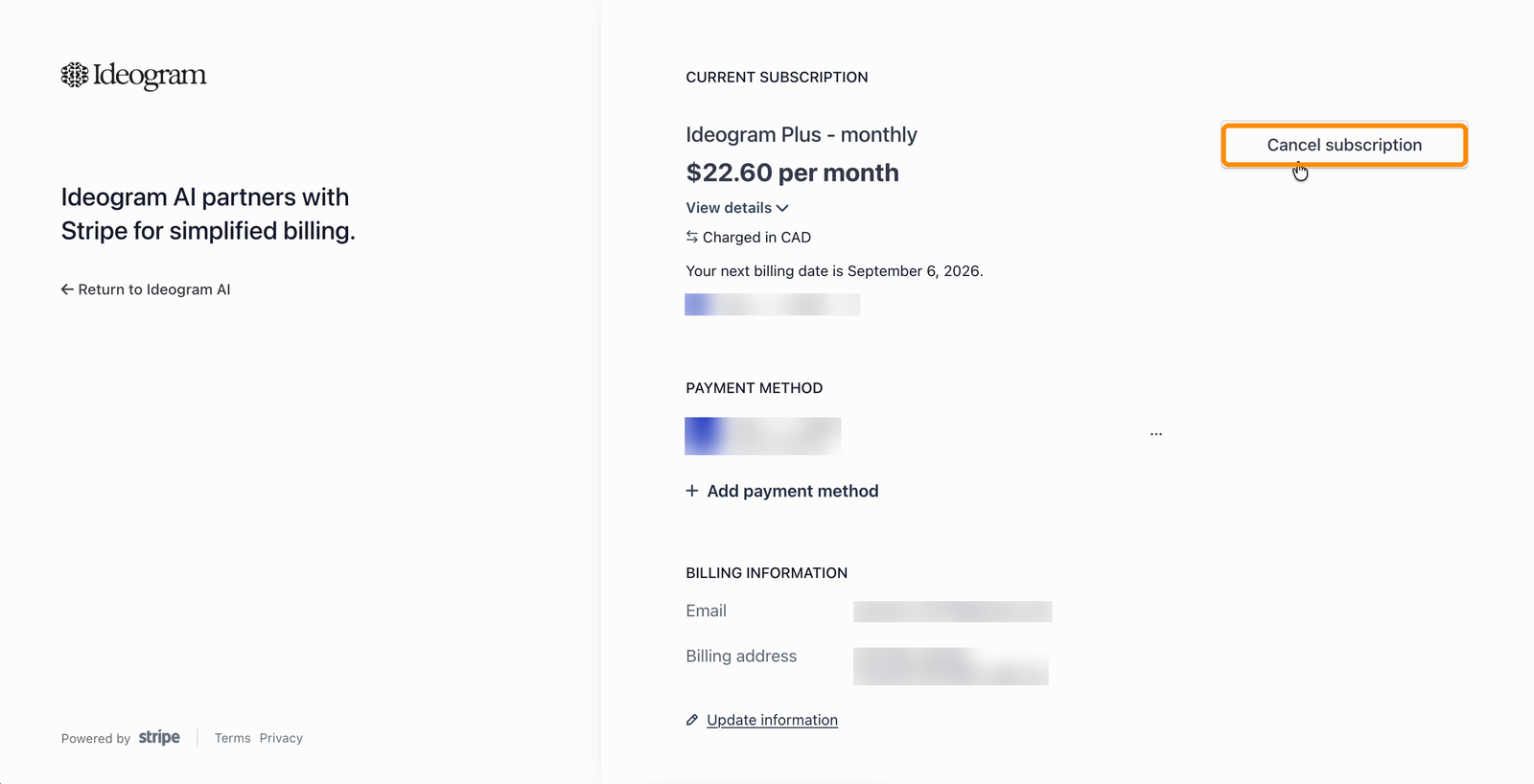
4. In the billing portal, click **Cancel subscription** next to your current subscription.

<figure><img src="/files/Tt6JLFGLPcJEBemGGE5d" alt="Billing portal showing the current subscription, payment method, billing information, and invoice history, with the Cancel subscription button highlighted"><figcaption><p>The <strong>Cancel subscription</strong> button in the billing portal.</p></figcaption></figure>

5. Optionally tell us why you're leaving, then click **Continue to cancellation**.

<figure><img src="/files/djYbufFRIE2poiPRTDvg" alt="Cancel your subscription dialog with a reason dropdown and feedback field, with the Continue to cancellation button highlighted"><figcaption><p>Choose a reason (optional) and continue.</p></figcaption></figure>

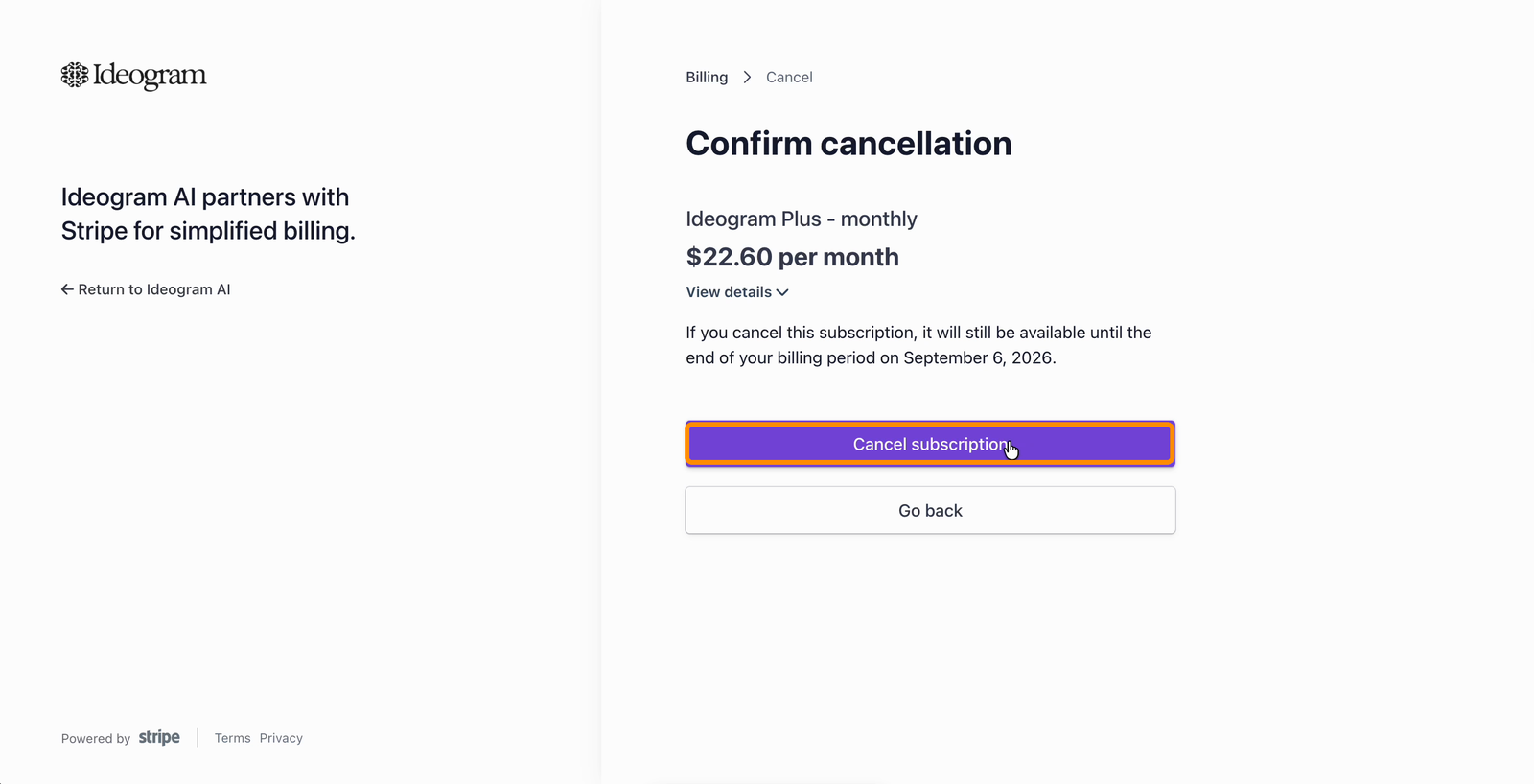
6. Review the confirmation page — it shows the date your access ends — and click **Cancel subscription** to confirm.

<figure><img src="/files/7CazcAwp2WVBmmtczsLz" alt="Confirm cancellation page stating the subscription remains available until the end of the billing period, with the Cancel subscription button highlighted"><figcaption><p>Your plan stays active until the end of the period you already paid for.</p></figcaption></figure>

## What happens after you cancel

* You keep your plan benefits until the end of the period you have already paid for. Payments are non-refundable and there are no credits for partially used periods — see [Refunds](/plans-and-pricing/billing-and-subscriptions/refunds.md).
* When the paid period ends, your account moves to the free plan.
* Existing private images remain private. Creating new private images may require an eligible paid plan — see [Private Generations](/using-ideogram/generation-settings/private-generations.md).

## Monthly and annual plans

The cancellation steps are the same for monthly and annual billing. In both cases, cancelling stops the next renewal; your access continues until the end of the current billing period. Annual subscribers keep access until the end of the prepaid year.

## Confirming your cancellation

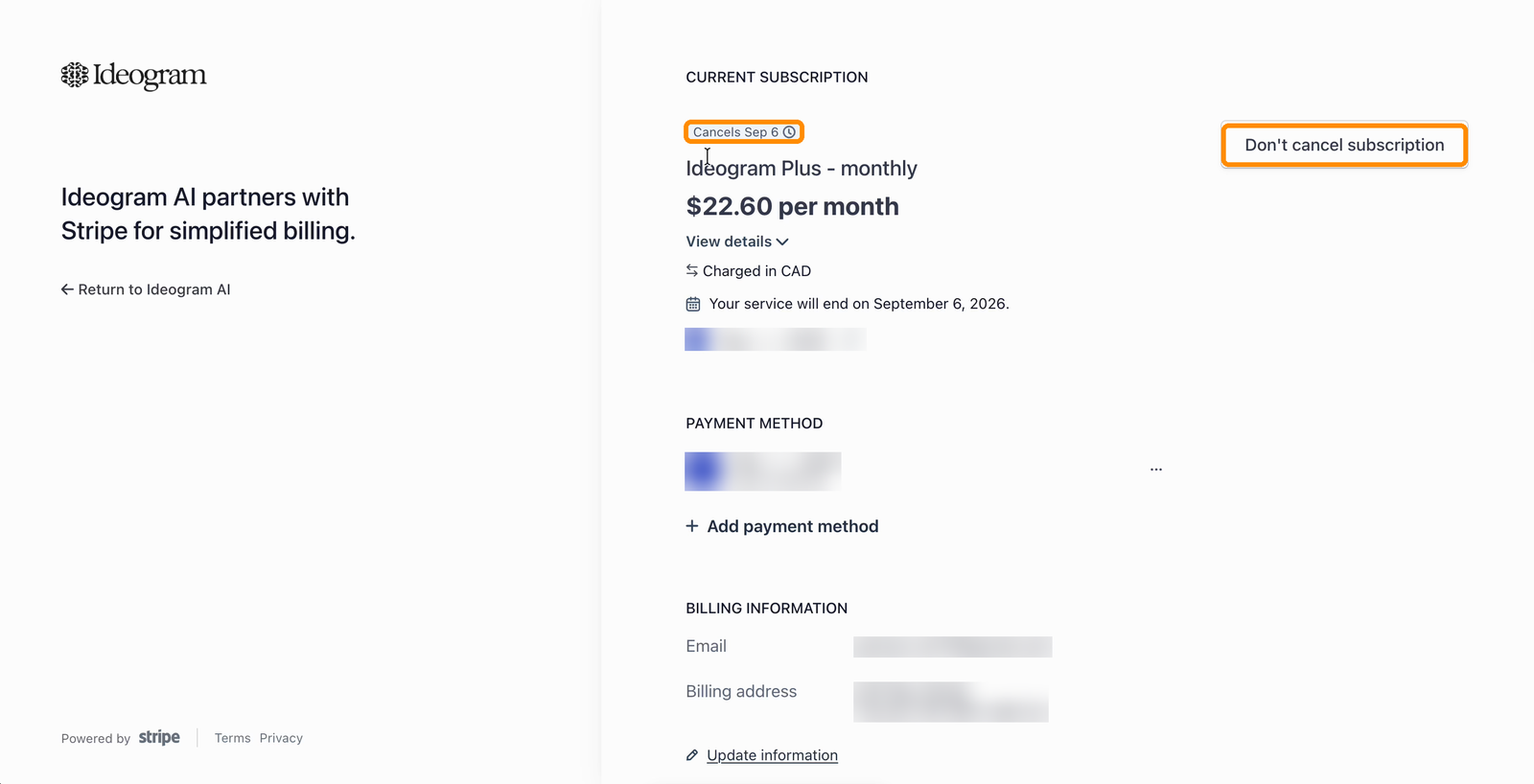
After cancelling, the billing portal shows a **Cancels** badge on your subscription and the date your service ends. If you don't see this, the cancellation did not complete — try again or contact <support@ideogram.ai> from the email address your Ideogram account is registered under.

<figure><img src="/files/Q8QThrIFN8398BD98oCx" alt="Billing portal after cancelling, showing a Cancels badge, the service end date, and a Don&#x27;t cancel subscription button"><figcaption><p>A completed cancellation shows the end date — and can be undone.</p></figcaption></figure>

## Changed your mind?

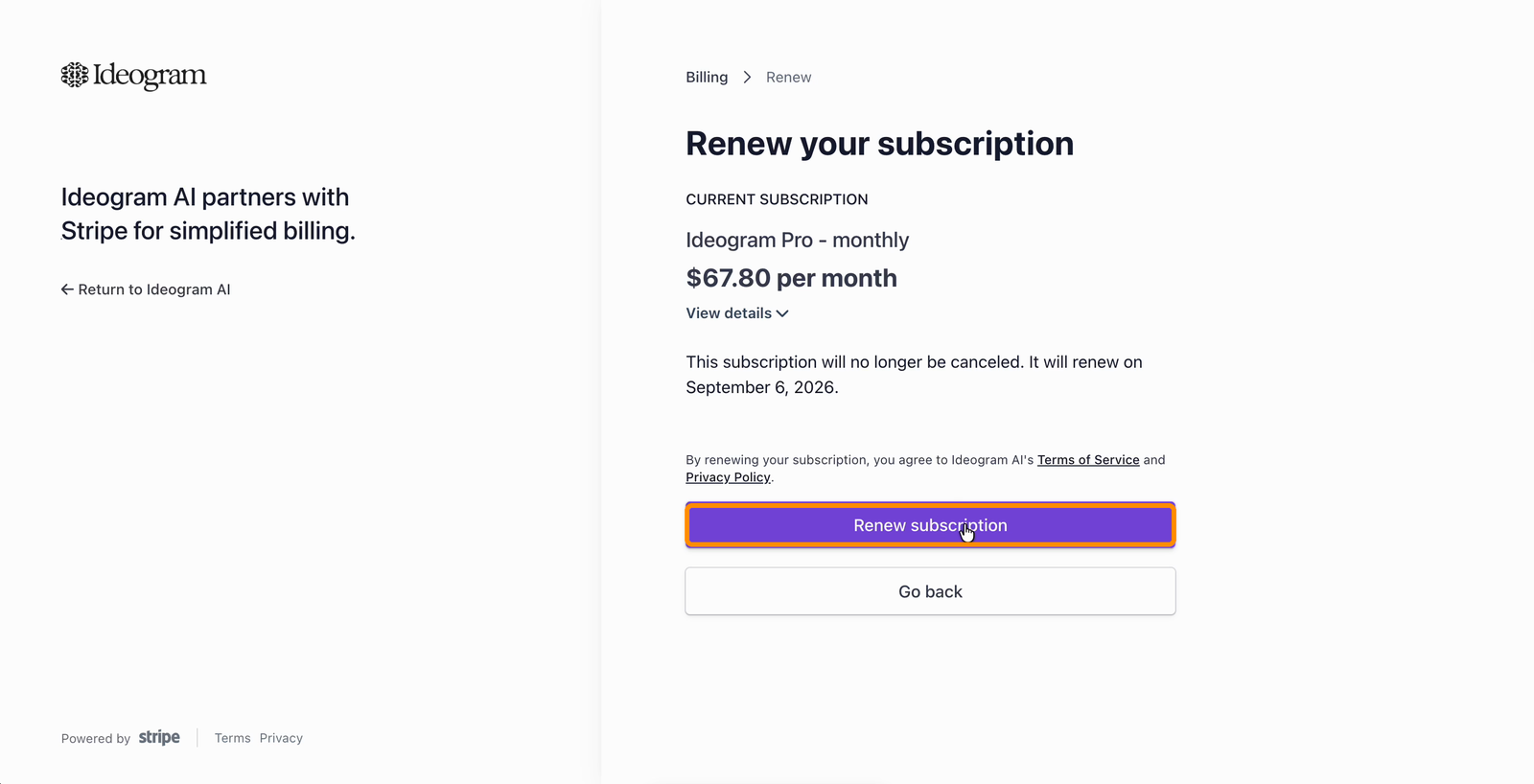
As long as your paid period hasn't ended yet, you can undo a cancellation: open the billing portal again and click **Don't cancel subscription**. Your plan resumes and will renew as before.