> For the complete documentation index, see [llms.txt](https://docs.ideogram.ai/llms.txt). Markdown versions of documentation pages are available by appending `.md` to page URLs; this page is available as [Markdown](https://docs.ideogram.ai/organize-and-share/share-and-publish.md).
# Share and Publish
Share an Ideogram image link, publish or unpublish community images, and share privately with a team through collections. Understand visibility, creator permissions and feed controls.
You can send someone a link to an image, or publish it so the whole Ideogram community can find it. This page also covers your profile, following, muting and reporting. Plus, Pro, Team and Enterprise keep new images private until you publish them.
Choose the action for the audience you want:
* **Send an image link:** use **Share** to copy the asset's address or send it through another app. Copying a link does not itself publish the image or add a collaborator.
* **Make work discoverable by the community:** use **Publish to community**. The image then appears on your public profile and can appear in community feeds.
* **Work with teammates:** [share a collection](/organize-and-share/collections.md#share-a-collection-with-your-team) and choose who can view or edit it. Collection access is separate from public community publishing.
## Share a link
1. Open the image to see its page.
2. Click **More options** (**…**), then **Share**.
3. Click **Copy link**, or share straight to WhatsApp, X or another site.
On a phone, **Share** opens your phone's share sheet instead. If it can't, Ideogram copies the link and shows "Link copied!".
## Publish to the community
Publishing puts an image in the community feed and on your profile. The Image app has no public or private switch. On Plus, Pro, Team and Enterprise, new images stay private until you publish them. On the free plan and the legacy Basic plan, everything you generate is public.
**One image**
{% stepper %}
{% step %}
### Open the image
Open the image.
{% endstep %}
{% step %}
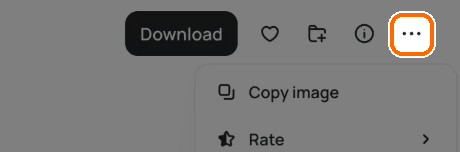
### Open More options
Click **More options** (**…**).
Click … at the end of the action bar.
{% endstep %}
{% step %}
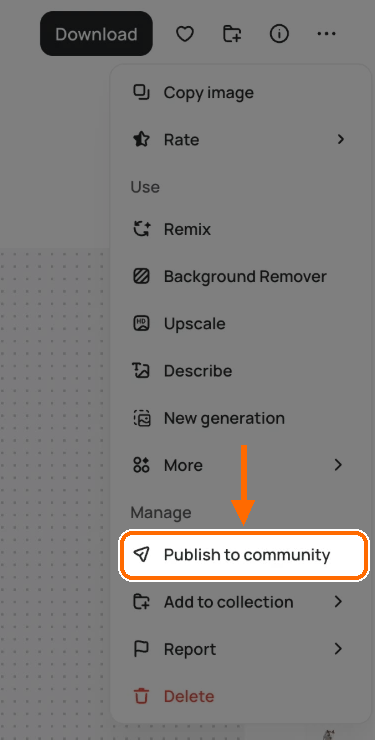
### Publish
Under **Manage**, click **Publish to community**.
Click Publish to community.
{% endstep %}
{% endstepper %}
To take it back, follow the same steps and click **Unpublish from community**.
**Several images**
1. Open **Library** → **Generations** and select the images. See [Library and Favorites](/organize-and-share/assets.md#select-several-items).
2. Click **Publish** or **Unpublish** in the bar at the bottom.
In **Library** → **Generations**, open **Filters** → **Visibility** and choose **Published** or **Unpublished** to check the results.
### Check visibility after changing it
Open **Library** → **Generations** → **Filters** → **Visibility** and use **Published** or **Unpublished** to find the image in its current state. Remove the visibility chip above the results to see both again. To reverse publishing, choose **Unpublish from community** if your plan allows it. This changes community visibility; it does not delete the asset from Library.
### Who can publish and unpublish
* Only the image's creator sees these options.
* Unpublishing needs a plan that includes private generation. Without one, Ideogram shows you plans instead. See [Available Plans](/plans-and-billing/available-plans.md).
* In bulk, both **Publish** and **Unpublish** need that plan.
* Some team workspaces turn publishing off. Then the options don't appear.
## Your profile
### Open your profile
1. Click your avatar at the bottom of the sidebar to open the user menu.
2. Click **View profile**.
Your profile shows your name, @handle, the month you joined, and counts for followers, following and likes received. A creator badge appears if you've earned one; see [Creator Titles](/organize-and-share/creator-titles.md). Below that are your published images, sorted by **Default**, **Latest** or **Oldest**.
### Edit your profile
1. Open your profile.
2. Click **Edit profile**.
3. Change any of the fields below.
* **Name**, up to 50 characters
* **Location**, up to 30 characters
* **Bio**, up to 150 characters
* Social links
You can't change your username. To change your display name elsewhere, see [Account Settings](/get-started/account-settings.md).
## Follow people
1. Open someone's profile.
2. Click **Follow**. The button changes to **Following**.
Follower and following lists show a **Follow** or **Following** button beside each person.
On **Home**, the **Community inspiration** section has the options below. This section is hidden in Enterprise workspaces.
* **Explore**: images from across the community.
* **Following**: images from people you follow (when signed in).
* **Categories** such as **Poster**, **T-shirt**, **Logo**, **Marketing** and **Print on demand** narrow the feed.
* **Search all...** finds images by keyword.
Start on Explore, or pick a category to narrow the feed.
## Mute someone
Muting hides a creator's images and notifications from you. They aren't told.
1. Open one of their images.
2. Click **More options** → **Mute creator**.
3. In "Mute this creator?", click **Mute creator**.
You can also open their profile, click **…** and choose **Mute creator**.
### Unmute someone
1. Go to **Settings** → **Account** → **Muted users**.
2. Click **Manage muted users**. The "Muted creators" list shows when you muted each person.
3. Click **Unmute** next to a name.
You can also visit a muted profile, where you'll see "You muted this creator.", and click **Unmute** there.
Muting controls what you see in your own feed and notifications. Use **Report** separately when you want to report an image, prompt or creator; muting is not a report.
## Report content
### Report an image
1. Open the image.
2. Click **More options** → **Report**.
3. Pick a reason:
* **Poor image quality**
* **Inappropriate image**
* **Inappropriate prompt**
You'll see "Thank you for your feedback!" after an image report.
### Report a creator
1. Open their profile.
2. Click **…**.
3. Choose **Report creator**.
4. Click **Report creator** again to confirm.
## In this topic: organize and share
1. [Library and Favorites](/organize-and-share/assets.md): find everything you made
2. [Collections](/organize-and-share/collections.md): sort images into folders and share them with a team
3. [Download](/organize-and-share/download.md): save files in the format and size you need
4. **Share and Publish** (this page): share a link or publish to the community
5. [Troubleshooting](/help/troubleshooting.md): fix common problems