> For the complete documentation index, see [llms.txt](https://docs.ideogram.ai/llms.txt). Markdown versions of documentation pages are available by appending `.md` to page URLs; this page is available as [Markdown](https://docs.ideogram.ai/edit/remove-backgrounds-and-objects.md).

# Remove Backgrounds and Objects

Cut the background out of an image, remove an object you don't want, or put your subject on a new background.

Ideogram has two apps for this. The **Background Remover** cuts out the subject and leaves a transparent background. The **Object Remover** takes one thing out of a picture and fills the gap. In [Studio](/edit/studio.md) you can also remove the background from a single layer.

| Task                                 | Where                                                     | Plan                                |
| ------------------------------------ | --------------------------------------------------------- | ----------------------------------- |
| Remove a background                  | Background Remover app, or **Remove BG** on an image page | Credits (the button shows the cost) |
| Remove the background from one layer | Studio                                                    | Credits                             |
| Remove an object                     | Object Remover app                                        | Credits (the button shows the cost) |

Each app's button shows the cost before you run it. See [how credits work](/plans-and-billing/available-plans.md#how-credits-work).

## Remove a background

### From an image page

1. Open the image.
2. Click **Remove BG**. The Background Remover app opens with the image loaded.
3. Click **Remove background**.

You can also open an image's **…** menu and choose **Background Remover** under **Use**.

### In the Background Remover app

{% stepper %}
{% step %}

### Open the app

Open **Apps** and choose **Background Remover**.
{% endstep %}

{% step %}

### Add a source image

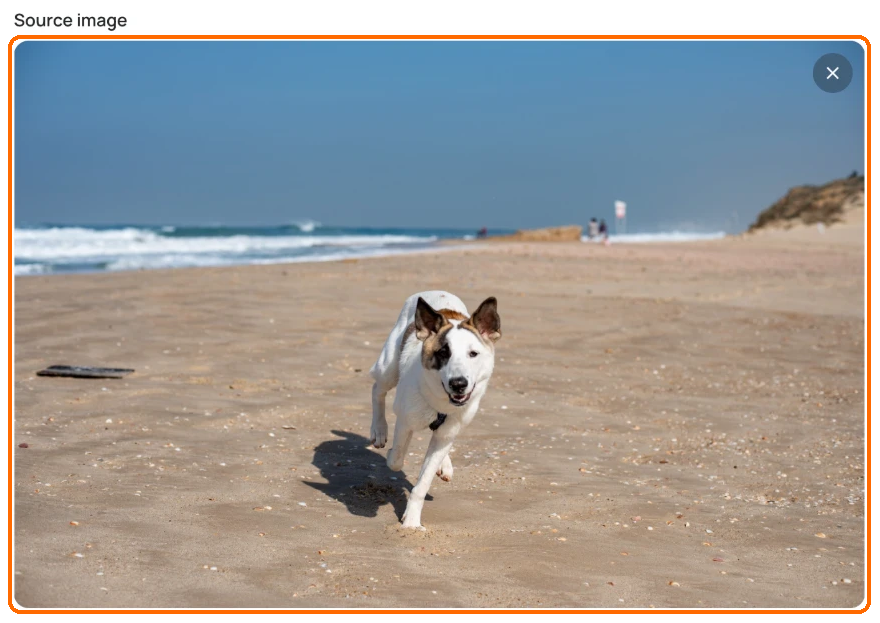
Under **Source image**, click **+ Add** to upload a picture or choose one you already have. "No prompt needed!"

<figure><img src="https://1799634369-files.gitbook.io/~/files/v0/b/gitbook-x-prod.appspot.com/o/spaces%2FzjhNby3LLsIikYuvxAJP%2Fuploads%2Fgit-blob-de718f0daef1138077d86dc83cec956d8f4e55a5%2Fremove-backgrounds-and-objects-1.png?alt=media" alt="Background Remover app with a photo of a dog on a beach in the highlighted Source image box."><figcaption><p>Add the photo you want to cut out.</p></figcaption></figure>
{% endstep %}

{% step %}

### Click Remove background

Click **Remove background**.

<figure><img src="https://1799634369-files.gitbook.io/~/files/v0/b/gitbook-x-prod.appspot.com/o/spaces%2FzjhNby3LLsIikYuvxAJP%2Fuploads%2Fgit-blob-019aa2054afcae4d176c48a6ca7ae4f0e54065d1%2Fremove-backgrounds-and-objects-2.png?alt=media" alt="Remove background button, highlighted, showing a cost of 1.00 credit."><figcaption><p>The button shows the cost before you click.</p></figcaption></figure>
{% endstep %}
{% endstepper %}

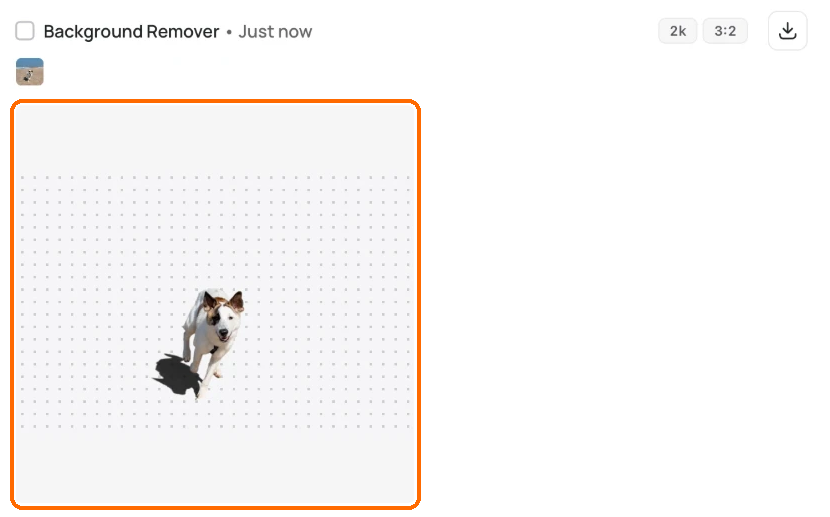
You get a new image with a transparent background. Your original stays as it was. If it fails, you'll see "Could not remove the background. Please try again."

<figure><img src="https://1799634369-files.gitbook.io/~/files/v0/b/gitbook-x-prod.appspot.com/o/spaces%2FzjhNby3LLsIikYuvxAJP%2Fuploads%2Fgit-blob-ca4db0eaa922247c2f0875636a4864573da8083b%2Fremove-backgrounds-and-objects-3.png?alt=media" alt="Background Remover result card, highlighted: the dog cut out on a dotted transparent background."><figcaption><p>The result appears in <strong>My assets</strong> with a transparent background.</p></figcaption></figure>

### On a layer in Studio

Select an image layer and choose **Remove background** under **Tools** in the right sidebar. It runs in one click and changes only that layer. Other layers stay as they are, which makes this the way to cut out one part of a design you have built in layers.

## Keep the transparency when you download

Download a transparent image as PNG or WEBP. JPEG has no transparency, so the Download menu turns it off for these images. A 1K PNG is free on every plan; WEBP and larger sizes need a paid plan.

To make an image with no background from the start, see [Transparent Backgrounds](/create/transparent-backgrounds.md).

## Remove an object

The **Object Remover** app erases one thing you mark, such as a stray cup on a table or a person in the background, and fills the space.

{% stepper %}
{% step %}

### Open the app

Open **Apps** and choose **Object Remover**.
{% endstep %}

{% step %}

### Add a source image

Under **Source image**, click **+ Add** to upload a picture or choose one you already have.
{% endstep %}

{% step %}

### Mark the object

Under **Mask**, mark the object with one of the tools:

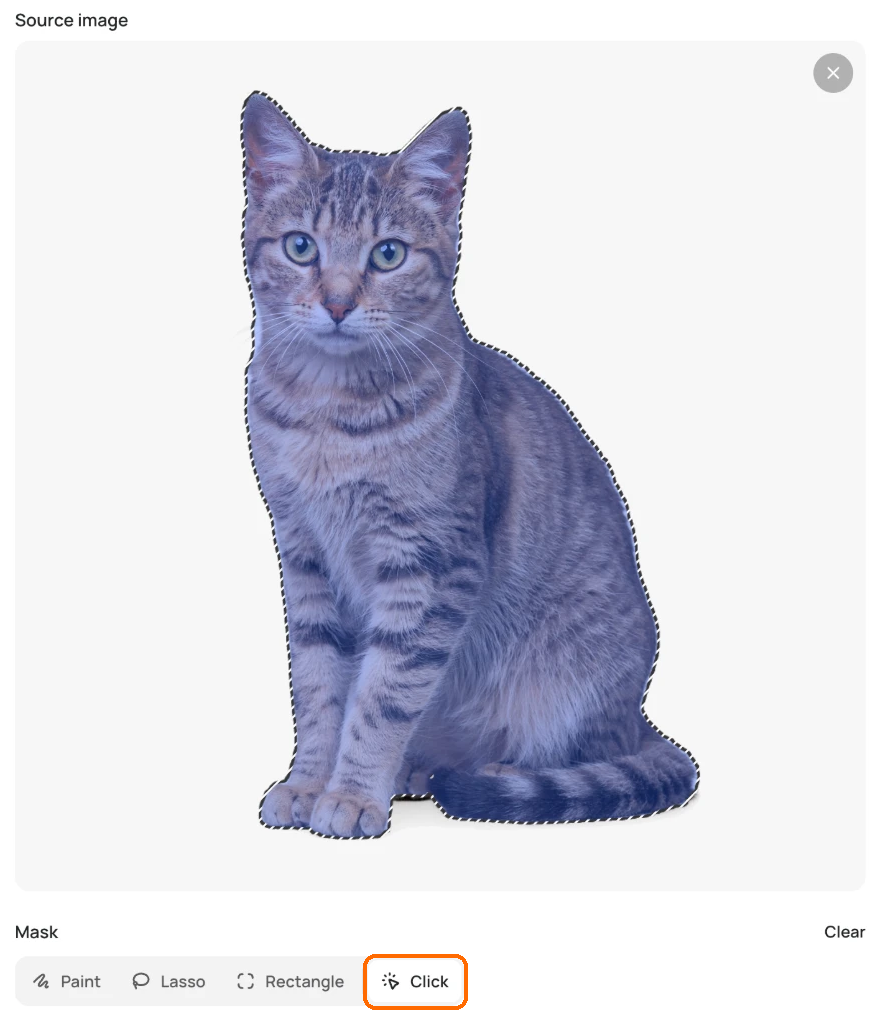
* **Click**: click the object once. Ideogram selects the whole object for you.
* **Paint**: brush over it by hand.
* **Lasso**: draw a loose outline around it.
* **Rectangle**: drag a box over it.

<figure><img src="https://1799634369-files.gitbook.io/~/files/v0/b/gitbook-x-prod.appspot.com/o/spaces%2FzjhNby3LLsIikYuvxAJP%2Fuploads%2Fgit-blob-08e4a246ecc91b45440c8e4ba4b950066e7025d9%2Fremove-backgrounds-and-objects-4.png?alt=media" alt="Object Remover with a cat selected under a blue mask, and the Click tool highlighted among the Paint, Lasso, Rectangle and Click mask tools."><figcaption><p>With <strong>Click</strong>, one click selects the whole object.</p></figcaption></figure>
{% endstep %}

{% step %}

### Click Remove object

Click **Remove object**. The button shows the cost in credits.

<figure><img src="https://1799634369-files.gitbook.io/~/files/v0/b/gitbook-x-prod.appspot.com/o/spaces%2FzjhNby3LLsIikYuvxAJP%2Fuploads%2Fgit-blob-14f589f6ab0d6909dd741d64819c9b120ab507d8%2Fremove-backgrounds-and-objects-5.png?alt=media" alt="Remove object button, highlighted, showing a cost of 6.00 credits."><figcaption><p>Click <strong>Remove object</strong> to erase what you marked.</p></figcaption></figure>
{% endstep %}
{% endstepper %}

The result appears in **My assets** as a new image. Your original stays as it was.

**Clear** next to **Mask** starts over.

If you click a spot with no clear object, you'll see "Could not find an object there. Try another spot." Wait for a click selection to finish before you click **Remove object**.

## Put a subject on a new background

Ideogram has no one-step tool to swap a background. Use Studio to layer the cutout on a new image:

1. Remove the background from your subject (see above). The cutout saves to **My assets**.
2. Open **Studio** from the sidebar's **More** menu. Click **Upload image** and choose the new background.
3. Click **My Images** in the left toolbar and add your cutout. It lands as a new layer on top.
4. Drag and resize the cutout. To change the stacking, use the layer's **More** menu: **Bring to front** or **Send to back**.
5. Click **Export** to download the result.

You can also try **AI edit** in Studio and describe the new background in your prompt. See [Studio](/edit/studio.md).