> For the complete documentation index, see [llms.txt](https://docs.ideogram.ai/llms.txt). Markdown versions of documentation pages are available by appending `.md` to page URLs; this page is available as [Markdown](https://docs.ideogram.ai/create/video.md).
# Create Videos
Turn a prompt, a start frame or reference media into a video clip.
The Video app makes short clips from a text prompt, from still frames, or from images, video and audio you upload.
## Who can use it
Video is a premium app. You can use it if you have a paid plan or bought credits. On a free plan with no bought credits, you see **Upgrade to unlock premium apps & models**. See [Available Plans](/plans-and-billing/available-plans.md) and [Buying Extra Credits](/plans-and-billing/buying-extra-credits.md).
## Open the Video app
* Select **Video** in the sidebar, or pick **Video** in the type picker on Home. Both open **Generate Video**. From Home, Ideogram copies your prompt in and starts the run; if you attached images, it uses References mode.
* On Home, the quick action **Generate video** opens the app in Text mode. **Edit video** opens Seedance 2.5 in References mode.
## Models
Open the **Model** picker. **Auto** sits at the top, then **Recent**, then **All models**. You can search with "Search all models..." or filter by provider.
The Video app offers:
* **Auto**: picks a model for you
* **Seedance 2.5**
* **Seedance 2.0**
* **Kling v3 Standard**
* **MiniMax H3**
The model list can change over time.
## Input modes
Choose how you start with the **Text**, **Frames** and **References** control. Every model starts in Text mode.
| Mode | What it does | Models |
| -------------- | ------------------------------------------------------------------------------------------------------------- | ------------------------------------------------------ |
| **Text** | Makes a video from your prompt alone. | All |
| **Frames** | Animates from a **Start frame**, with an optional **End frame**. | All |
| **References** | Uses images, video clips and audio you add as the basis for the video, then applies the changes you describe. | Generate Video, Seedance 2.5, Seedance 2.0, MiniMax H3 |
### Frames
Click **Start frame** and choose an image (or paste one in). Add an **End frame** if you want the clip to finish on a set image. One button swaps the two frames. The frame sets the shape of the video, so **Aspect ratio** locks to "Auto".
### Animate a product photo
To bring a product shot to life, use **Frames**:
1. Select **Frames** and add your product photo as the **Start frame**. The video opens on that exact image.
2. Write how it should move, for example `the sneaker slowly rotates 360°, camera locked, white background`.
3. Turn off **Generate audio** if you want a silent clip.
4. Click **Generate**.
Use **References** instead when you want the product placed in a new scene rather than animated as it is.
### References
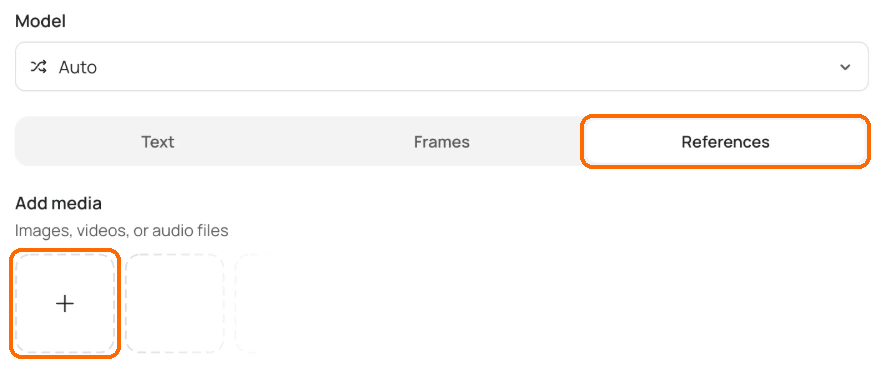
Select References, then the plus under Add media.
Use **Add media** to upload files, choose from your library, or **Record audio** with your microphone. If the browser blocks the microphone, allow access in your browser settings.
Seedance 2.0 and 2.5 need at least one image or video. MiniMax H3 needs one only when you add audio.
You can refer to your references in the prompt. The app rewrites those mentions into the notation each model expects.
| Limit | Seedance 2.0 | Seedance 2.5 | MiniMax H3 |
| ------------------------ | ------------ | ------------ | ---------- |
| Images | 9 | 9 | 9 |
| Video clips | 3 | 10 | 3 |
| Audio clips | 3 | 10 | 3 |
| Total references | 12 | 50 | 12 |
| Total video length | 15 s | 30 s | 15 s |
| Total audio length | 15 s | 30 s | 15 s |
| Audio and video together | No limit | No limit | 15 s |
## File limits
| File | Formats | Max size |
| --------------------------- | --------------- | ------------------------ |
| Frames and reference images | JPEG, PNG, WebP | 50 MB |
| Reference video | MP4 | 50 MB, at least 2 s long |
| Reference audio | MP3, WAV | 15 MB, at least 2 s long |
## Prompt
Describe the video in the **Prompt** box. Prompts can be up to 2,000 characters. In References mode, describe what you want to change.
Video prompts work best when they describe motion and the camera, not just the scene:
* `The bottle slowly rotates 360°, camera locked, soft studio light`
* `Slow push-in on the coffee cup as steam rises, shallow depth of field`
Say what stays still as well as what moves. "Camera locked" or "static shot" stops the camera drifting.
## Settings
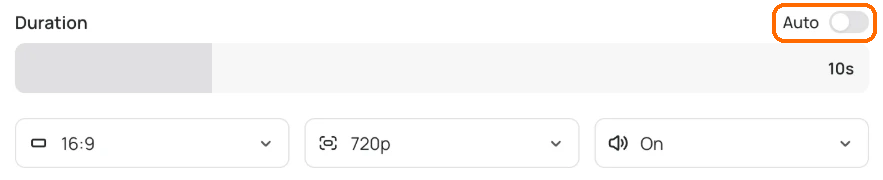
Settings differ by model. Each model defaults to 10 seconds and 16:9. With **Generate Video**, the panel shows the settings that apply to your run.
Drag Duration, or turn on Auto. Aspect ratio, resolution and audio sit below.
| Setting | Seedance 2.0 | Seedance 2.5 | Kling v3 Standard | MiniMax H3 |
| --------------------- | ------------------------------------- | ------------------------------------- | ------------------------------------------------------------------------------------------------------------------------------------------------------------- | --------------------------------------------------------------------------------------------- |
| **Duration** | **Auto** or 4–15 s | **Auto** or 4–30 s | 3–15 s | 5–15 s |
| **Aspect ratio** | Auto, 21:9, 16:9, 9:16, 1:1, 4:3, 3:4 | Auto, 21:9, 16:9, 9:16, 1:1, 4:3, 3:4 | 16:9, 9:16, 1:1 | 21:9, 16:9, 9:16, 1:1, 4:3, 3:4 |
| **Resolution** | 480p, 720p (default 720p) | 480p, 720p, 1080p (default 720p) | Not shown | 480p, 768p, 2K, 4K (default 2K) |
| **Generate audio** | On by default | On by default | On by default | Not shown |
| **Advanced settings** | None | None | **Shot planning** (Custom or Intelligent), **Prompt adherence** (0–1, default 0.5), **Negative prompt** (what the video should avoid, up to 2,000 characters) | **Prompt expansion** (Off, Fast, Balanced or Quality; default Balanced), References mode only |
## Cost and generating
Cost depends on the model, duration and resolution. To see video prices, go to **Settings** → **Usage costs**. See [How credits work](/plans-and-billing/available-plans.md#how-credits-work).
To save the result straight into a collection, click **Add to Collection** next to **Generate**.
## Results and download
Finished videos appear in the **My assets** tab on the right of the app. They are private by default. Open a video to see its length and resolution, like it, add it to a collection or delete it.
Download a video as one MP4 file. If you see "Video is not available for download yet", wait for the video to finish.
Open a generated video and select **Edit** to load it into MiniMax H3 as a reference. You can't upscale a video, remove its background or use it as a reference image.