> For the complete documentation index, see [llms.txt](https://docs.ideogram.ai/llms.txt). Markdown versions of documentation pages are available by appending `.md` to page URLs; this page is available as [Markdown](https://docs.ideogram.ai/create/transparent-backgrounds.md).
# Transparent Backgrounds
Three ways to get an image with a transparent background, and how to download it without losing the transparency.
You can make an image with no background in three ways: pick a transparent model, set GPT Image 2.5 to a transparent background, or remove the background from an image you already have.
| Way | Best when | Plan |
| ---------------------------- | --------------------------------------------------------------- | --------------------------- |
| Transparent models | You want a cutout from a text prompt, such as a logo or sticker | Free and paid |
| GPT Image 2.5 **Background** | You also need reference images | Paid plan or bought credits |
| **Remove BG** afterwards | You already have the image | Free and paid |
Ideogram 4.5, 4.0 and 3.0 have no transparency setting.
## Transparent models
1. Click **Image** in the sidebar to open the Image app.
2. Open the **Model** picker and choose **Ideogram 4.0 Transparent** or **Ideogram 3.0 Transparent**.
3. Write your prompt, such as `flat vector logo of a fox, orange and white`.
4. Click **Generate**. Results appear in **My assets** on the right.
5. Open a result and download it as **PNG** (see [Download as PNG](#download-as-png)).
| | Ideogram 4.0 Transparent | Ideogram 3.0 Transparent |
| ------------ | ---------------------------------------------------------------------------------------- | -------------------------------------------------------------- |
| Prompt help | **Prompt upsampling**: Auto, On or Off | **Magic Prompt** toggle |
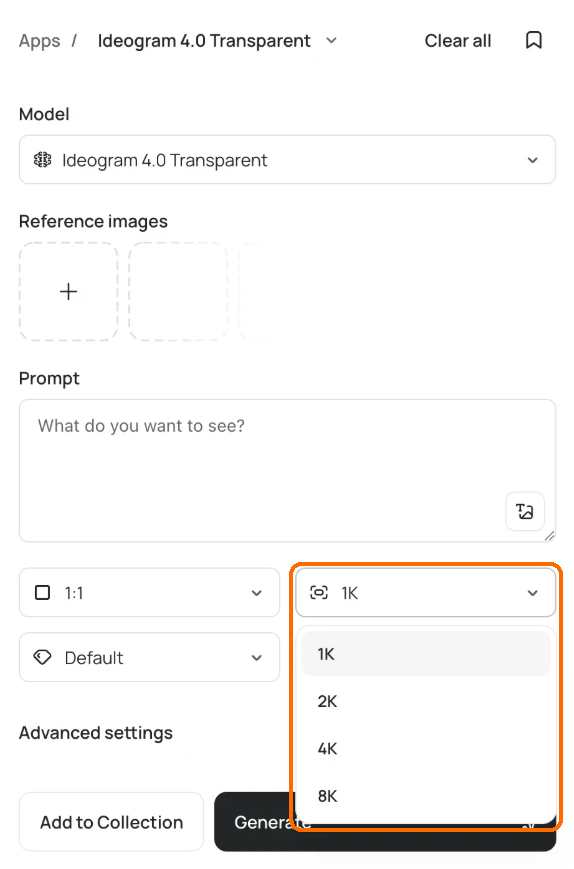
| Size | **Output resolution**: 1K, 2K, 4K or 8K. Above 2K, Ideogram upscales after it generates. | **Upscale factor** (under **Advanced settings**): 1x, 2x or 4x |
| Aspect ratio | Auto, plus 1:1 to 4:1 and the portrait versions | The Ideogram 3.0 list |
| Quality | Turbo, Default or Quality | Turbo, Default or Quality |
On Ideogram 4.0 Transparent, pick a size from 1K to 8K.
## GPT Image 2.5 Background setting
1. In the **Model** picker, choose GPT Image 2.5 Flare or GPT Image 2.5 Sunburst.
2. Open **Advanced settings**.
3. Set **Background** to **Transparent**. "Transparent keeps an alpha channel. Opaque fills the background in."
4. Click **Generate**.
**Background** starts at **Auto**, which lets the model decide. GPT Image 2.5 takes up to 16 [reference images](/create/reference-images.md), so use it when you need a transparent result built from your own images.
## Remove the background afterwards
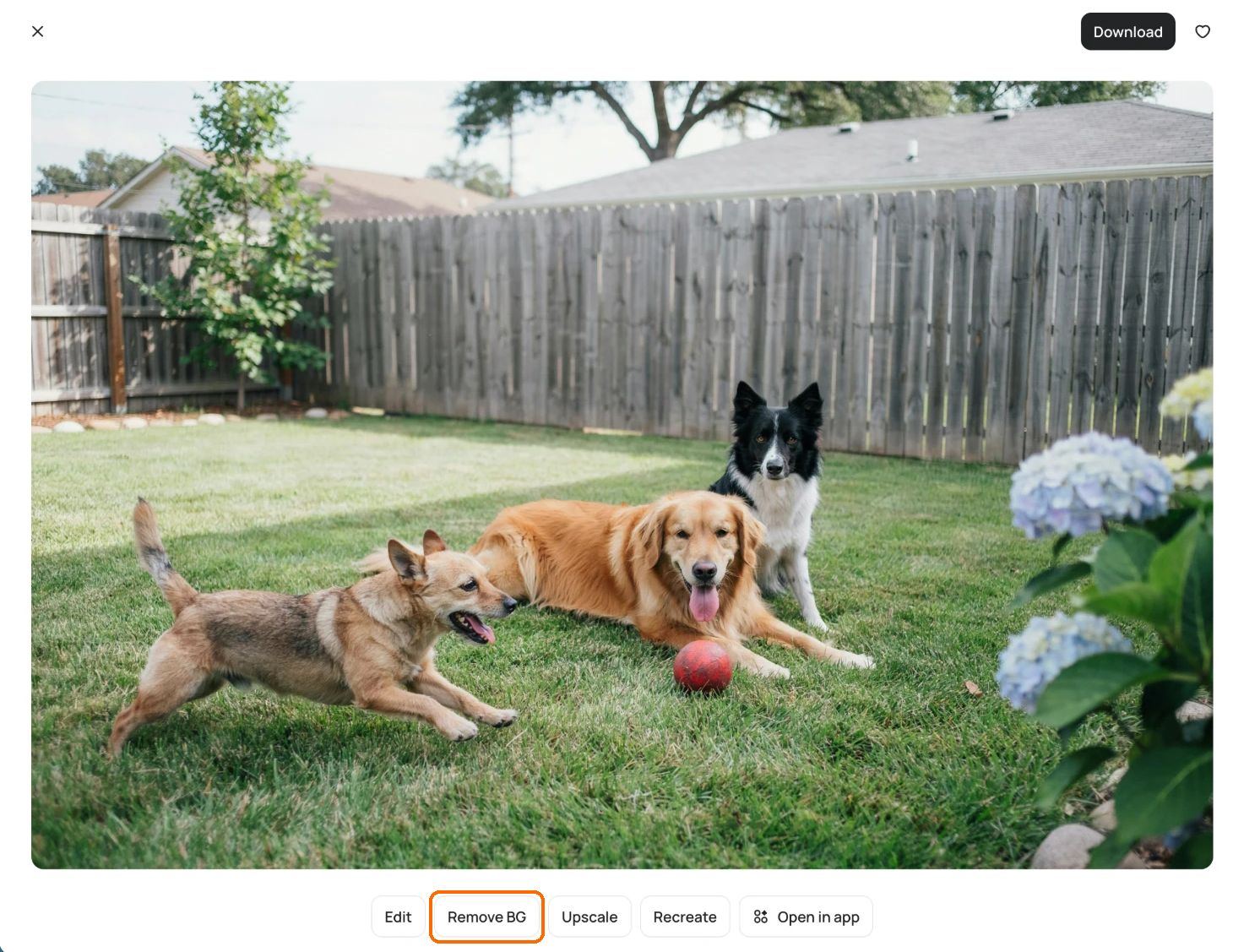
Open any image and click **Remove BG**. You can also use the **Background Remover** app. This works on images you generated and images you uploaded.
Open the image and click Remove BG.
## Download as PNG
When you download a transparent image, choose **PNG** as the file type. JPEG is turned off for these images because it can't keep transparency.
On a free plan you can download a transparent image as a 1K PNG. Larger sizes need a paid plan. See [Available Plans](/plans-and-billing/available-plans.md).