> For the complete documentation index, see [llms.txt](https://docs.ideogram.ai/llms.txt). Markdown versions of documentation pages are available by appending `.md` to page URLs; this page is available as [Markdown](https://docs.ideogram.ai/canvas-and-editing/image-upload.md).

# Image Upload

Available to users on the Ideogram Plus plan and higher, the Image Upload feature allows you to upload your own images to Ideogram and use them in various ways.

## Uploading an Image

You can upload an image by simply pasting it into the prompt area or by clicking on the **Image upload** icon <picture><source srcset="/files/DGpBbiV2nCXSrblsIpjs" media="(prefers-color-scheme: dark)"><img src="/files/pS5s4cg4RQ63N5aYEEkF" alt="Image upload icon" data-size="line"></picture> located on the right side of the prompt box. You can also upload images in **Canvas** as described [here](/canvas-and-editing/canvas/canvas-overview.md#uploading-external-images).

<figure><picture><source srcset="/files/LSGlDvbPvkdVp7OGf6OI" media="(prefers-color-scheme: dark)"><img src="/files/oieZSF31DSSCmMUFTvQO" alt="Prompt box with an arrow pointing to the camera-style upload icon beside the Generate button"></picture><figcaption><p>Prompt box and location of the upload icon.</p></figcaption></figure>

Choose the image you'd like to upload.

<figure><picture><source srcset="/files/EfkObWN3b6cX3RGwj1a4" media="(prefers-color-scheme: dark)"><img src="/files/XrtKO71BqkDBjxIDMtku" alt="macOS file picker with a file named My image.png selected and Cancel and Open buttons below" width="563"></picture><figcaption><p>Use your file browser to select an image.</p></figcaption></figure>

{% hint style="info" %}
Uploaded images are private and can be found in your Library where uploaded and private images are available.
{% endhint %}

You will then be presented with the actions currently supported for your account, plan, and selected image:

1. [**Describe**](/using-ideogram/features-and-tools/describe.md): This option will use AI to generate a description of your image and use it as a prompt without retaining the original image.
2. [**Remix**](/using-ideogram/features-and-tools/remix.md): This option will also describe the uploaded image but will retain the image as a base for generating the new one.
3. [**Upscale**](/using-ideogram/features-and-tools/upscale.md): This option is used to enhance your image to a higher resolution.
4. **Style reference**: Use the image as a style reference when generating images.
5. **Character Reference**: Use the image as a character reference where supported.
6. Open in [**Canvas**](/canvas-and-editing/canvas/canvas-overview.md): Open image in Canvas. You can alternatively click on the down arrow to:
   1. Select [**Magic Fill**](/canvas-and-editing/canvas/magic-fill.md) to set-up Magic Fill with the image in Canvas.
   2. Select [**Extend**](/canvas-and-editing/canvas/extend.md) to use Extend with the image in Canvas.
7. [**Remove BG**](/using-ideogram/features-and-tools/replace-or-remove-background.md): This option will remove the background from the main subject of the image.
8. [**Replace BG**](/using-ideogram/features-and-tools/replace-or-remove-background.md): This option will generate a replacement background from a prompt where supported.

<figure><picture><source srcset="/files/kuRusgDEt2sURISV1vmg" media="(prefers-color-scheme: dark)"><img src="/files/UIcEx6Oc0VK99oC55wMf" alt="Uploaded abstract painting of horizon stripes with buttons for Describe, Remix, Upscale, Style reference, Open in Canvas, and Remove bg" width="563"></picture><figcaption></figcaption></figure>

In this example, we will choose the **Remix** option.

Selecting the [**Remix**](/using-ideogram/features-and-tools/remix.md) option keeps the image in the prompt area, allowing it to be used as a base for the next remixed image. Additionally, the AI automatically provides a description of your image by using the [**Describe**](/using-ideogram/features-and-tools/describe.md) function, which can serve as the starting point for your prompt.

<figure><picture><source srcset="/files/HNDY8cKCtpXeUVI6rxyh" media="(prefers-color-scheme: dark)"><img src="/files/m9WWxbj37gn3aP1Sqsr8" alt="Prompt box with an AI-written description of the landscape painting and a Remix chip at weight 60 showing the image thumbnail"></picture><figcaption><p>The prompt box once you have chosen and ajusted the Remix option.</p></figcaption></figure>

{% hint style="info" %}
Please note a notification at the top of the prompt might appear when your image doesn't have a dimension similar to a default aspect ratio. It will indicate that your image will be automatically cropped to the nearest supported aspect ratio in Ideogram. If you wish to adjust the image manually before remixing, consider using the [Editor](/canvas-and-editing/editor.md).
{% endhint %}

Once you have adjusted all the parameters and the prompt to your liking, simply press the "Remix" button to generate the image.

In this example, the prompt was modified to reflect the desired image and used in conjunction with the [Magic Prompt](/using-ideogram/generation-settings/magic-prompt.md) feature to produce the result shown in the image below.

<figure><picture><source srcset="/files/bTnyrYhqLK1cJcSmf9ew" media="(prefers-color-scheme: dark)"><img src="/files/dGsmBDxH6snDx6wLIrdH" alt="Details view of a generated abstract impasto painting of a sailboat at dawn, with its prompt and the uploaded image as remix parent"></picture><figcaption><p>This is the result of the uploaded image and the prompt mixed together.</p></figcaption></figure>

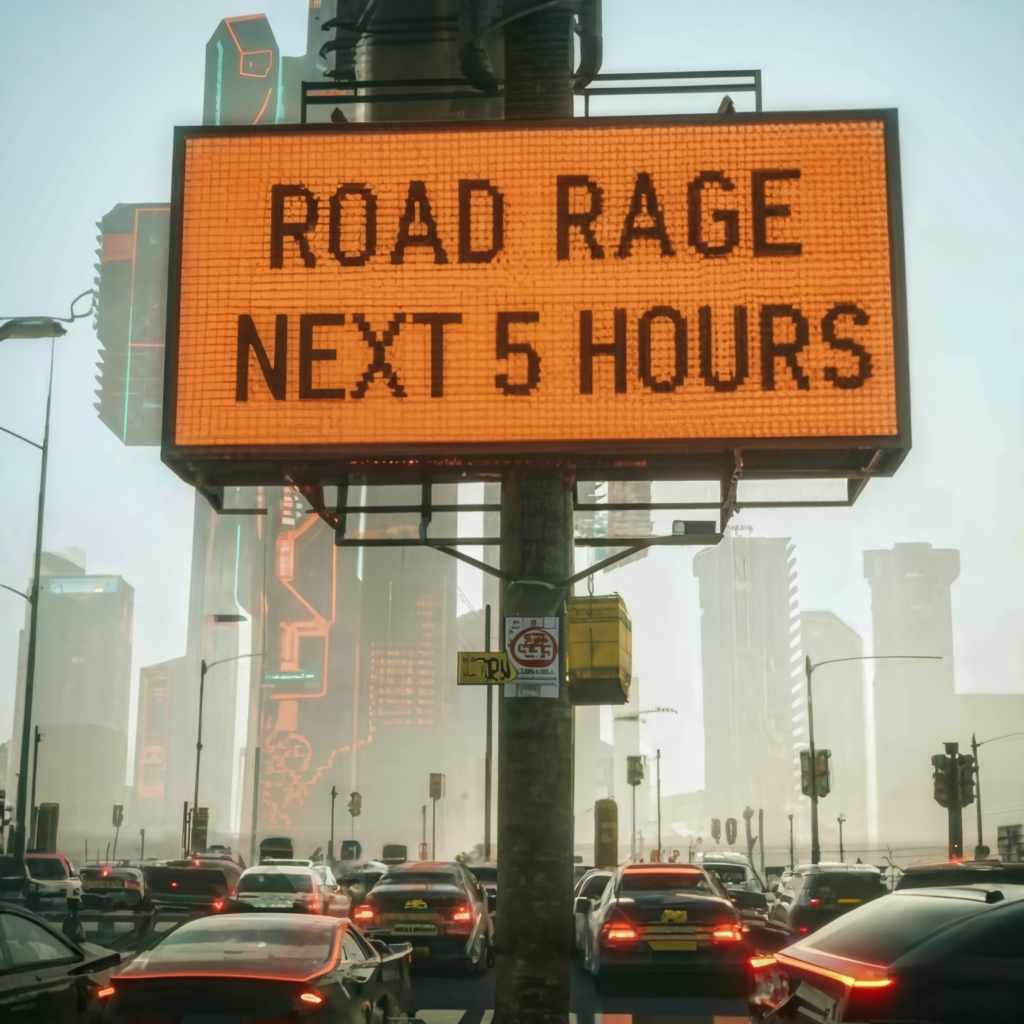
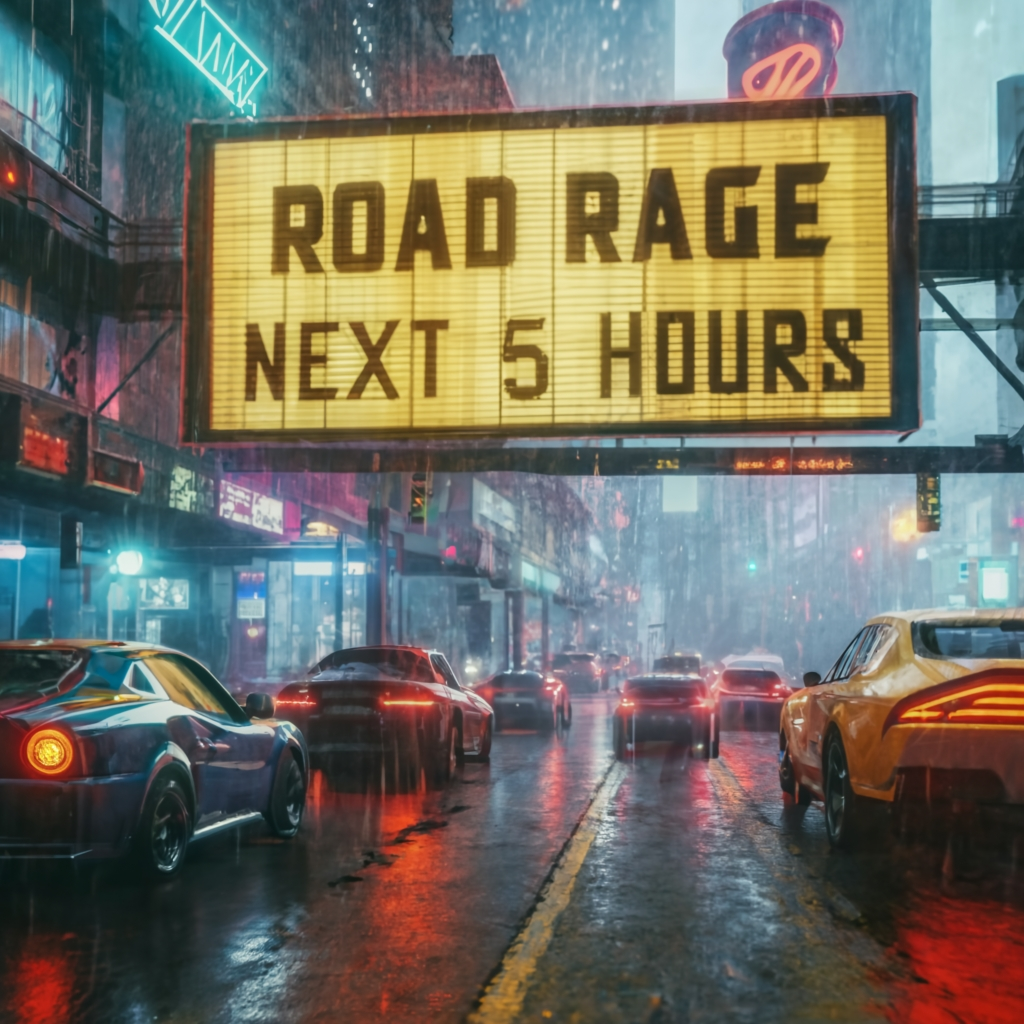
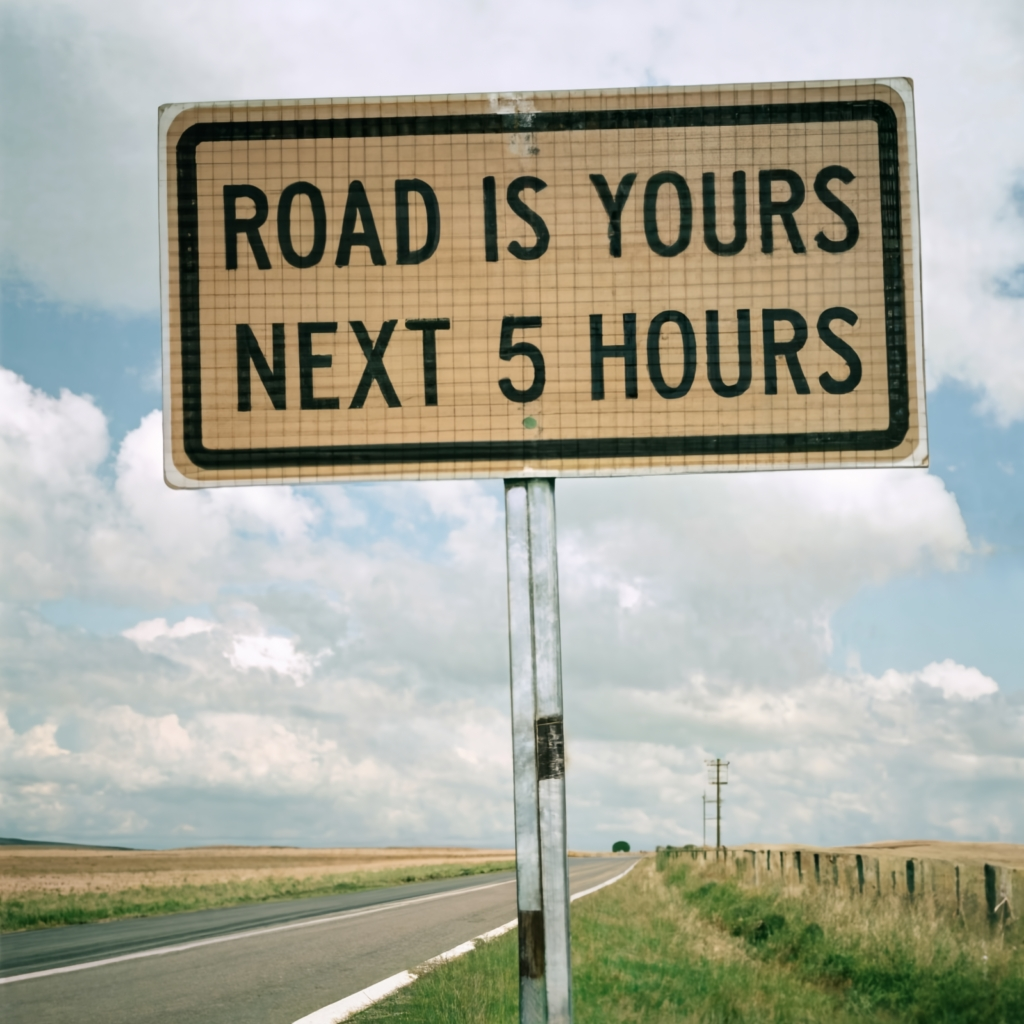
The following examples demonstrate how image prompting can influence the position and style of text in the final generation.

<table data-card-size="large" data-view="cards"><thead><tr><th></th><th></th><th></th></tr></thead><tbody><tr><td><strong>Original image</strong></td><td><img src="/files/Xvep1CZ6AoNvD5m6gNJm" alt="Orange road sign on a desert highway reading Road Work Next 5 Miles" data-size="original"></td><td>This is the original image that was uploaded as the basis for the remixes presented in the next three images. Note that these images maintain visual consistency with the original, while adhering to their respective prompts.</td></tr><tr><td><strong>Output A</strong></td><td><img src="/files/ONMJnWKaMbdzl2lgVNCW" alt="Gridlocked dystopian city street beneath an LED billboard reading Road Rage Next 5 Hours" data-size="original"></td><td>[Traffic Havoc] A dystopian cityscape, gridlocked streets with a foreboding road sign declaring "Road Rage - Next 5 hours." Agitated drivers amidst polluted air, inspired by the cyberpunk style. Stark neon lights, dark atmosphere, and a gritty, ultra-realistic portrayal., typography, photo, cinematic</td></tr><tr><td><strong>Output B</strong></td><td><img src="/files/ec8zObQ8VSRy4RPjwhL3" alt="Rain-soaked neon-lit street crowded with cars under a yellow sign reading Road Rage Next 5 Hours" data-size="original"></td><td>[Rush Hour Havoc] Overcrowded urban road, perpetual traffic, ominous "Road Rage - Next 5 hours" sign. Infused with cyberpunk aesthetics, neon-lit surroundings, rain-soaked streets, a Blade Runner vibe, intense lighting, gritty realism, sharp details., typography, photo, cinematic</td></tr><tr><td><strong>Output C</strong></td><td><img src="/files/AFoMDQ4L78Qe2kHIornK" alt="Countryside roadside sign under a vast cloudy sky reading Road is yours Next 5 Hours" data-size="original"></td><td>[Timeless Journey] Expansive countryside, a winding road leading into the unknown. The road sign, "Road is yours - Next 5 hours," under a vast sky. An homage to the simplicity of Grant Wood's style, subtle realism, muted color palette, capturing the essence of a timeless and leisurely journey., typography, photo, cinematic</td></tr></tbody></table>